
VariPOS Documentation
Read module-by-module like an operations story. Every scene tells what to do, what to check, and what outcome to expect.
Read module-by-module like an operations story. Every scene tells what to do, what to check, and what outcome to expect.
Execute Purchase returns with policy-aware correction eligibility and audit-safe behavior.
By tapping on the Purchase Return on the dashboard or Purchase Return Entry menu item, the Purchase Returns (i.e. debit notes) screen opens up.
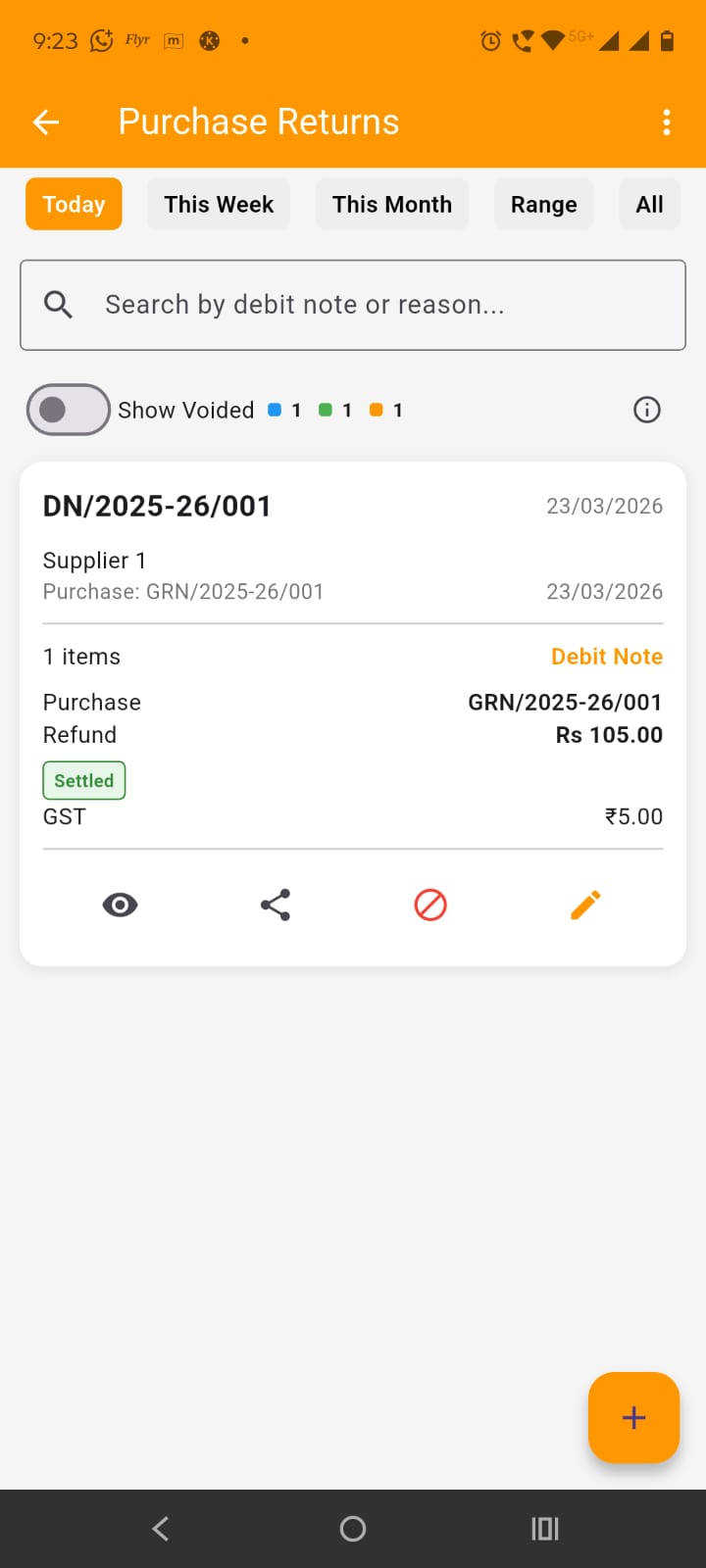
Here, on this screen, you have the list of all debit notes (i.e. purchase returns) that you created. By default, only today's debit notes are shown but you can filter them by This week, this month, date range or view them all. At the top in the app bar, by tapping the three dots at the right side, you get the options to Download Excel, Share Pdf or print preview the list of debit notes shown in the screen (with the filters applied).
Below date filters, you have the search field which can be used to search debit notes (i.e. purchase returns) by supplier name, debit note number, GRN etc. Below that you get the option to show/hide cancelled debite notes. Below that you also have the debit notes count stats.
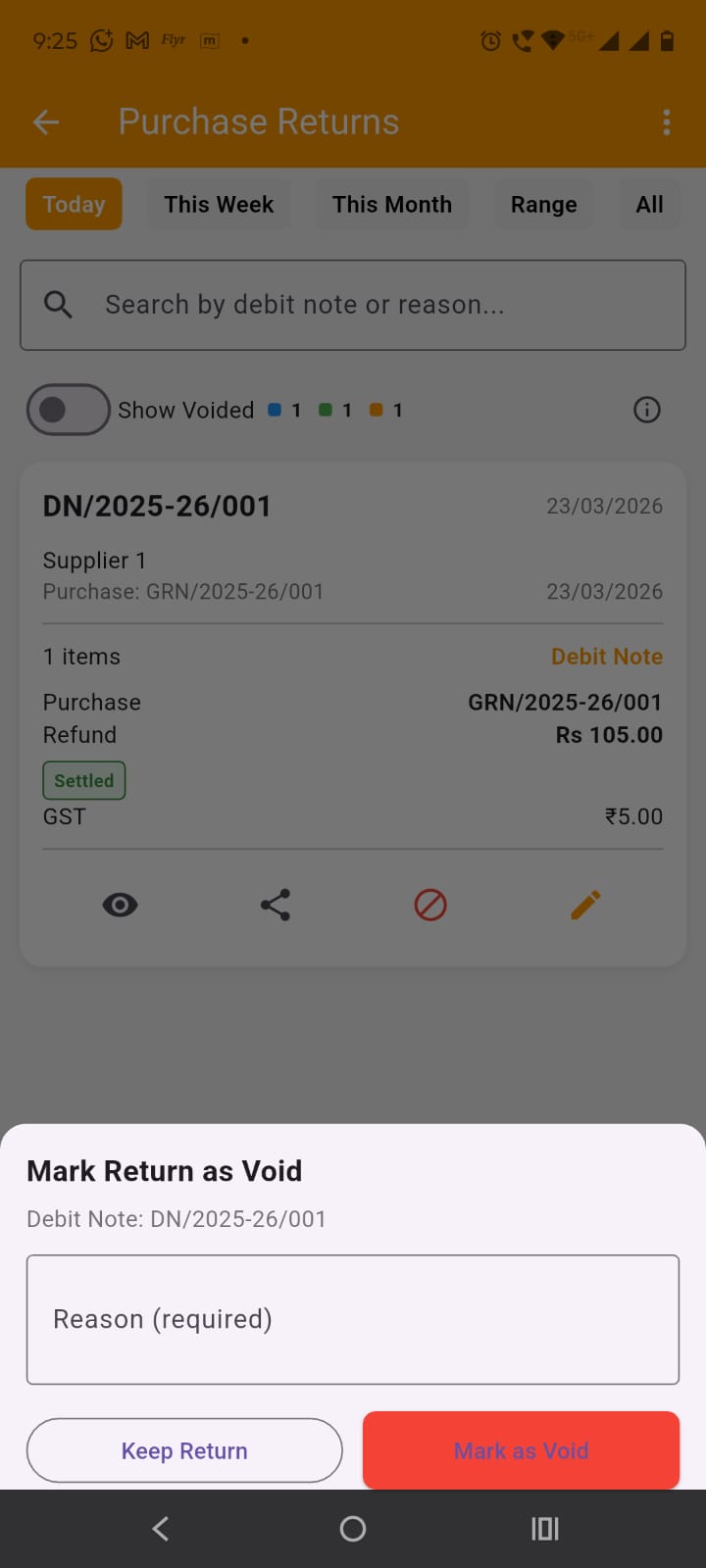
In the Puechase return card, important details of the debit notes are shown. At the bottom of each card, you get the options to view debit note details, share debit note, edit the debit note and Mark the return as void. Please do note that once a debit note is created it can not be ammended, when you edit a debit note, you are actually cancelling the old one and creating a new one. When you mark a debit note as void, you have to provide the reason for it as shown in the image
By tapping on the + (plus) FAB button at the bottom of the purchase returns screen, Select Purchase to Return screen is opened up. The edit procedure is same as create purchase return. Actual when a purchase return is created practically, supplier issues credit note and purchaser creates debit note for it.
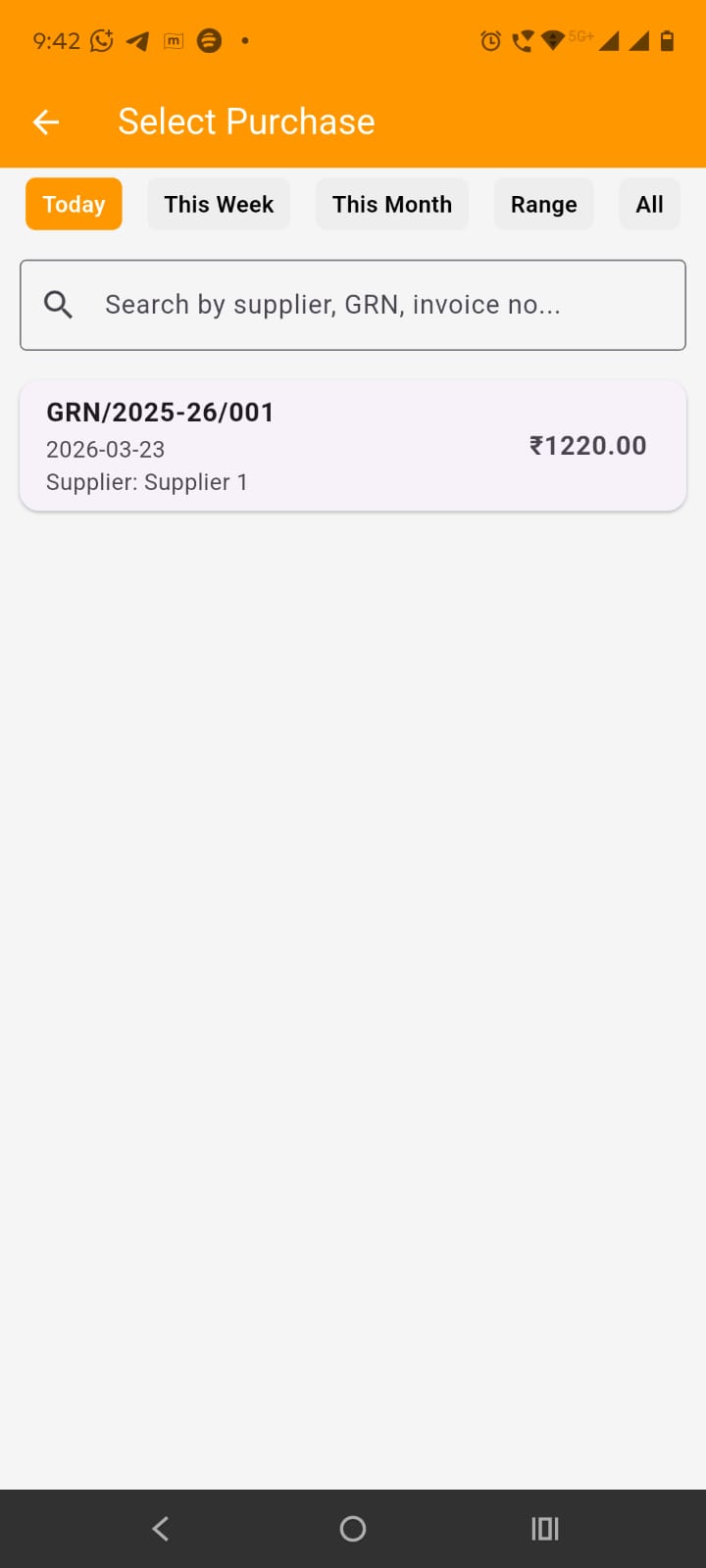
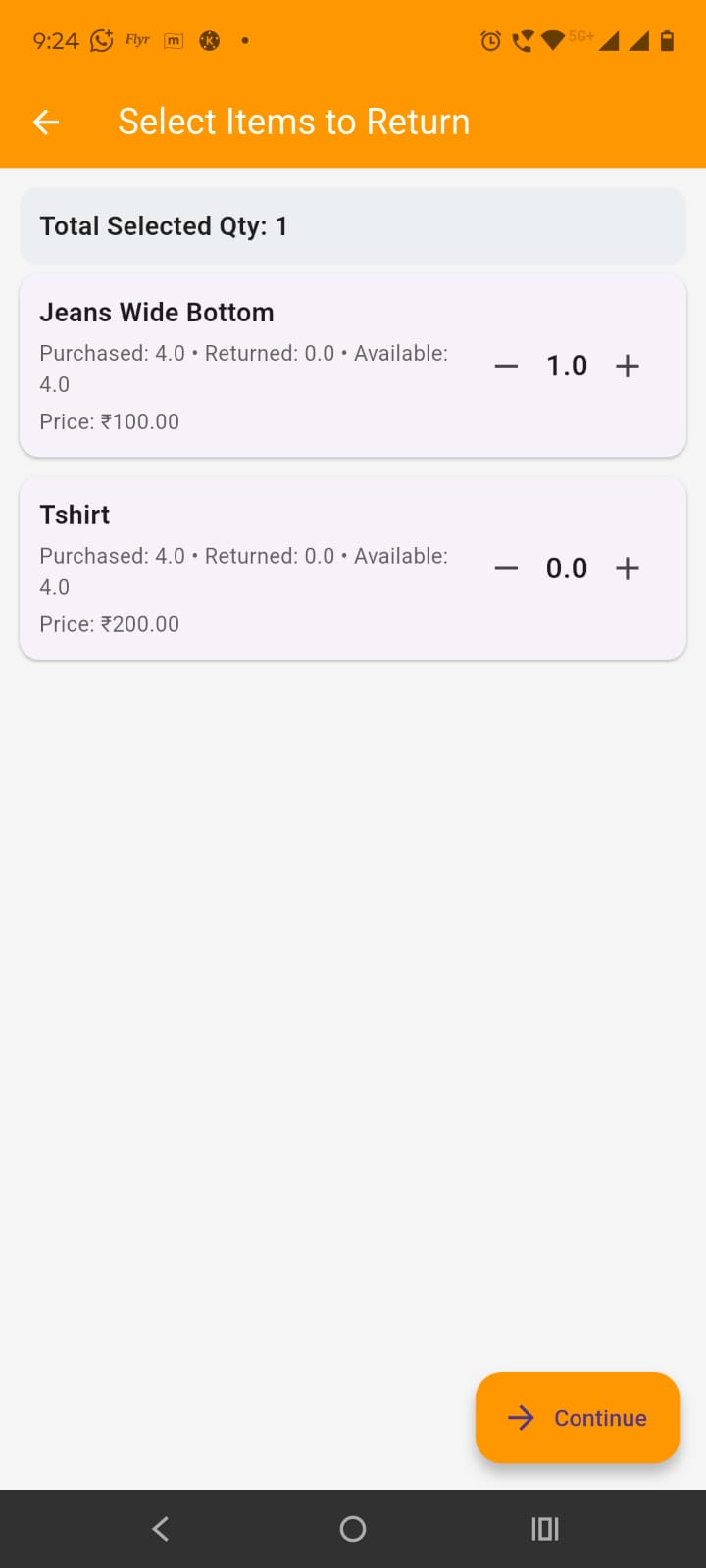
On Select Purchase to Return screen, select the purchse to create a return against. By default only today's purchases are displayed. Hence use the filters accordingly. On selecting the purchase , Select items to return screen is opened up. There you can select the item and qty to return and press continue.
On tapping continue button, opens up Confirm Return screen. Here you can edit the debit note number (mostly not required to edit). Select Return Date and time. Select supplier credit note number and date (optional) and you can also upload credit note images for ready reference. Below this all return details and pricing break down is shown.
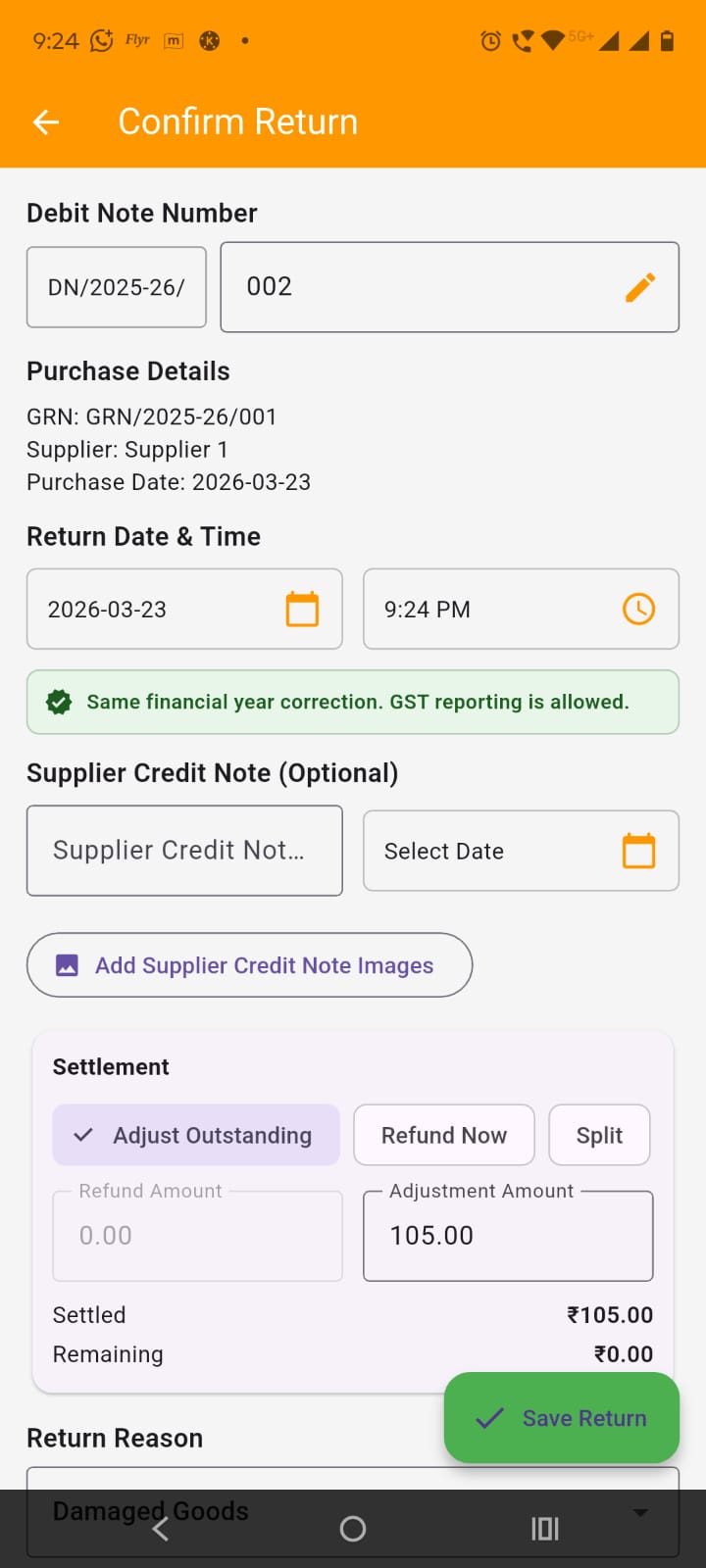
In settlement section, you can either adjust the refundable amount against outstanding or fully refund (Refund Now i.e. you got the refund) or split it (partial adjustment and rest refund). Enter refund/adjustment amount.
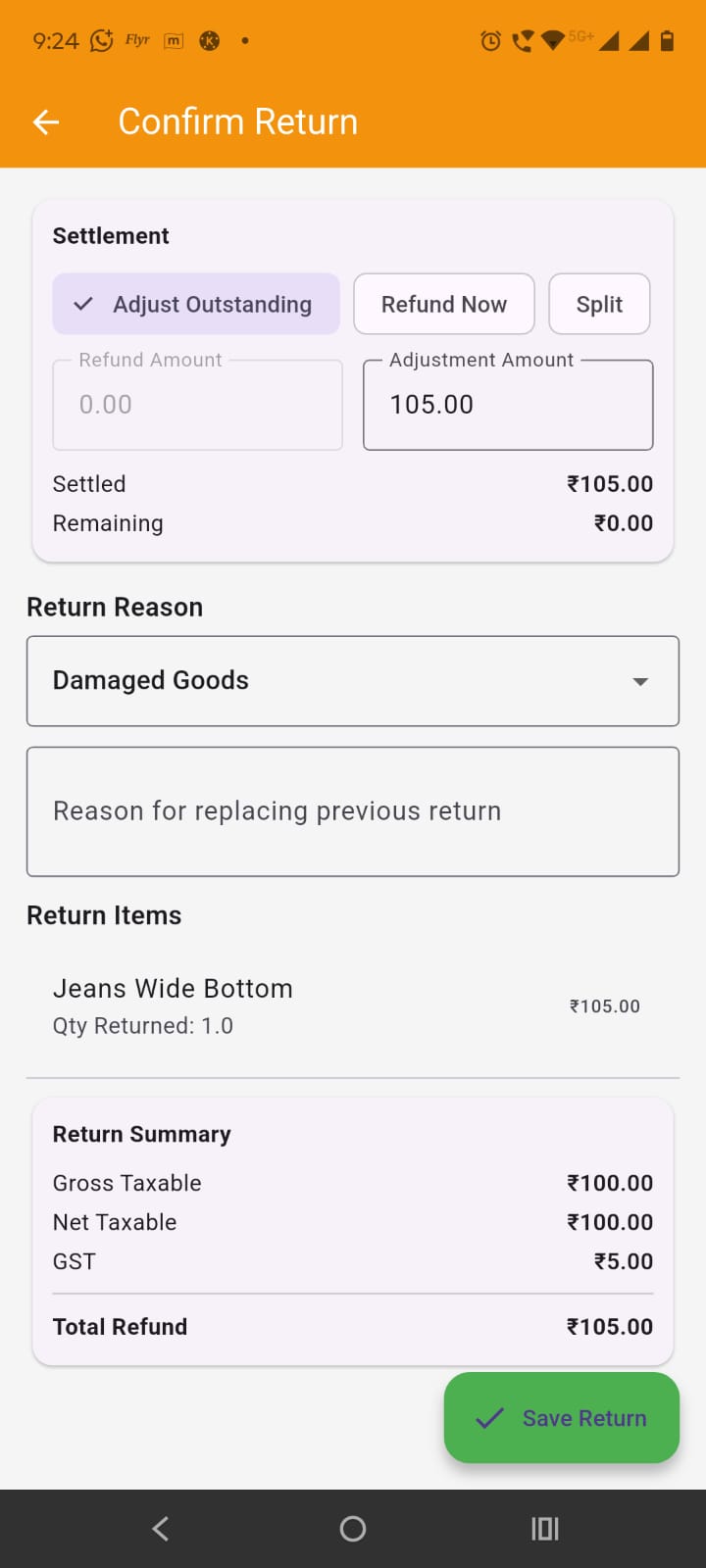
Select the return reason and press save. The return (debit note is created)
By tapping on the purchase return (debit note) card in the Purchase Returns screen, opens up the purchase return details screen.
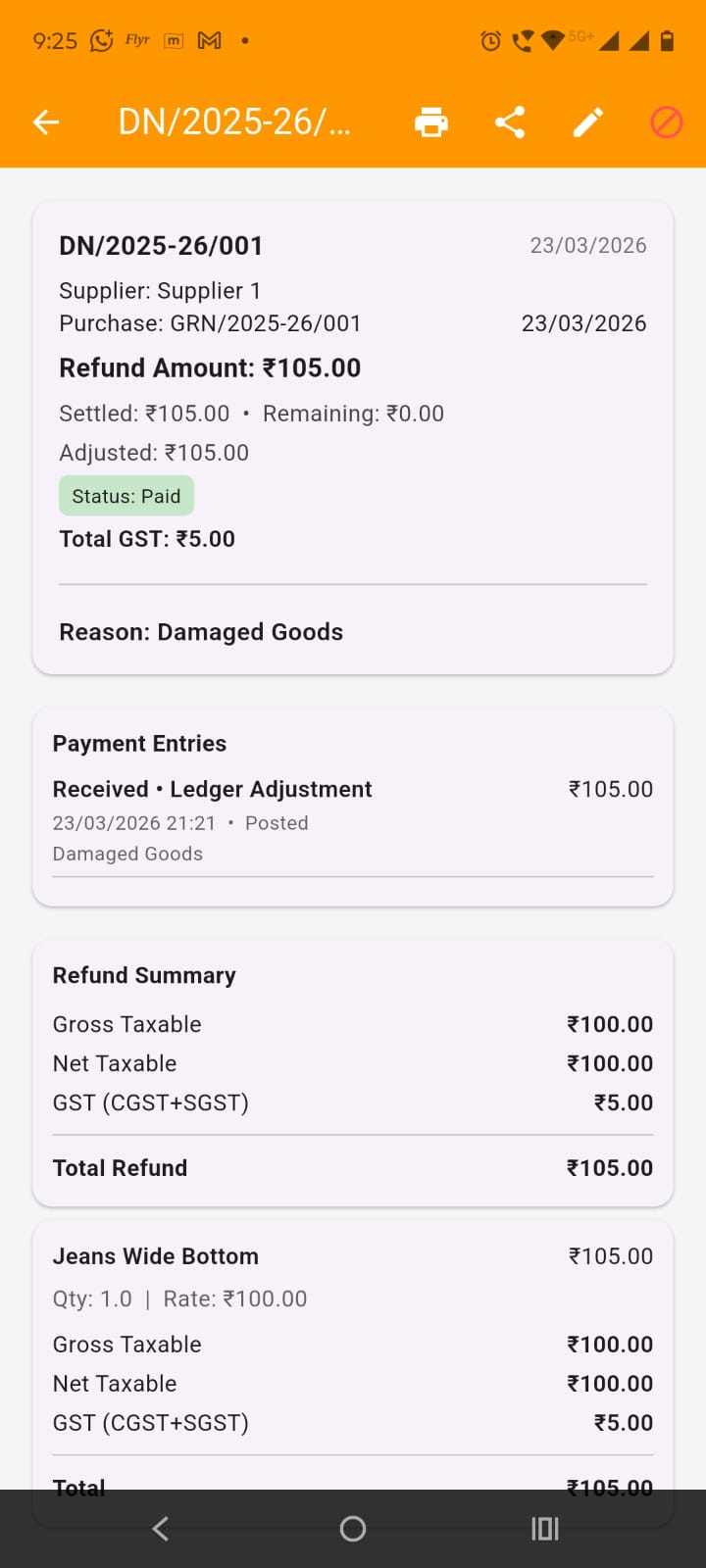
In the app bar you get the options to print the debit note and share the pdf of the debit note as shown in the images.
In the app bar you get the options to print the debit note and share the pdf of the credit note as shown in the images.
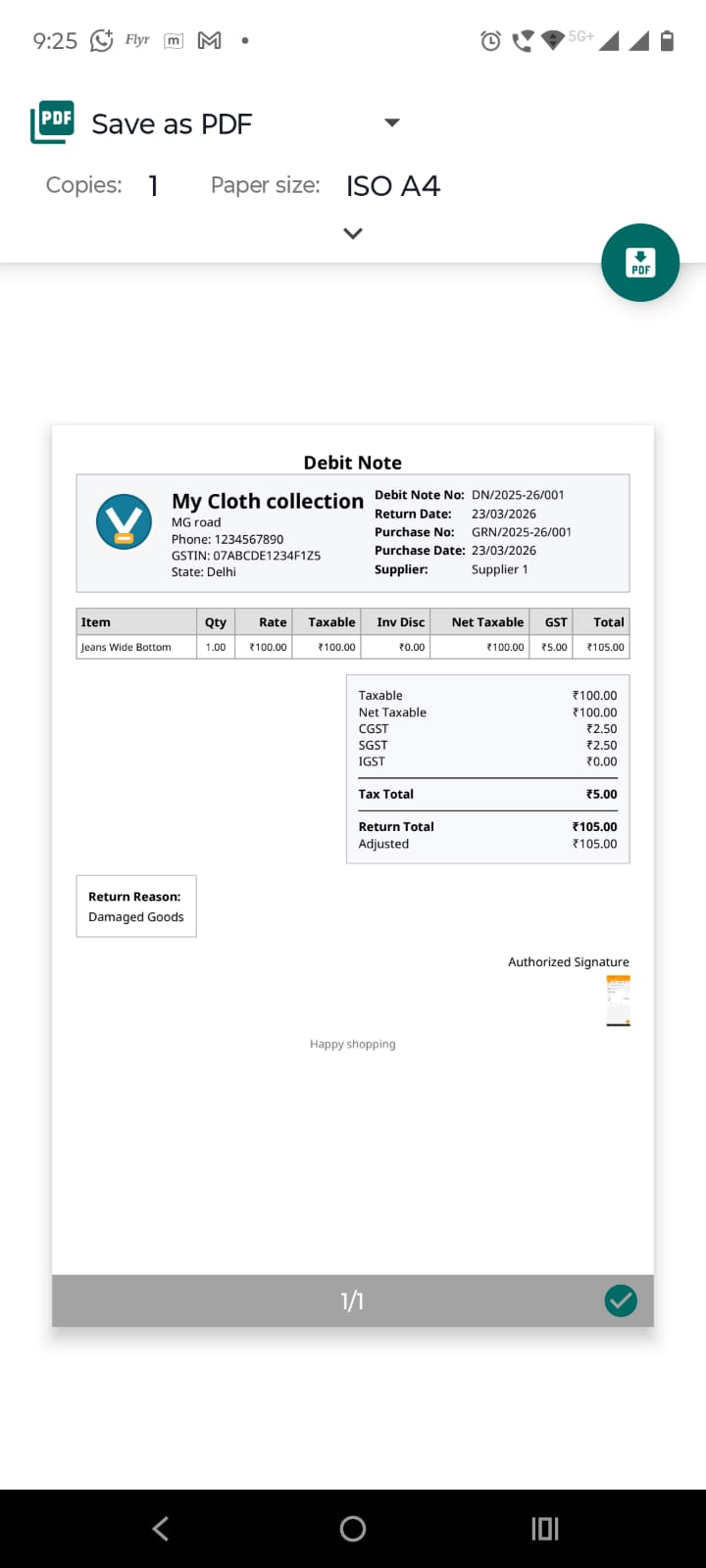
You also get the option to edit the debit note (please do note the editing will mark current as void and create new debit note if updated). You also get the option to mark the return as void.