
VariPOS Documentation
Read module-by-module like an operations story. Every scene tells what to do, what to check, and what outcome to expect.
Read module-by-module like an operations story. Every scene tells what to do, what to check, and what outcome to expect.
Physical stock and system stock are aligned here to avoid margin leakages.
You can add opening stock while adding the product or service to the app inventory. In add/edit product screen, you have opening stock tab.
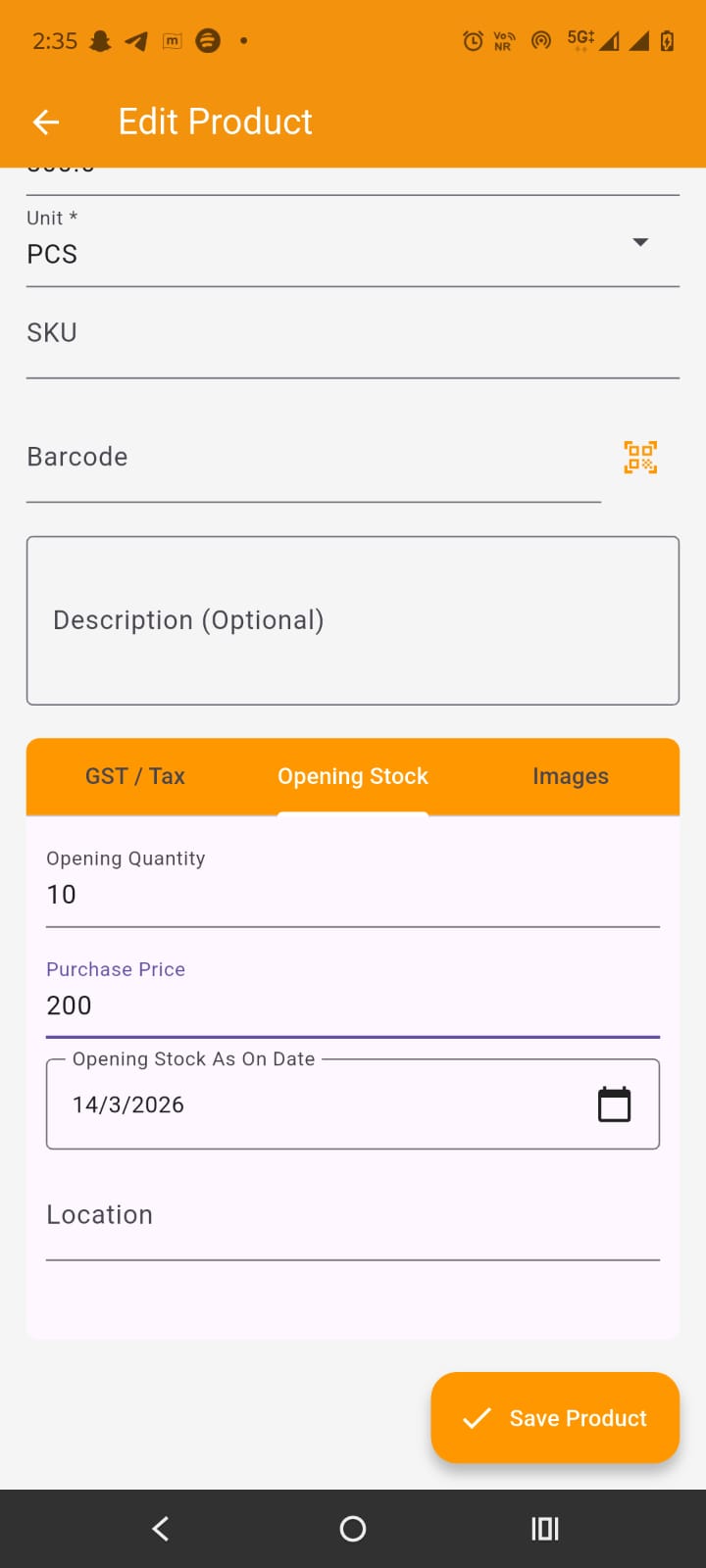
Enter opening stock once with correct valuation assumptions by entering opening quantity and purchase price (per unit) and date and location of the stock. It is a one time activity and should be done before any trasaction fo the product.
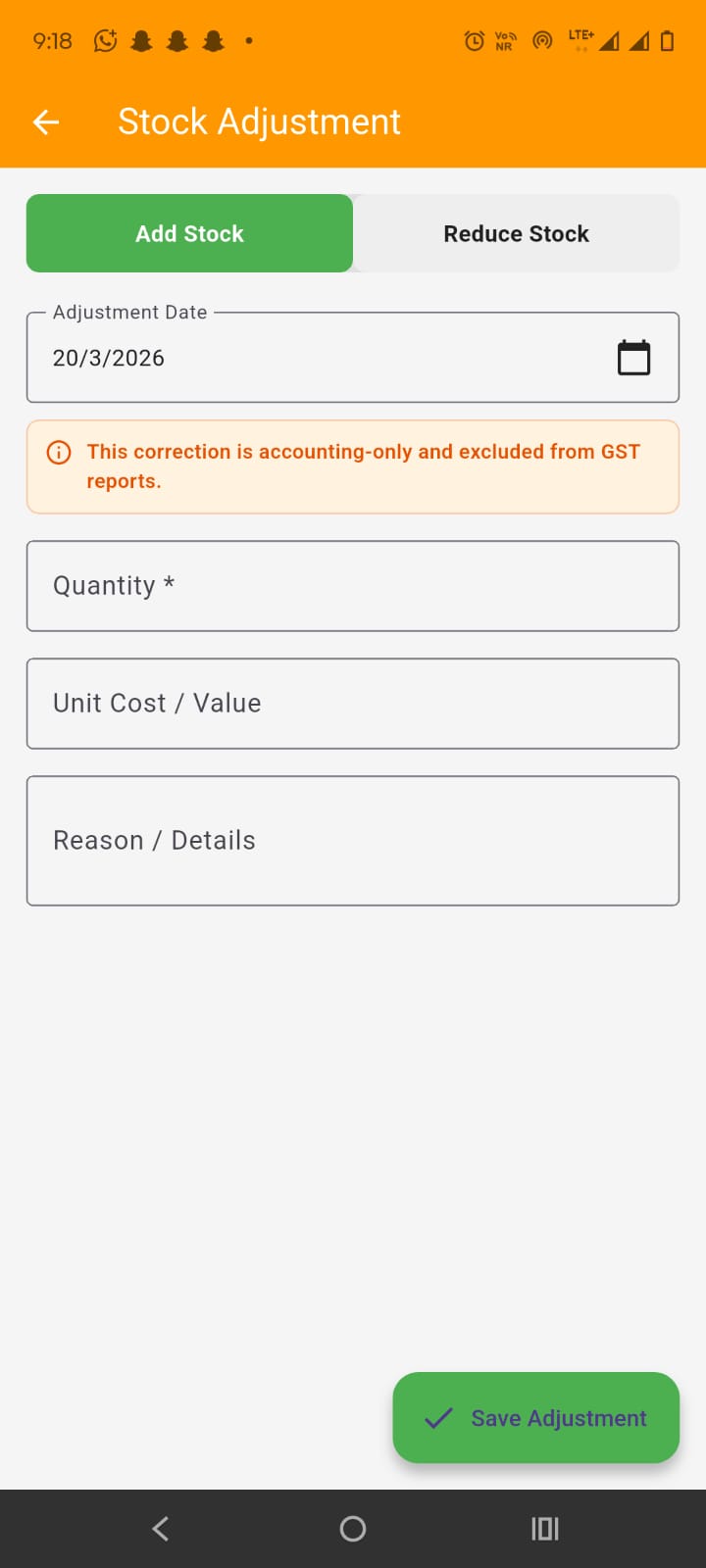
If there is any mismatch in the stock qty, that can be aligned by adjustments e.g. gifted product (via Add Stock), damaged by rat bite (via reduce stock). Use stock adjustment only for physical mismatch or approved correction. Other than these, ideally all inventory stock should be transacted by sale, purchase, sales return, purchase return only.
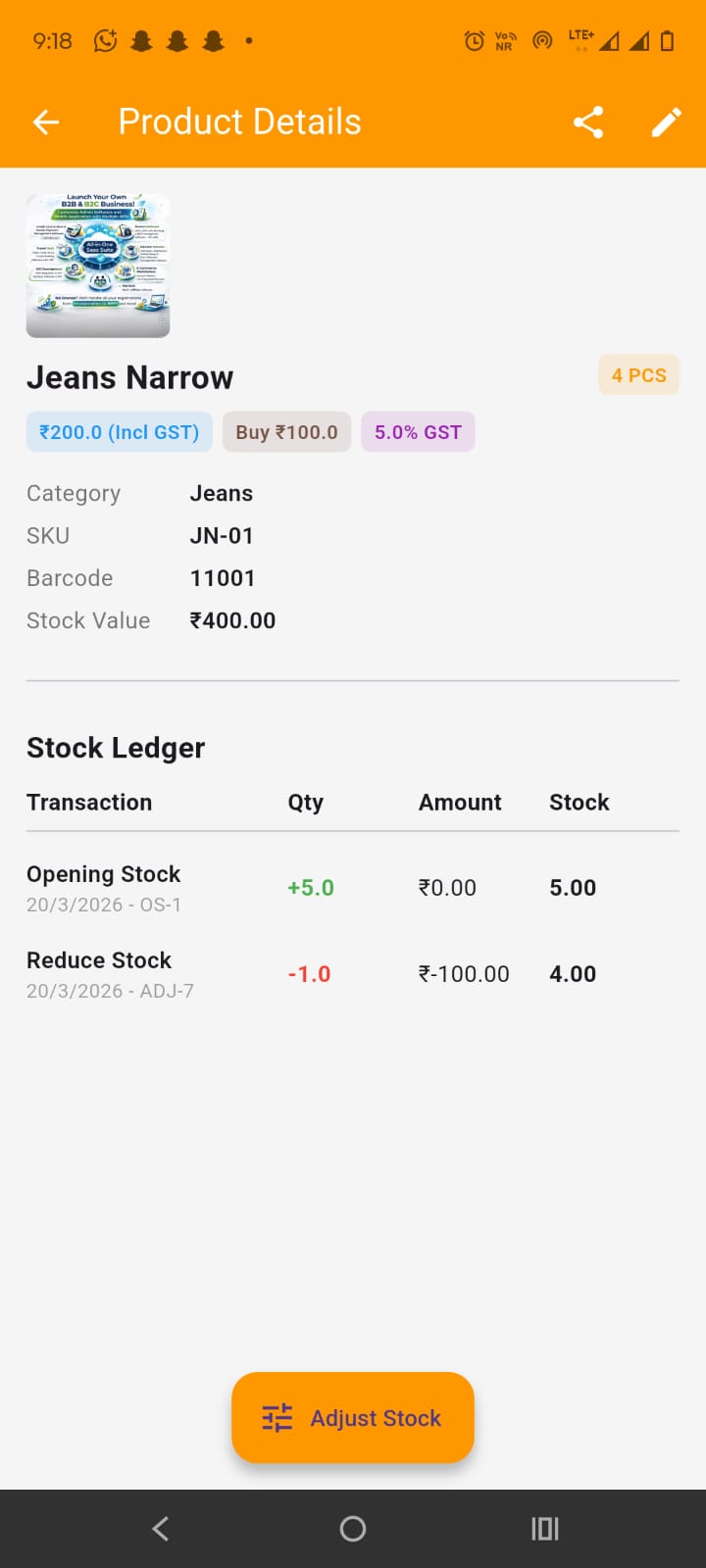
All the stock transactions of a product are visible on product details page which opens by tapping on the product card in products screen. There you also have the FAB button to adjust stock.
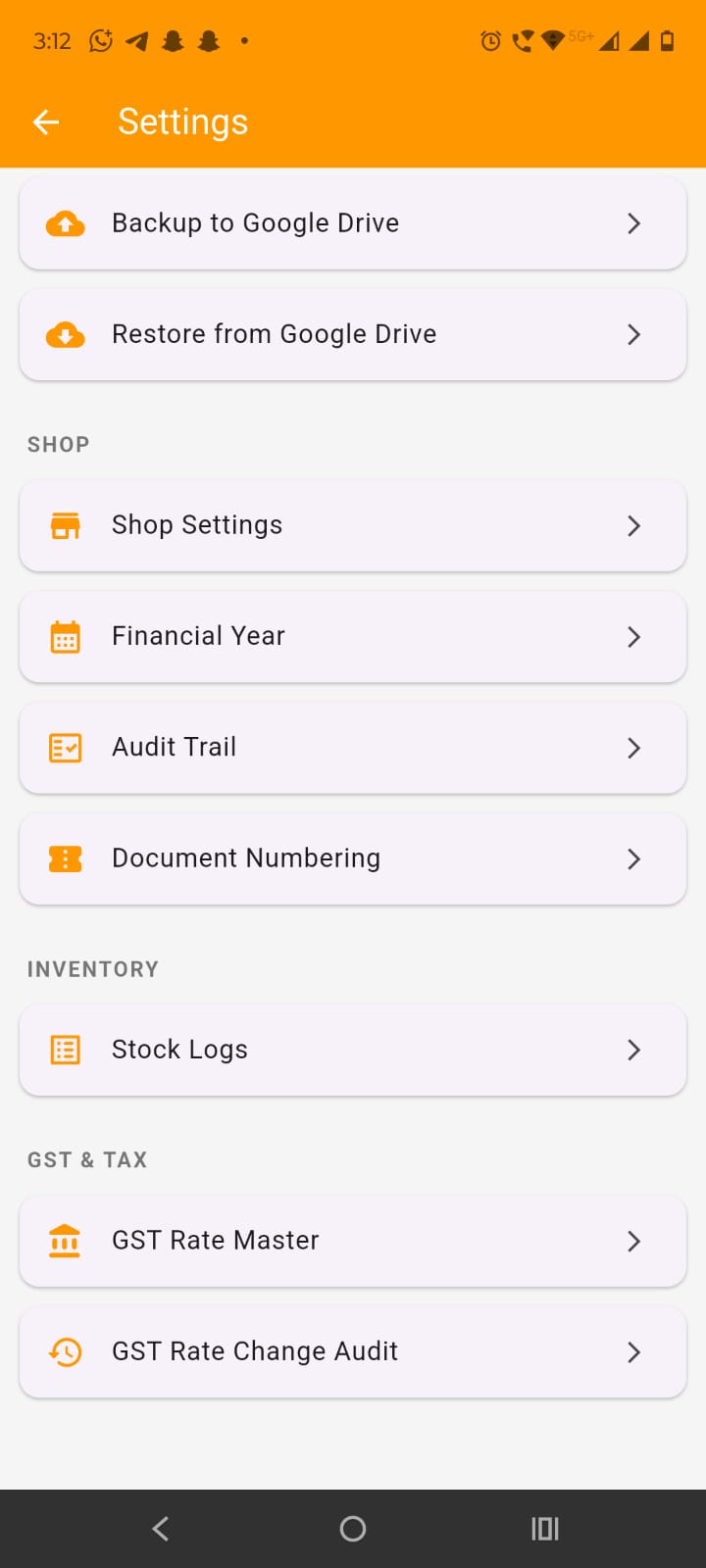
For tracking all the changes to any product like when and what happened to product stock even editing also. By tapping, on the Stock Log card on the Settings screen, opens up the stock logs screen.
Here on this screen, you have stock changes' logs listed. These can be filtered by FY, customer range, Type, Product.
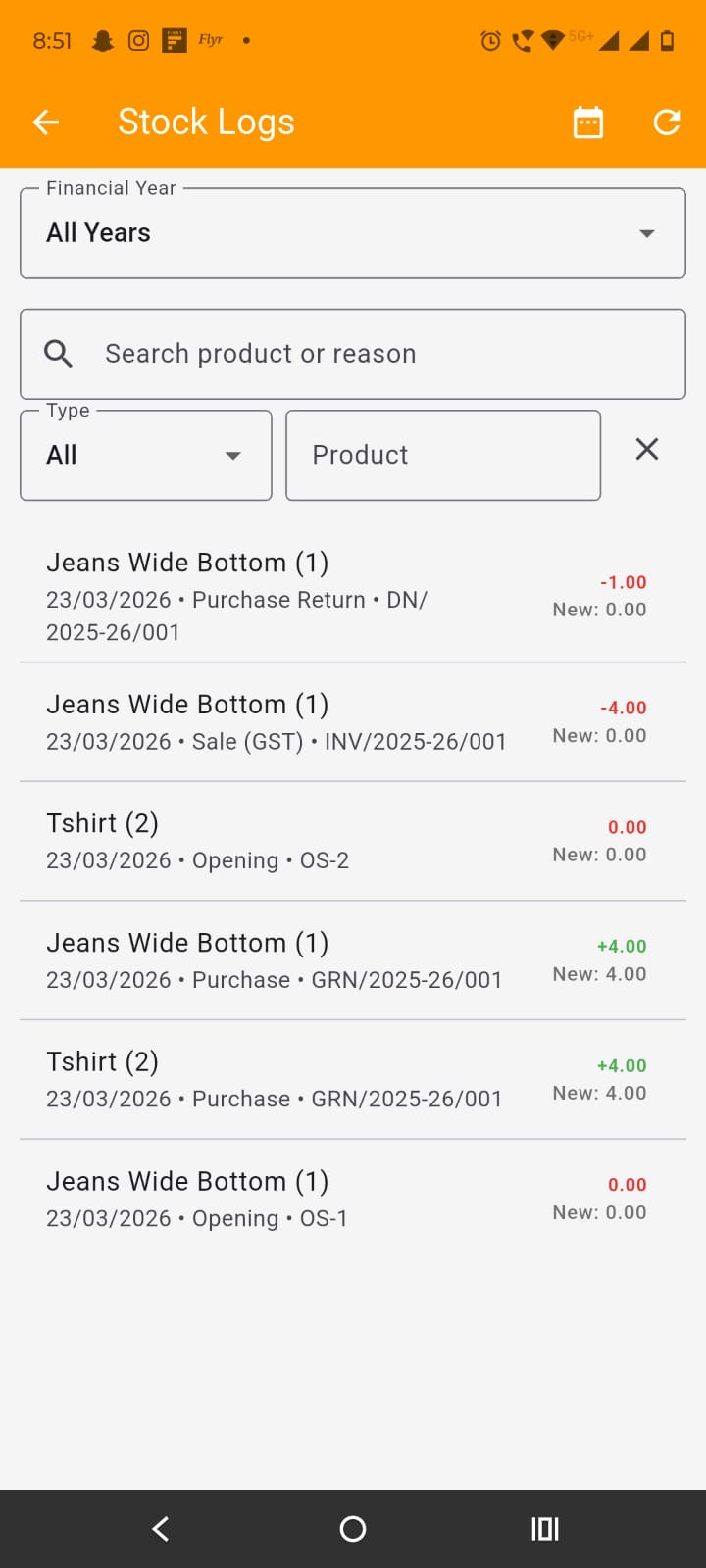
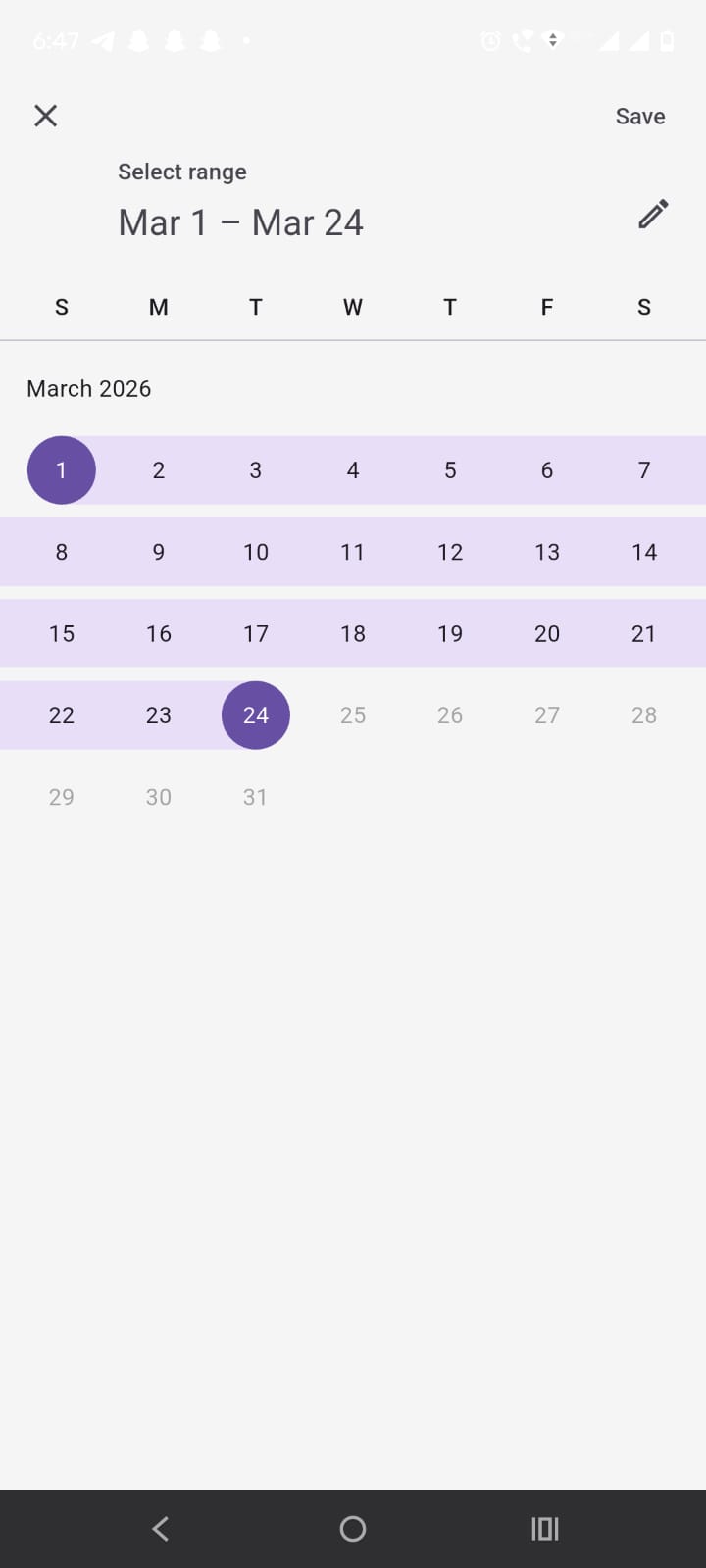
Custom range filter in the app bar or in Financial year can be used to view stock logs in a particular date range only. You can validate source document linkage from each stock movement.
Run periodic spot-check between physical and system stock.