VariPOS Documentation
Read module-by-module like an operations story. Every scene tells what to do, what to check, and what outcome to expect.
Read module-by-module like an operations story. Every scene tells what to do, what to check, and what outcome to expect.
Compliance chapter: data from daily operations is prepared for filing and review.
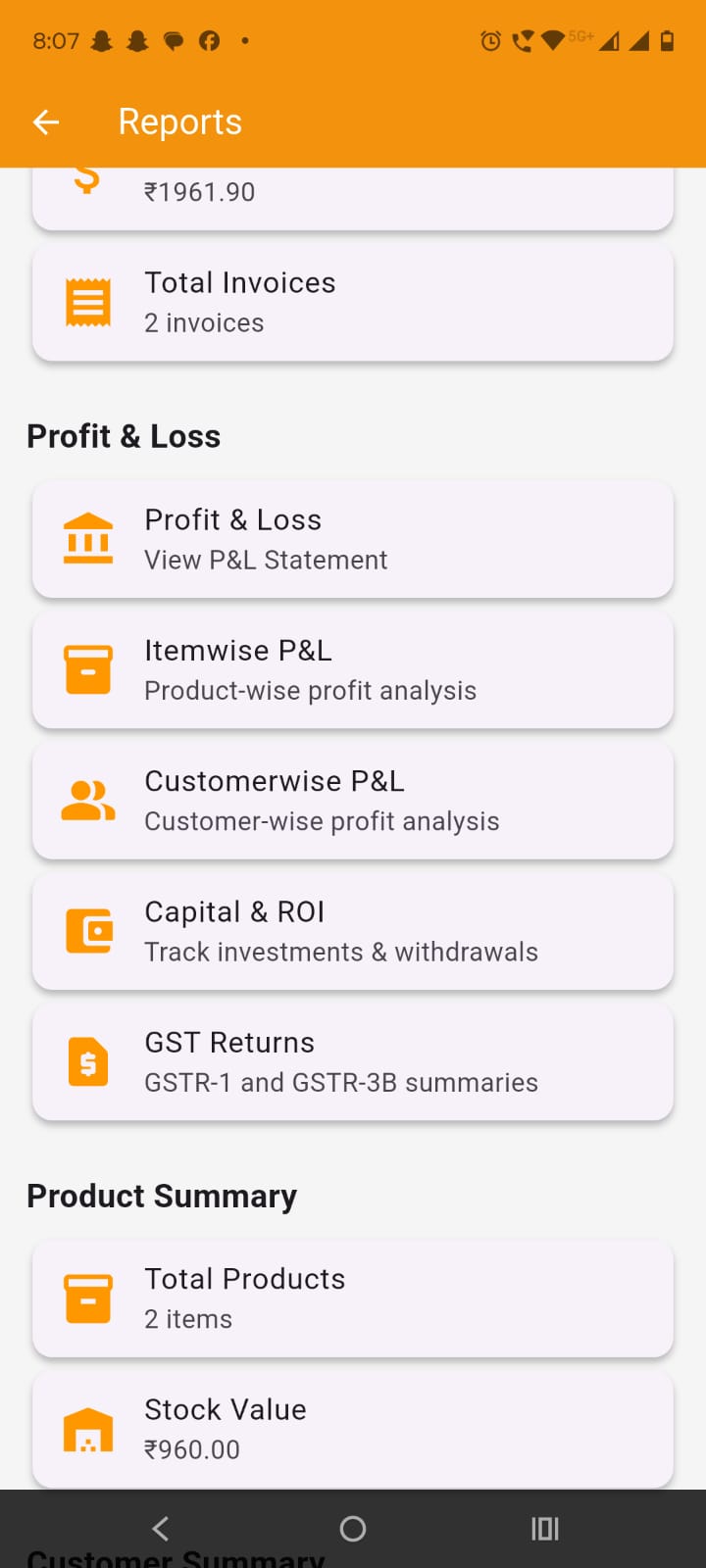
Tapping on the GST Returns tile on Reports screen opens up the GST reports screen. This module is used to review GST working data for the selected financial year or date range. The screen has GSTR-1, GSTR-3B, CMP-08, GSTR-4, GSTR-9 and Filing tab.
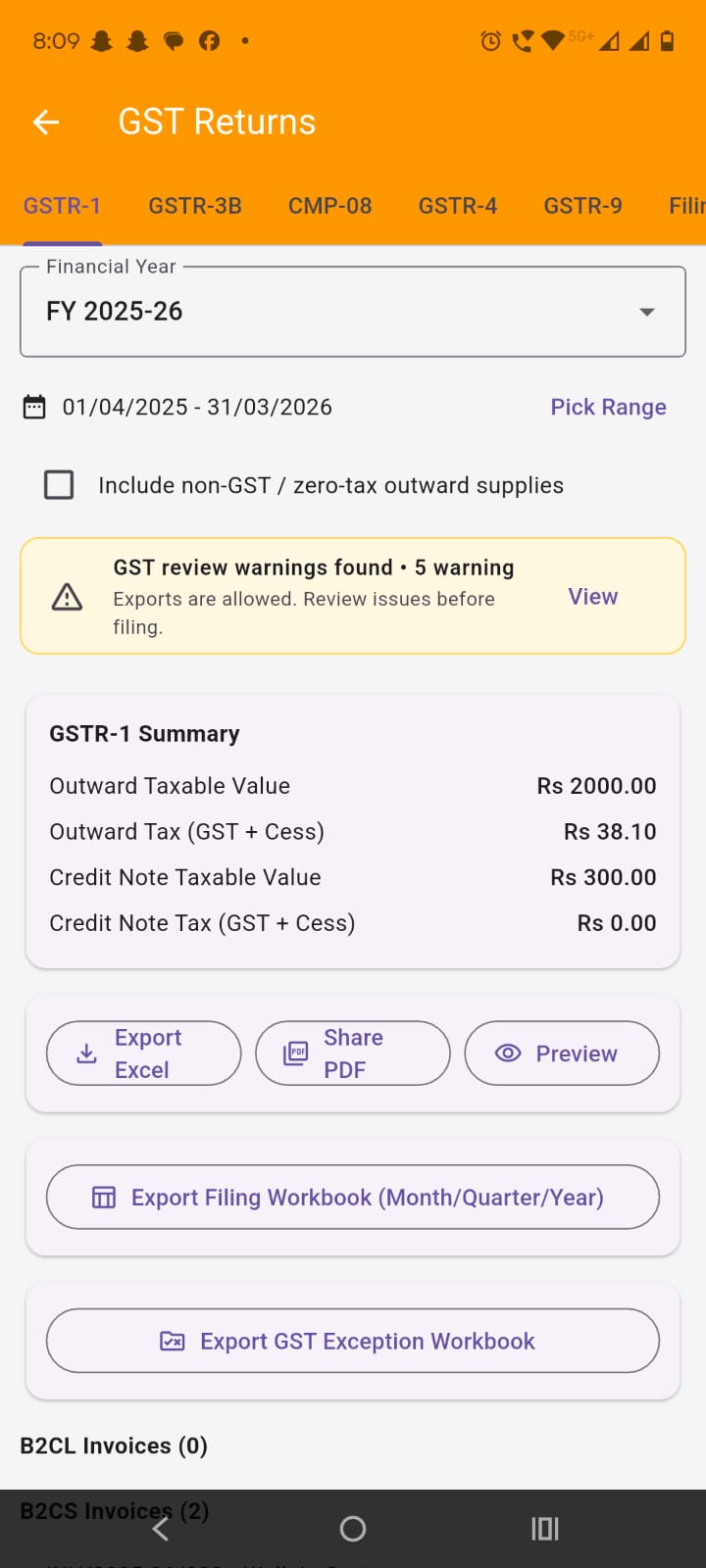
Select the period: Use the Financial Year dropdown at the top. If needed, choose Custom Range or tap Pick Range to select exact dates. All GST tabs update for the selected period.
Use CMP-08 and GSTR-4 surfaces where composition applicability exists.
Include non-GST outward if needed: Turn on the option for non-GST / zero-tax outward supplies when you want nil, exempt, or non-GST outward values to be included in GST working.
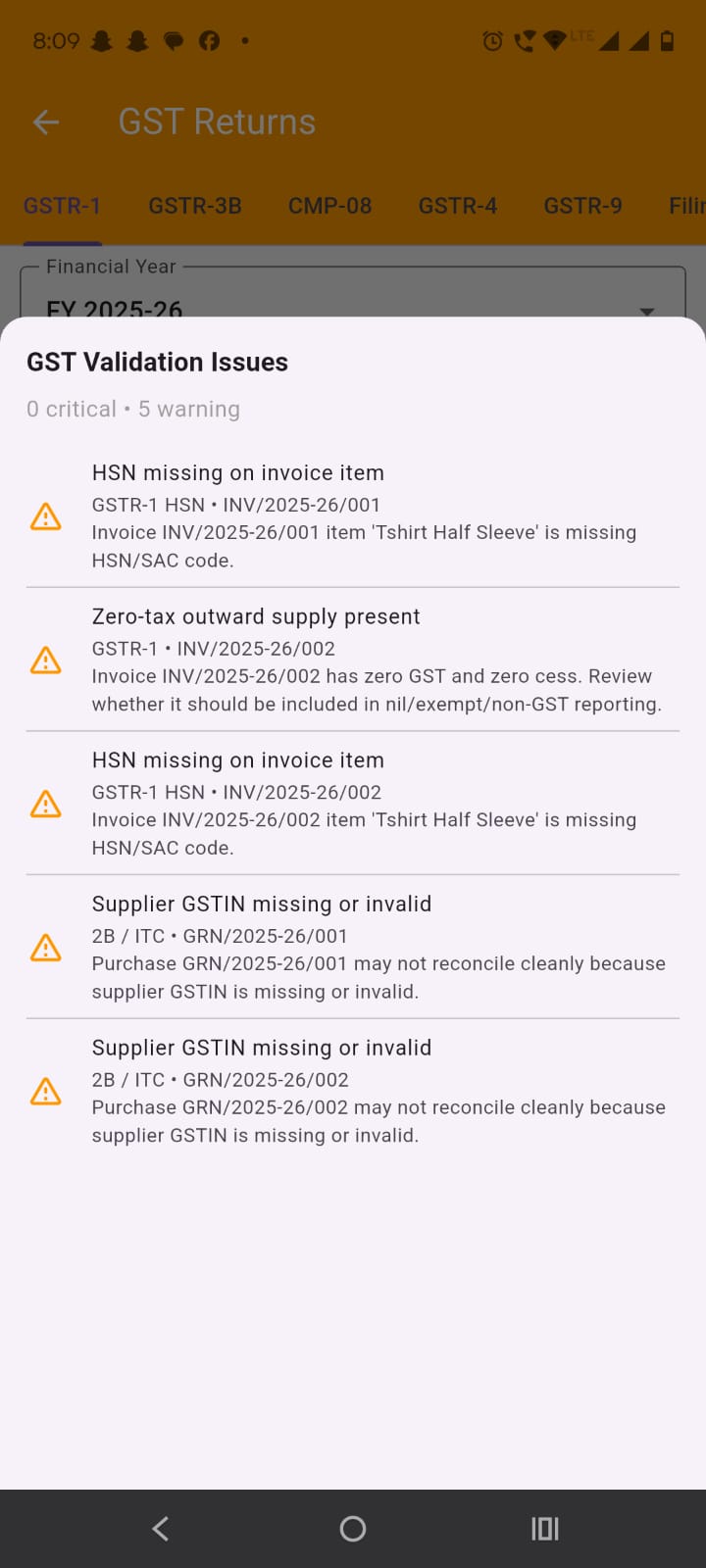
Check GST readiness: A status card appears below the filters. It shows whether the selected period is Ready, has Warnings, or has Critical issues. Tap View to see issue details such as missing GSTIN, missing HSN, POS problems, or tax mismatch.
Keep the GSTR-1 tab selected inside GST Returns. This tab shows outward supply working from your sales books.
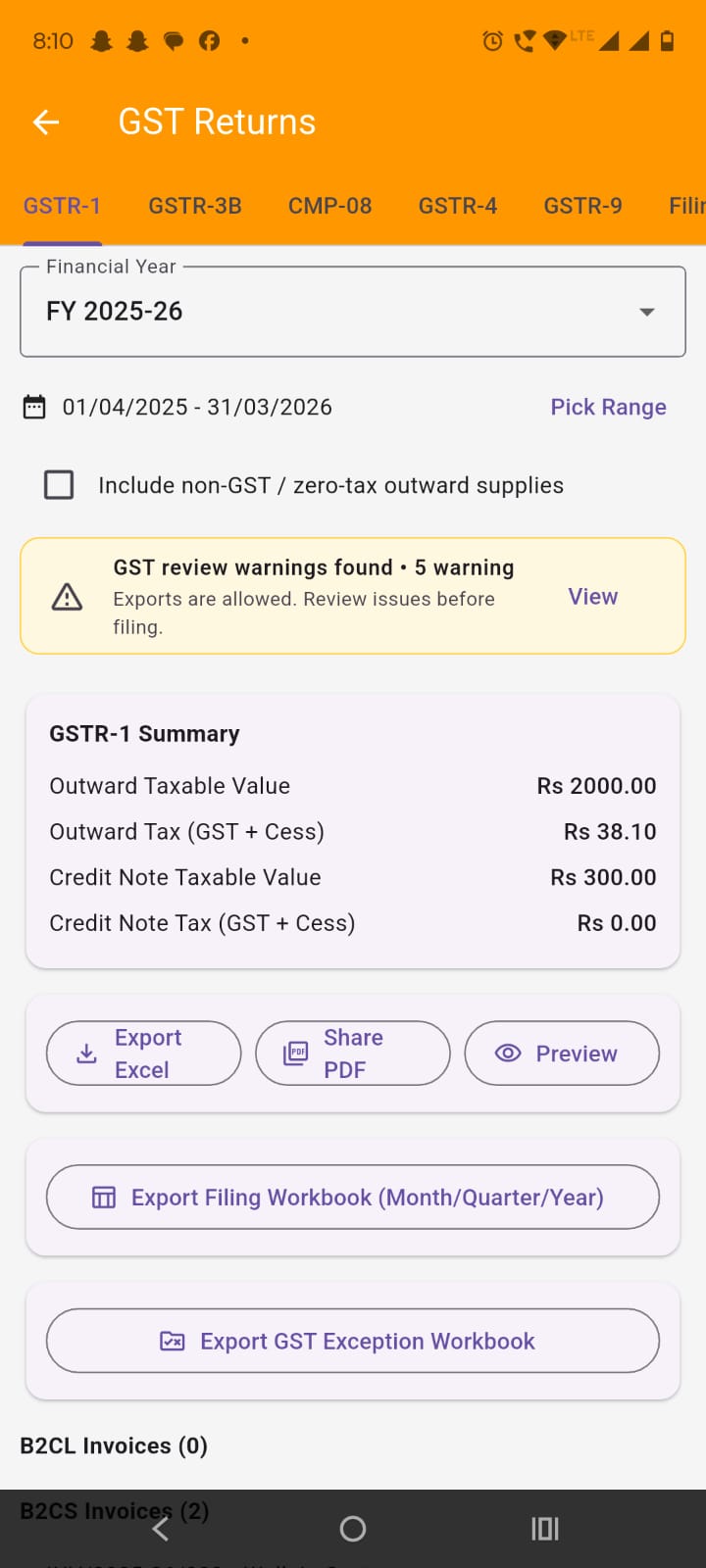
Review the summary: At the top, review outward taxable value, outward tax, credit note value, and credit note tax.
Review outward sections: Scroll through sections such as:
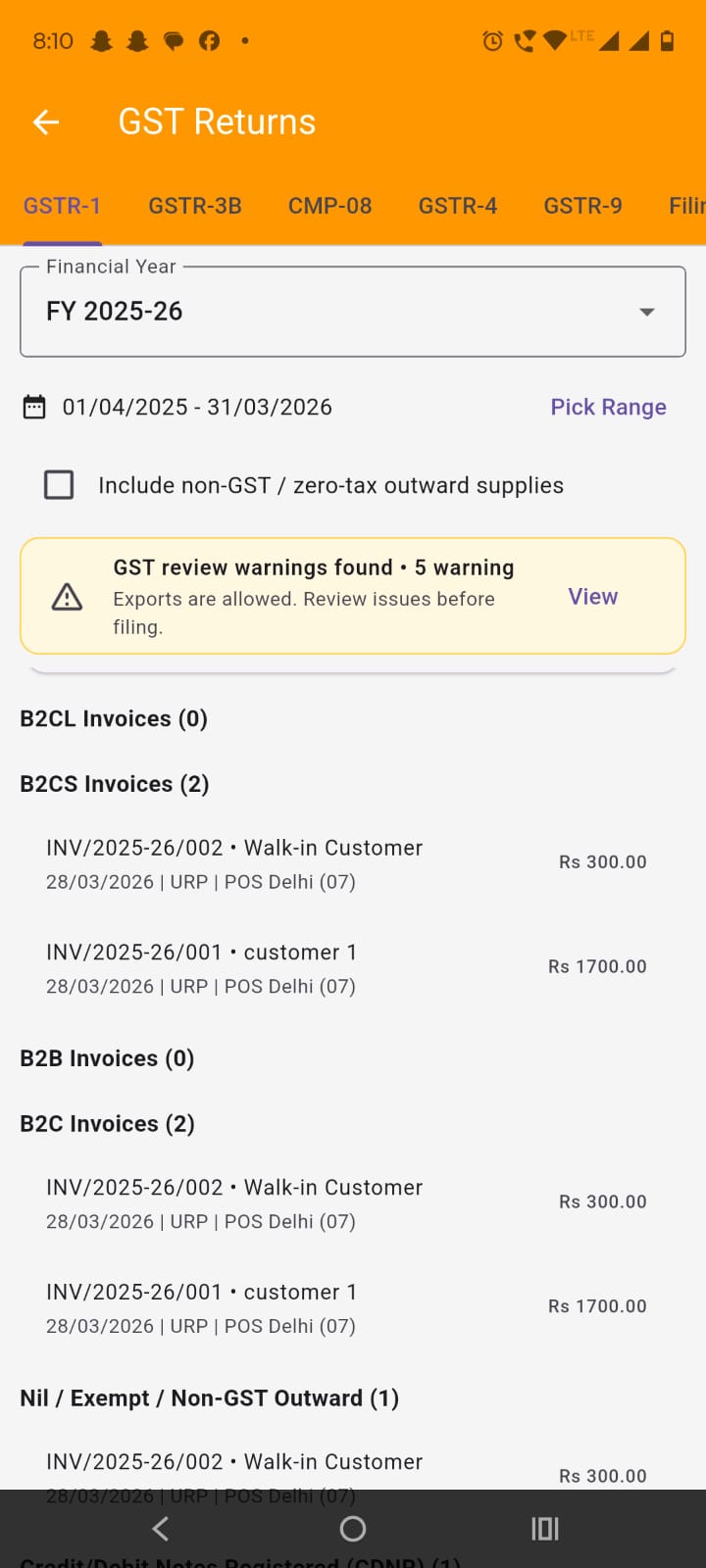
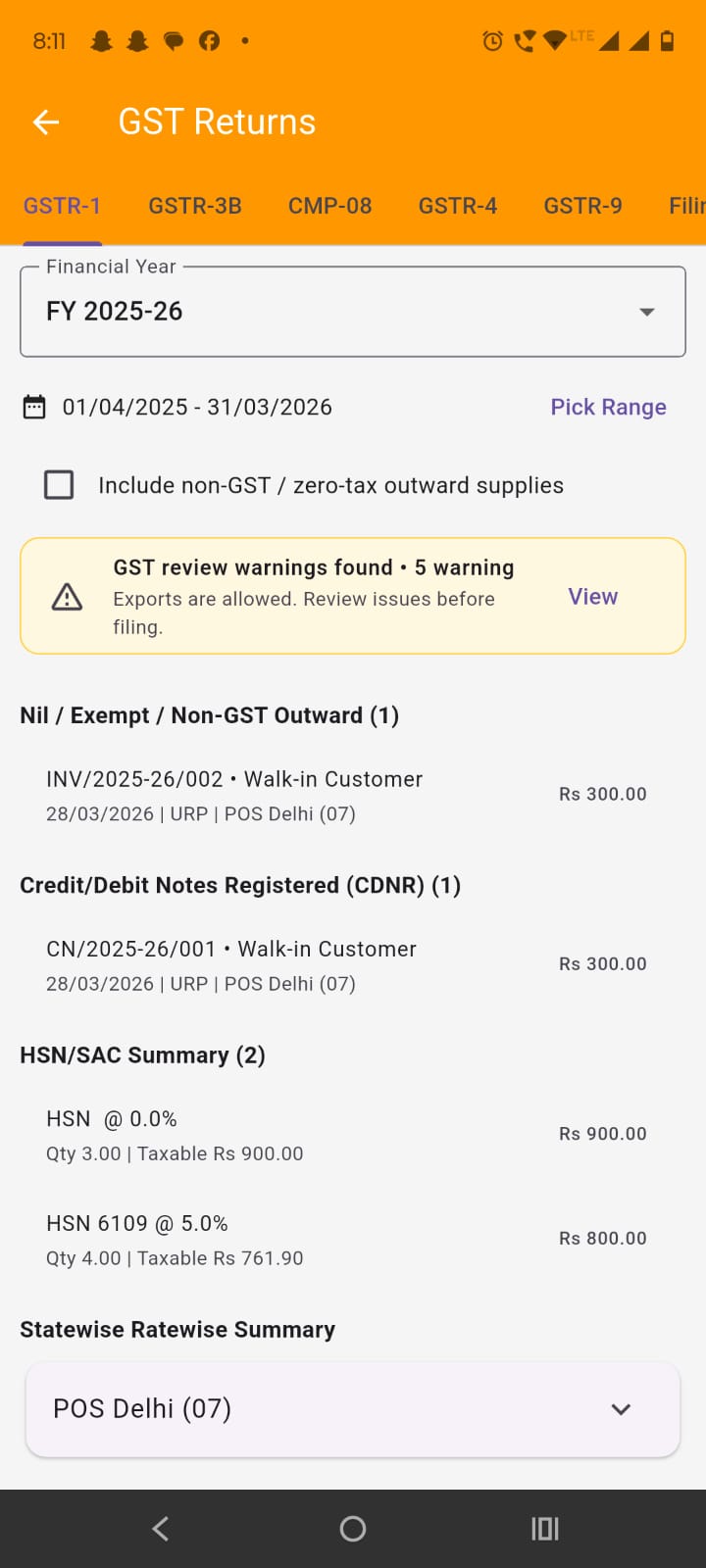
Review HSN and statewise summaries: Use HSN / SAC Summary and Statewise Ratewise Summary to verify classification, GST-rate breakup, and place of supply. POS values are shown as State Name (Code).
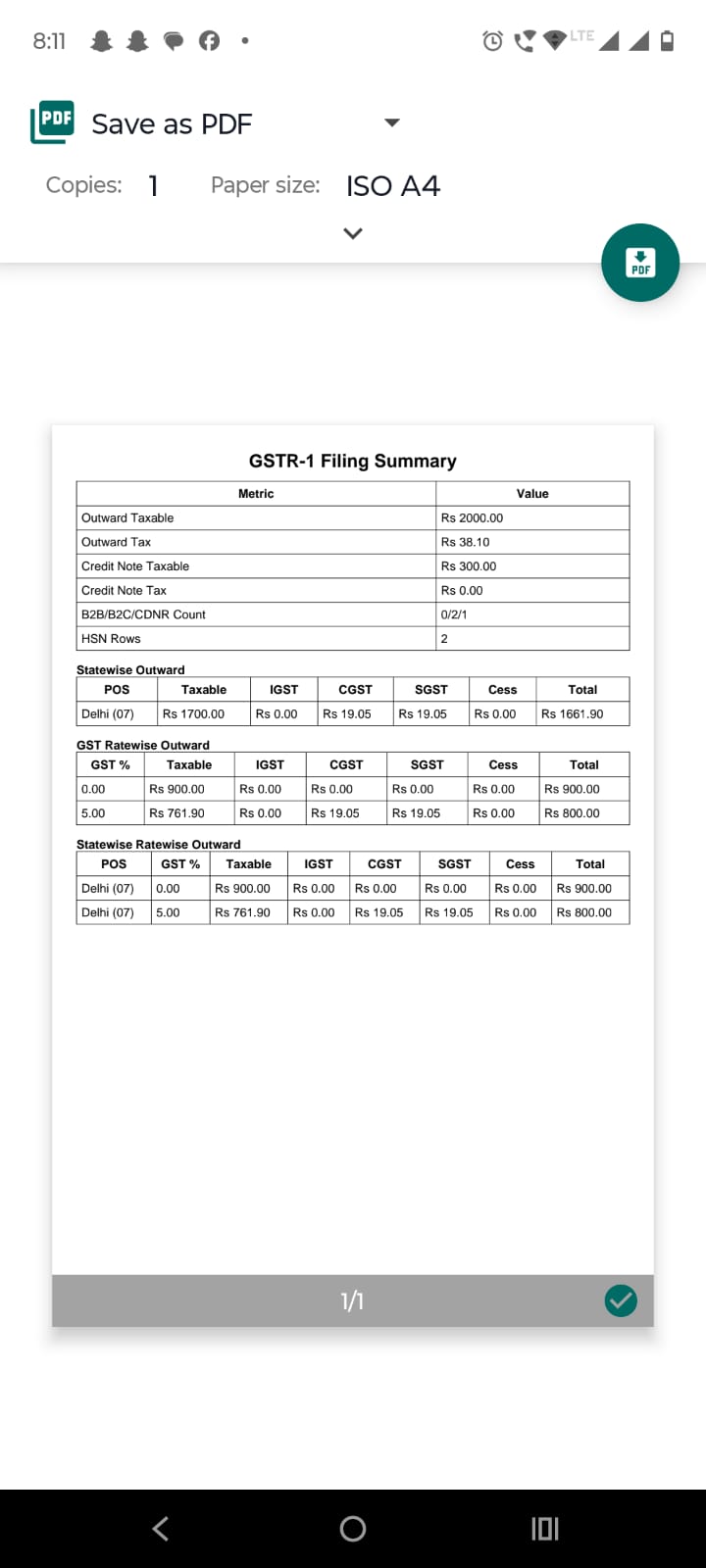
Export the report:
Export filing workbook: Tap Export Filing Workbook when you want a larger workbook for accountant review or filing preparation.
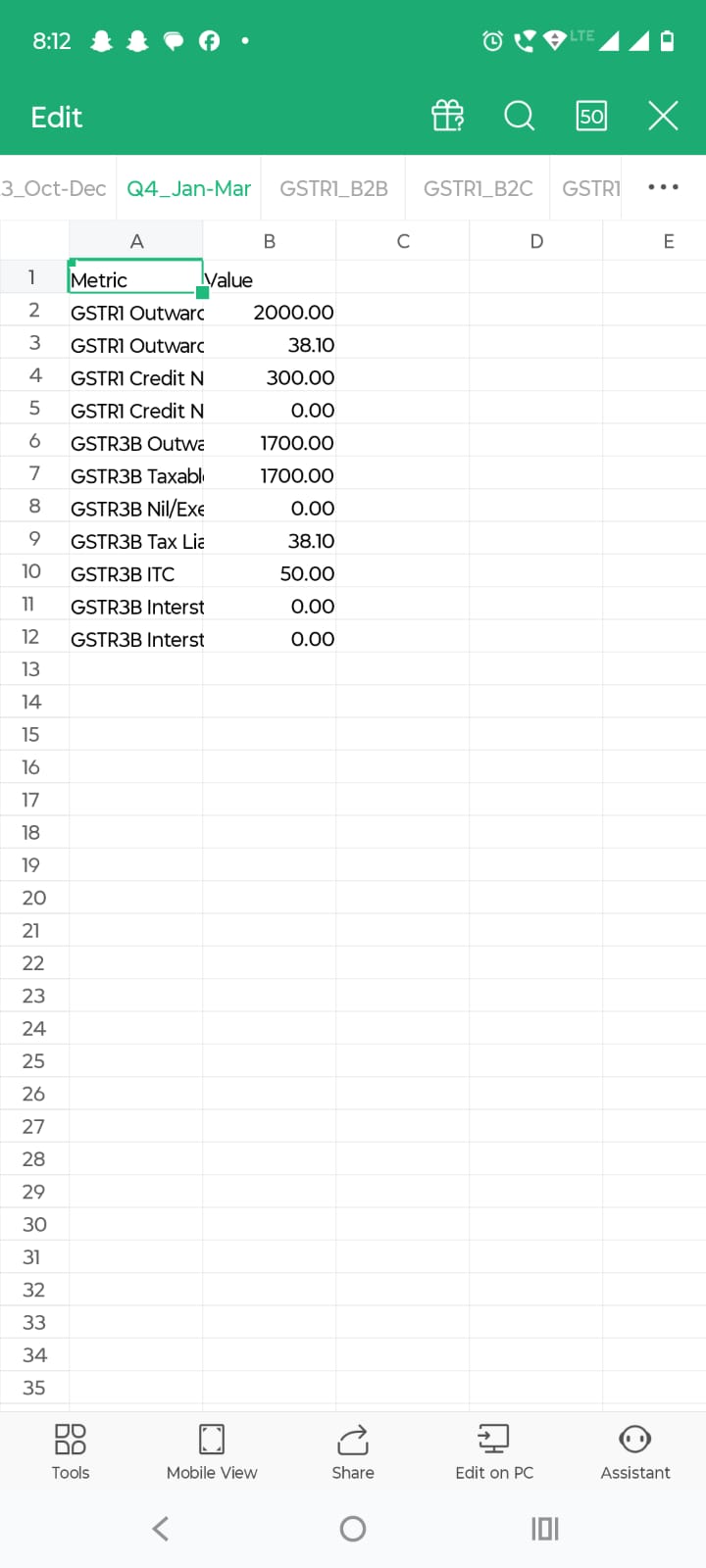
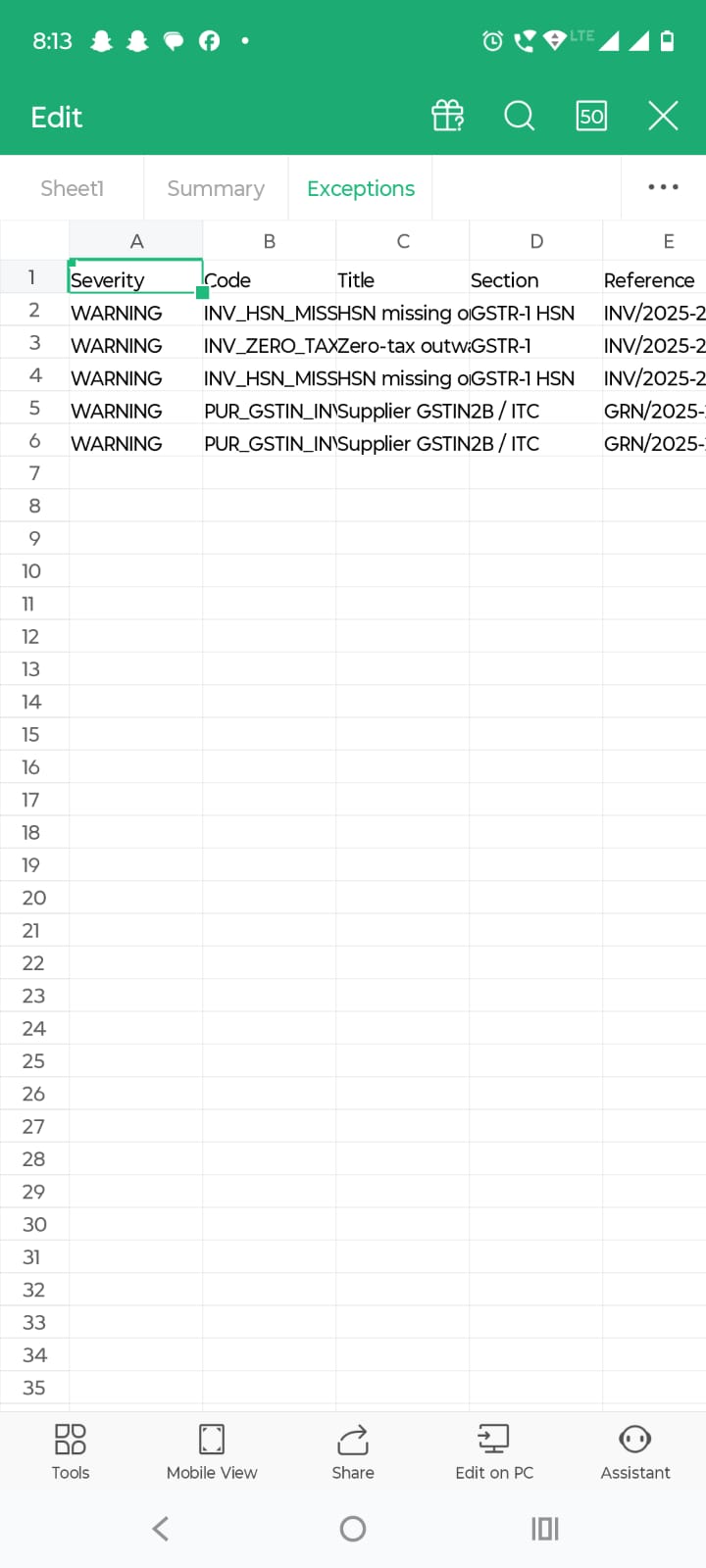
Export GST exception workbook: Tap Export GST Exception Workbook to download validation issues separately. This is useful when you want to correct GST errors before final filing work.
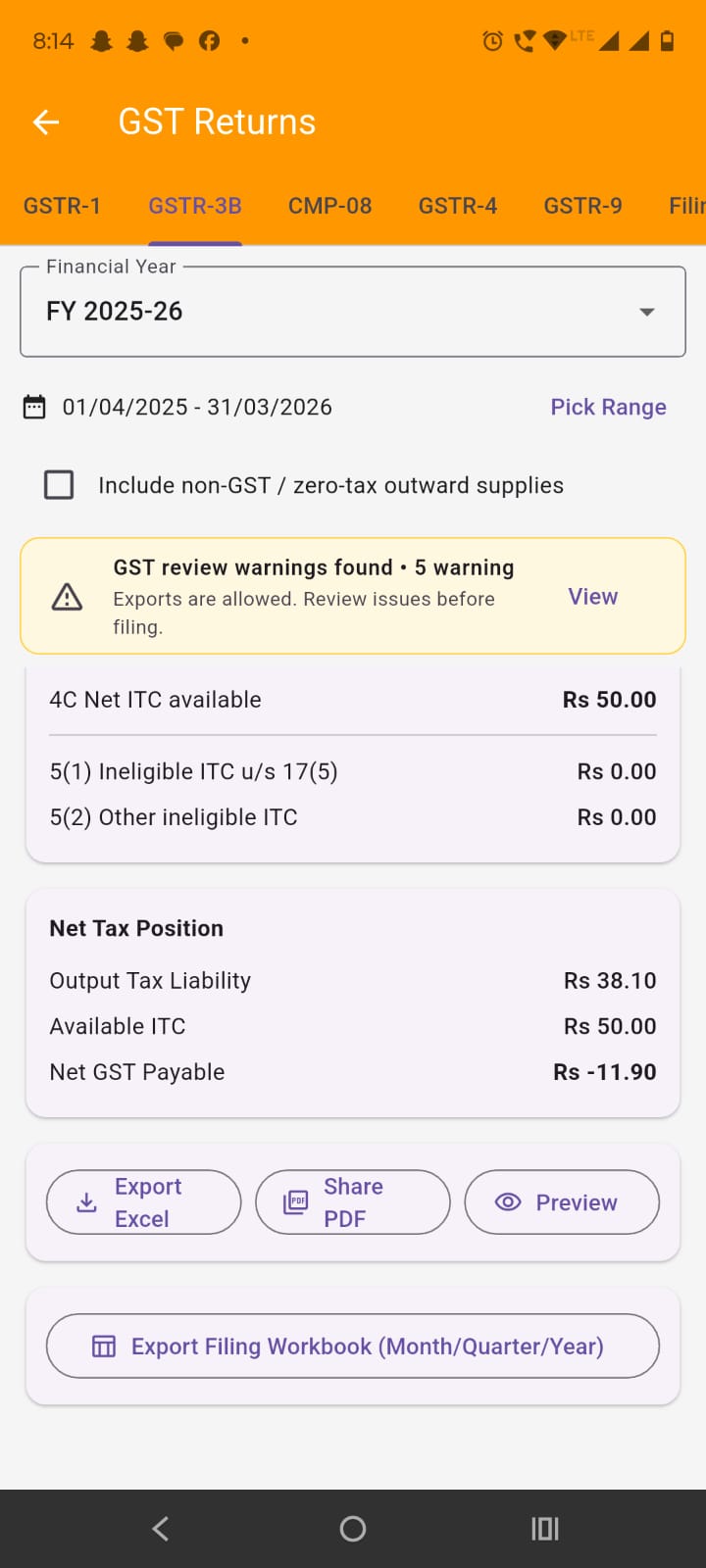
Tap GSTR-3B. This tab gives a books-based GST liability and ITC working summary.
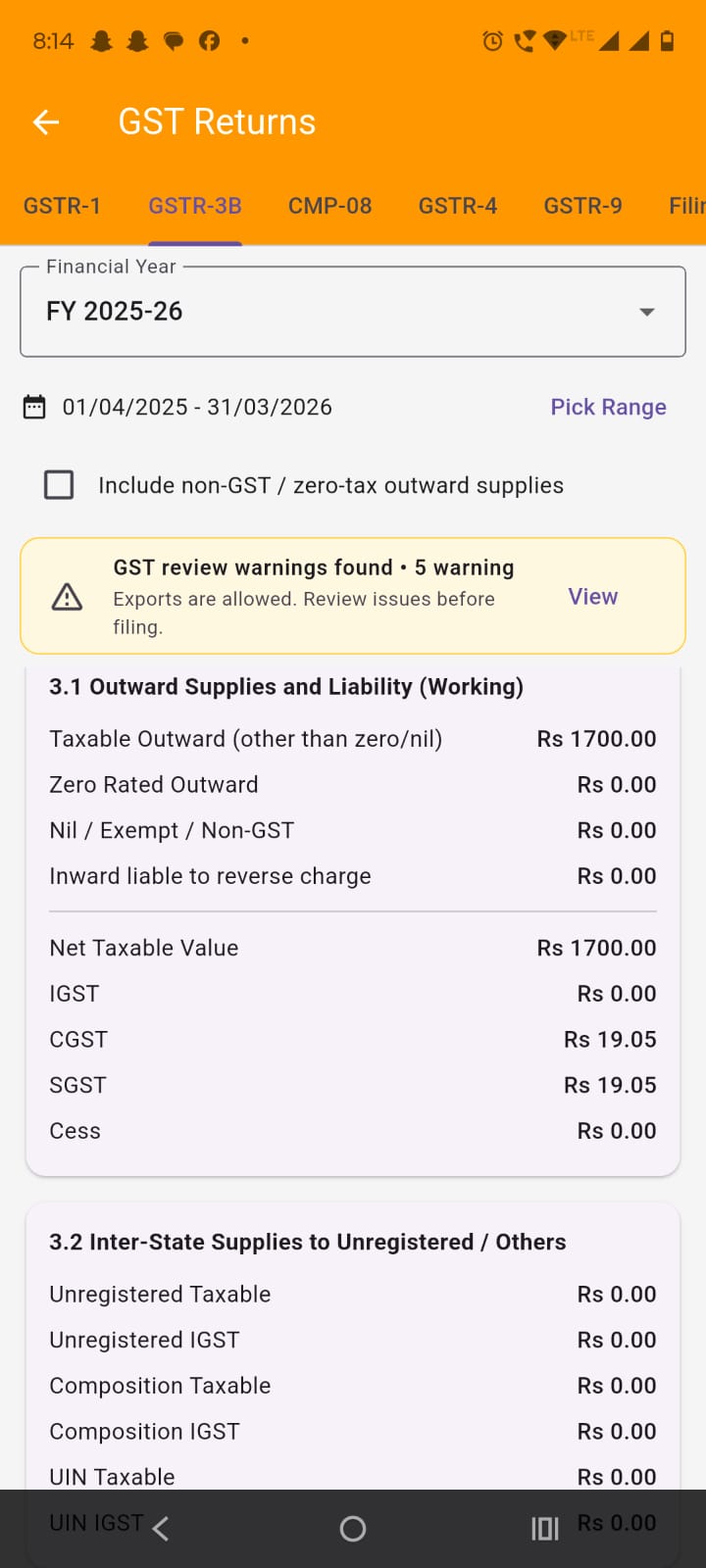
Review section 3.1: The first section shows outward supply and tax liability working, including:
Review section 3.2: This section shows inter-state outward working for unregistered and other applicable categories.
Review ITC section: The ITC card shows input credit working and net available ITC. Some fields may remain zero if those categories are not separately captured in books.
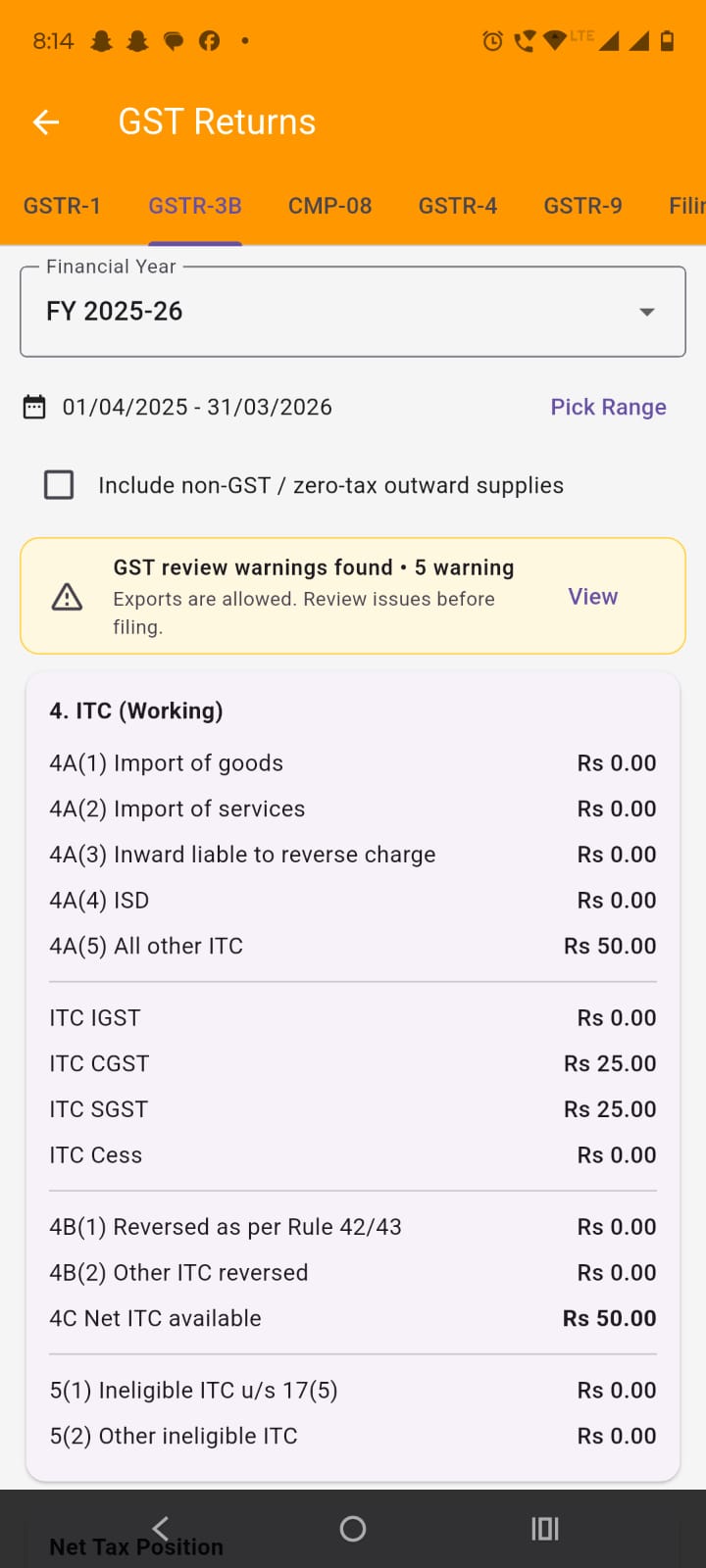
Review net GST position: The summary card shows:
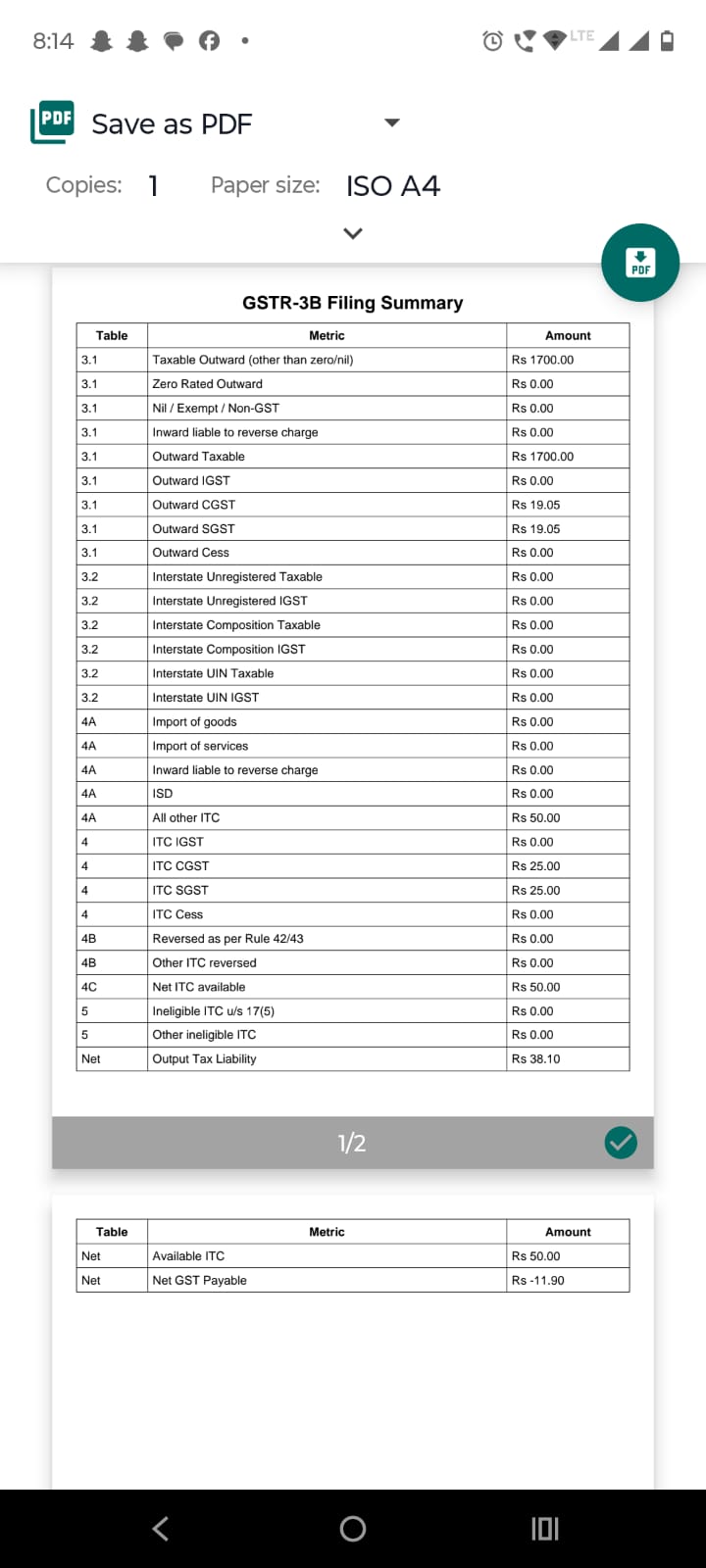
Export the report: Use Export Excel, Share PDF, Preview, or Export Filing Workbook for accountant handoff or filing preparation.
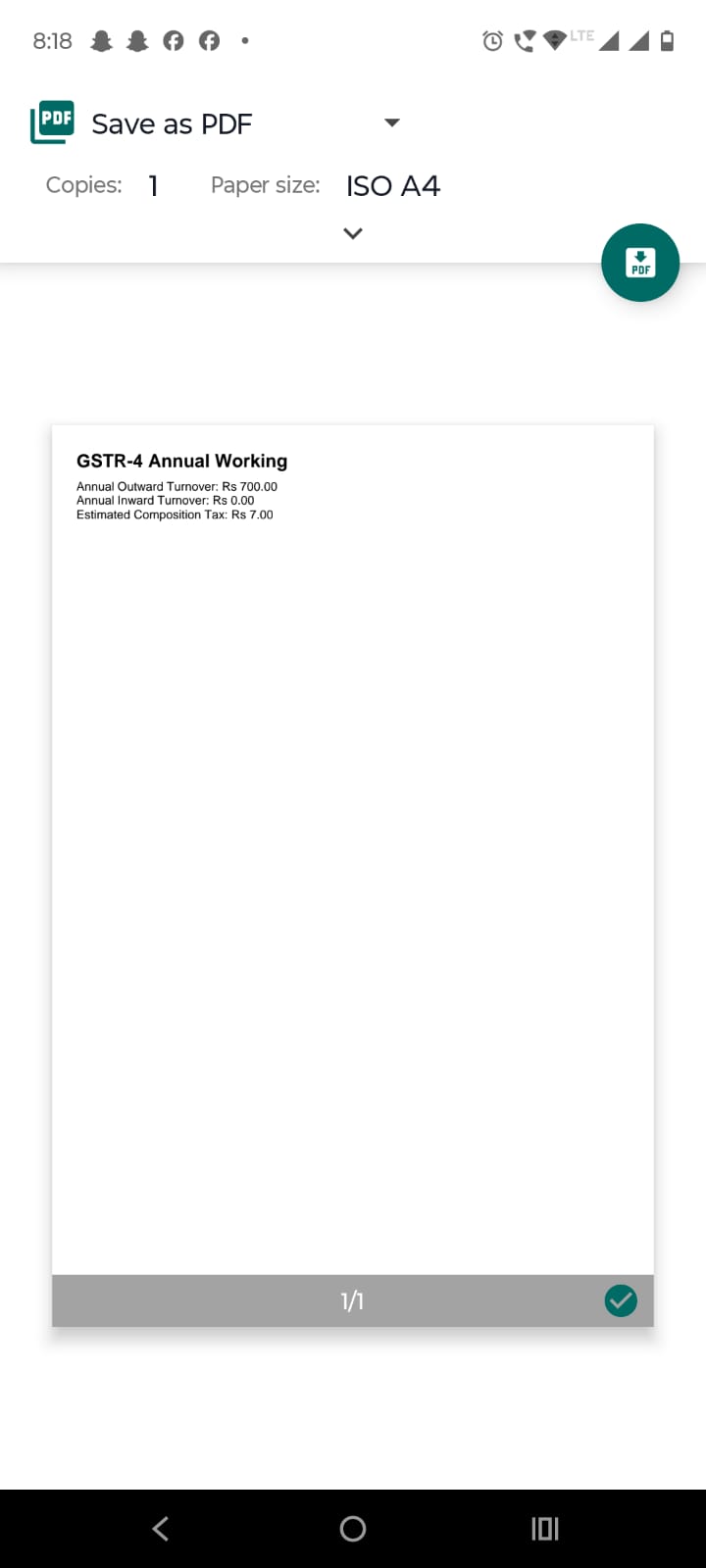
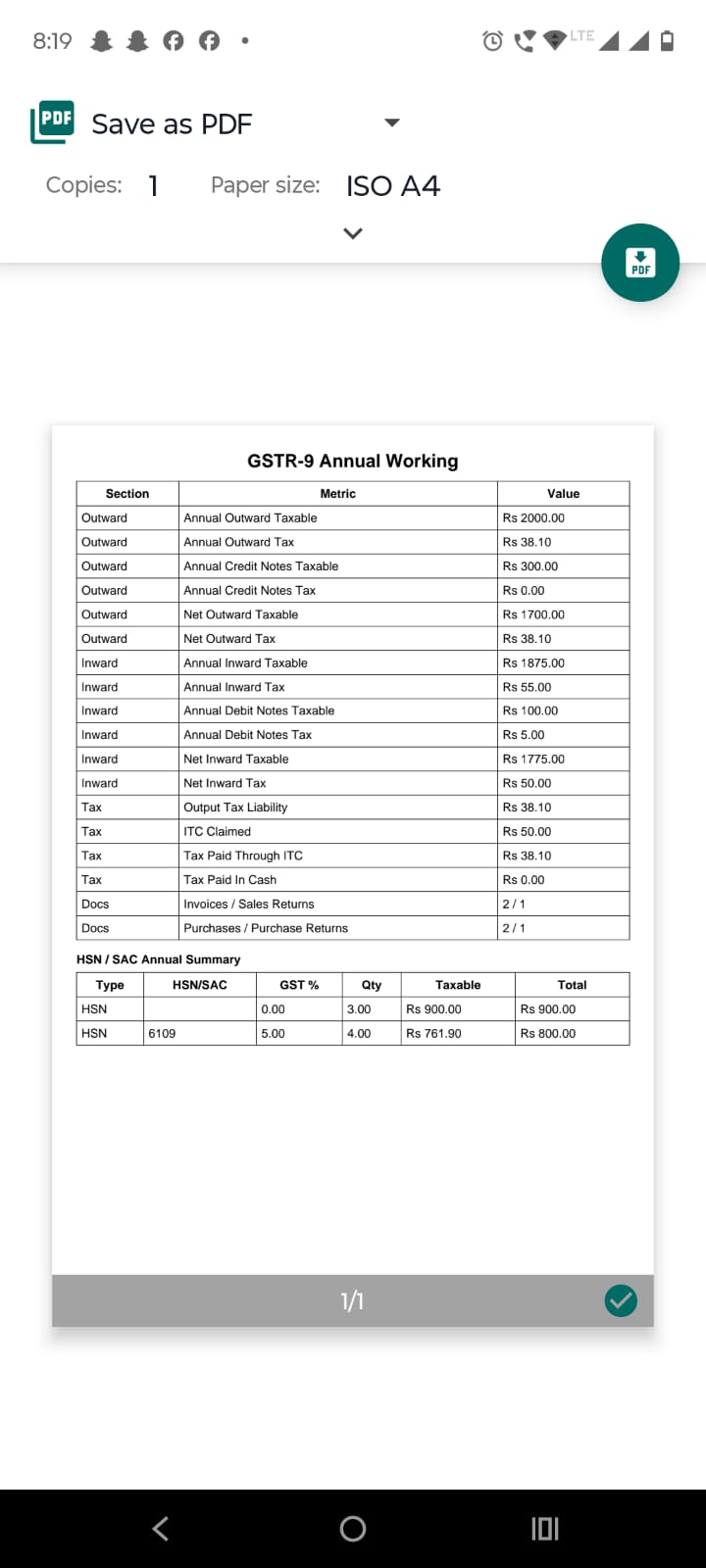
Tap on preview to print return pdf or share pdf to share it.
Tap CMP-08 if the business is under composition scheme. It shows quarter-wise composition turnover and tax working.
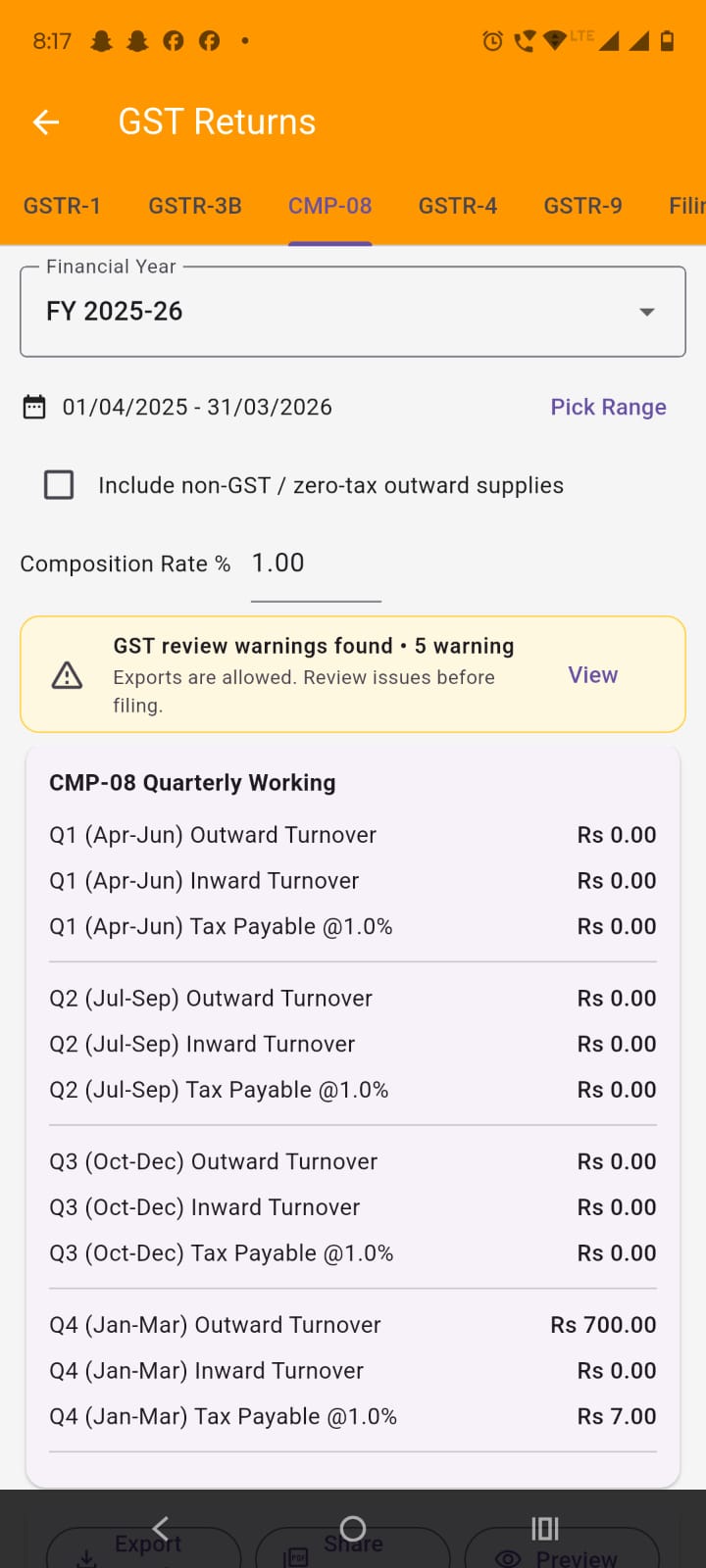
Review CMP-08 values: Check outward turnover, inward turnover, rate, and tax payable for the selected period.
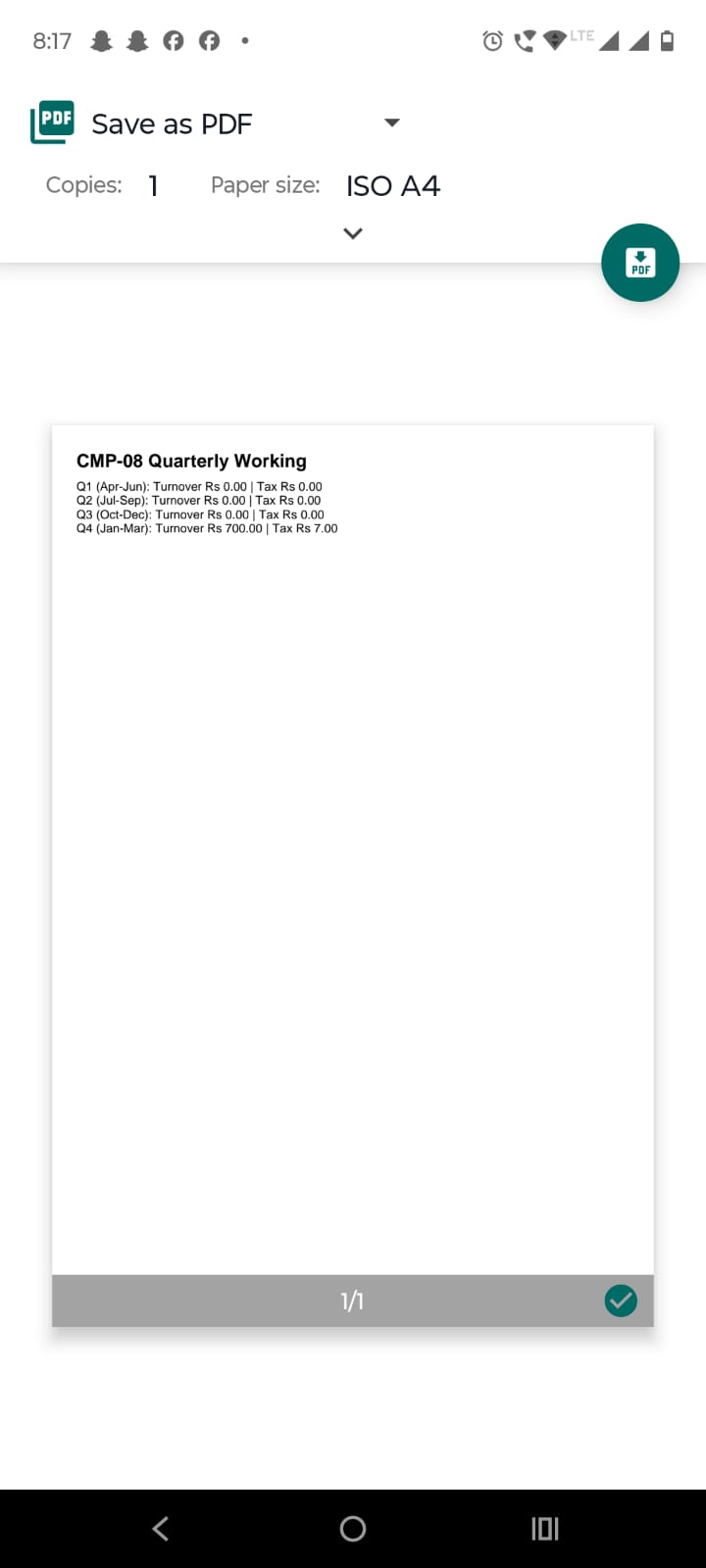
Export CMP-08: Use Export Excel, Share PDF, or Preview.
Open GSTR-4: Tap GSTR-4 for annual composition working.
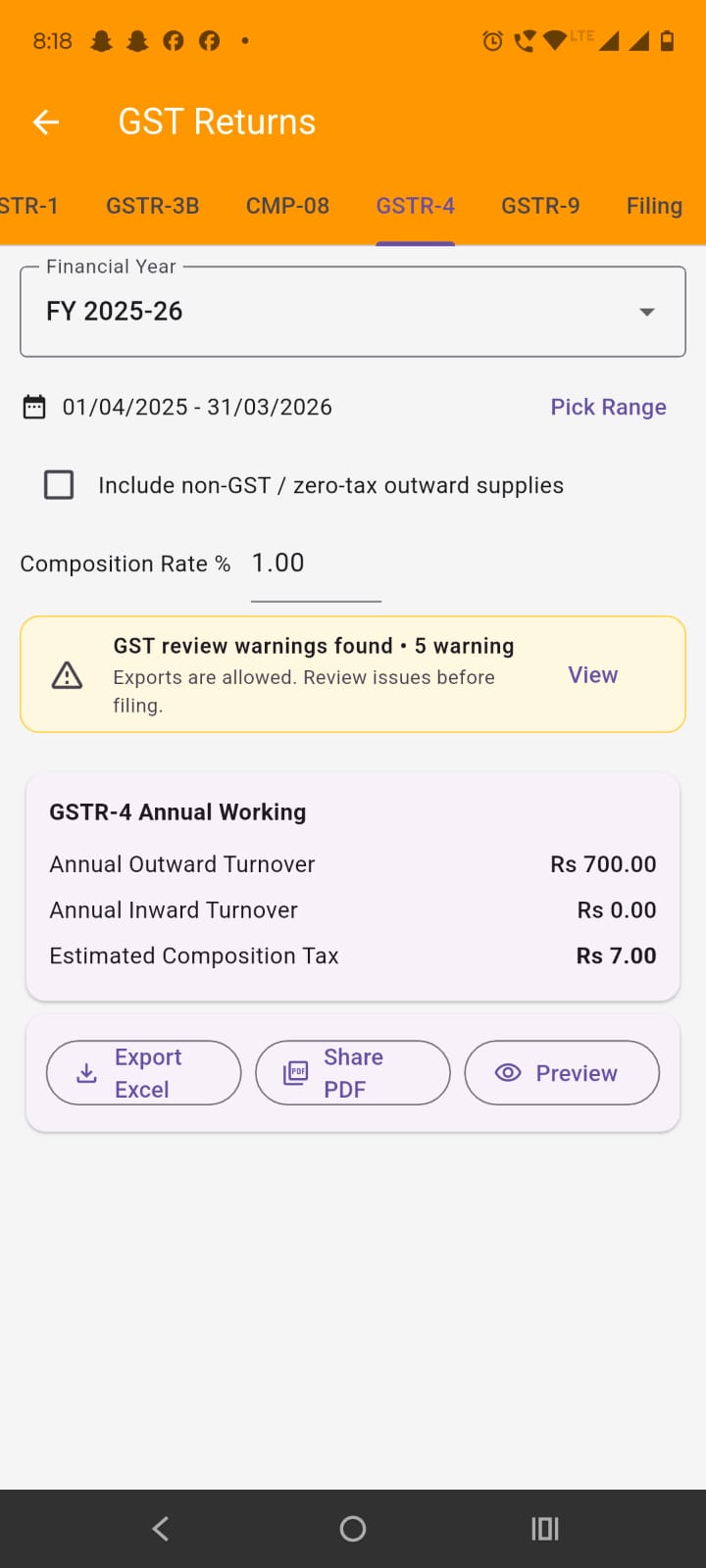
Export GSTR-4: Use the export buttons to save or share the annual working report.
Tap GSTR-9. This tab shows annual GST working from books data.
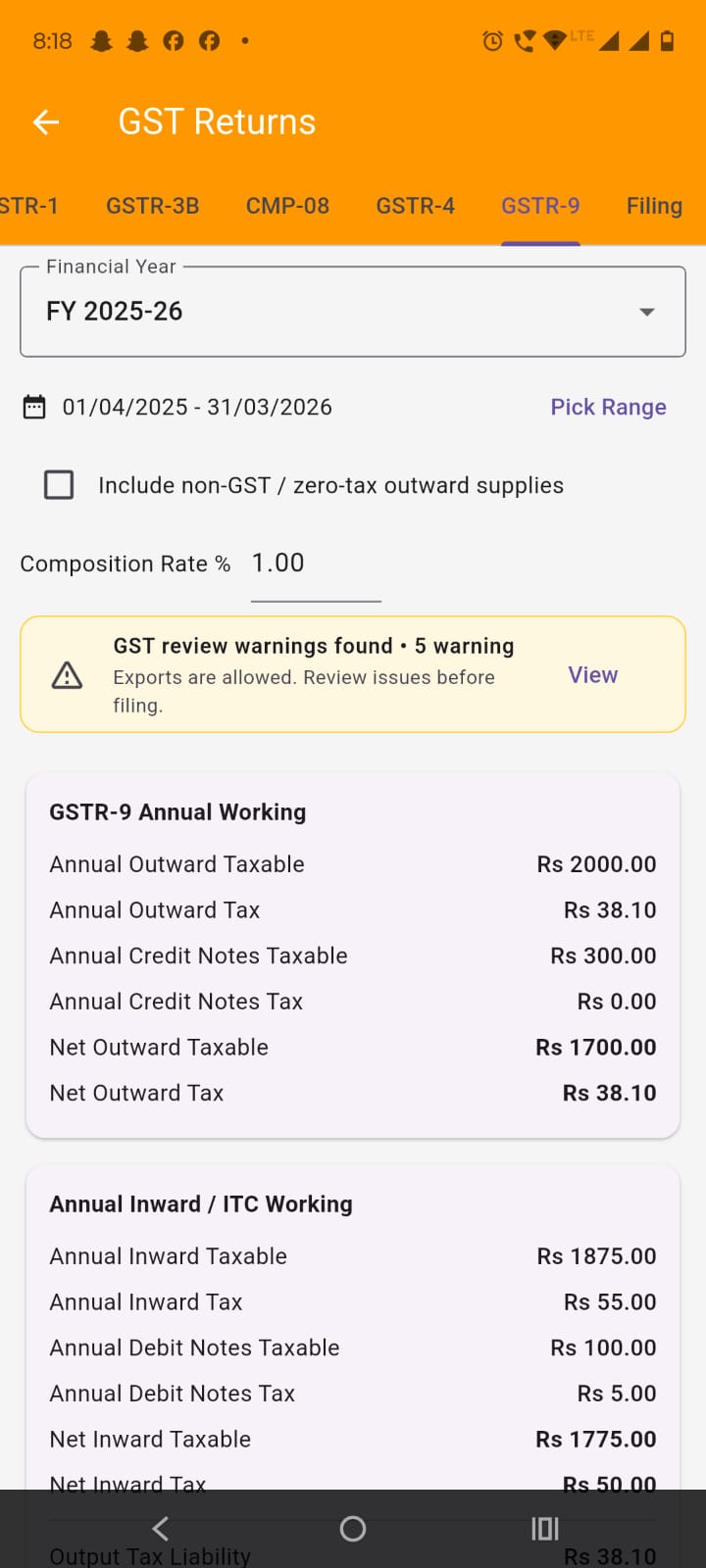
Review annual outward values: Check annual outward taxable, annual outward tax, annual credit notes, and net outward values.
Review annual inward and ITC values: Check annual inward taxable, inward tax, debit notes, ITC claimed, tax paid through ITC, and tax paid in cash.
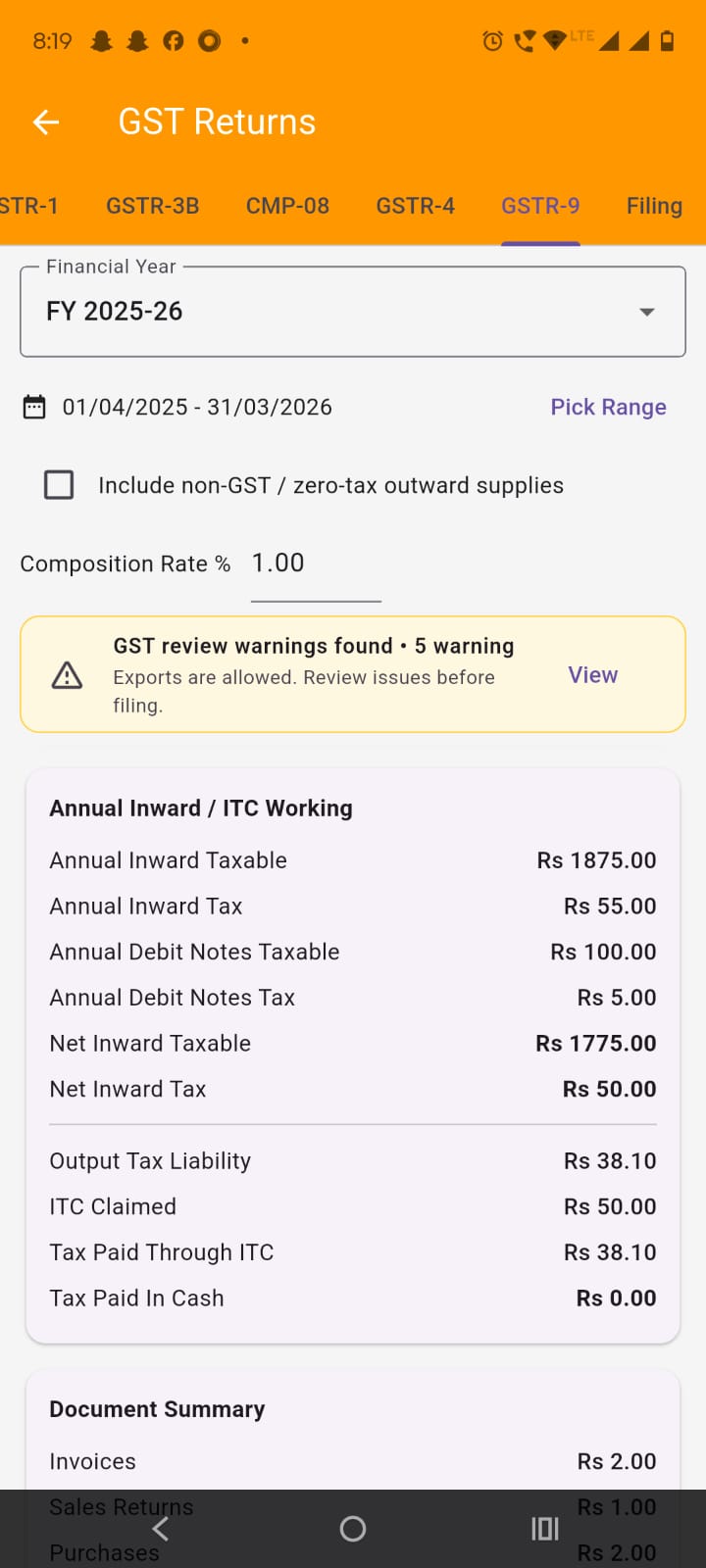
Review document summary: This section shows yearly counts of invoices, sales returns, purchases, and purchase returns.
Review annual HSN summary: Scroll to the HSN / SAC summary for yearly classification review.
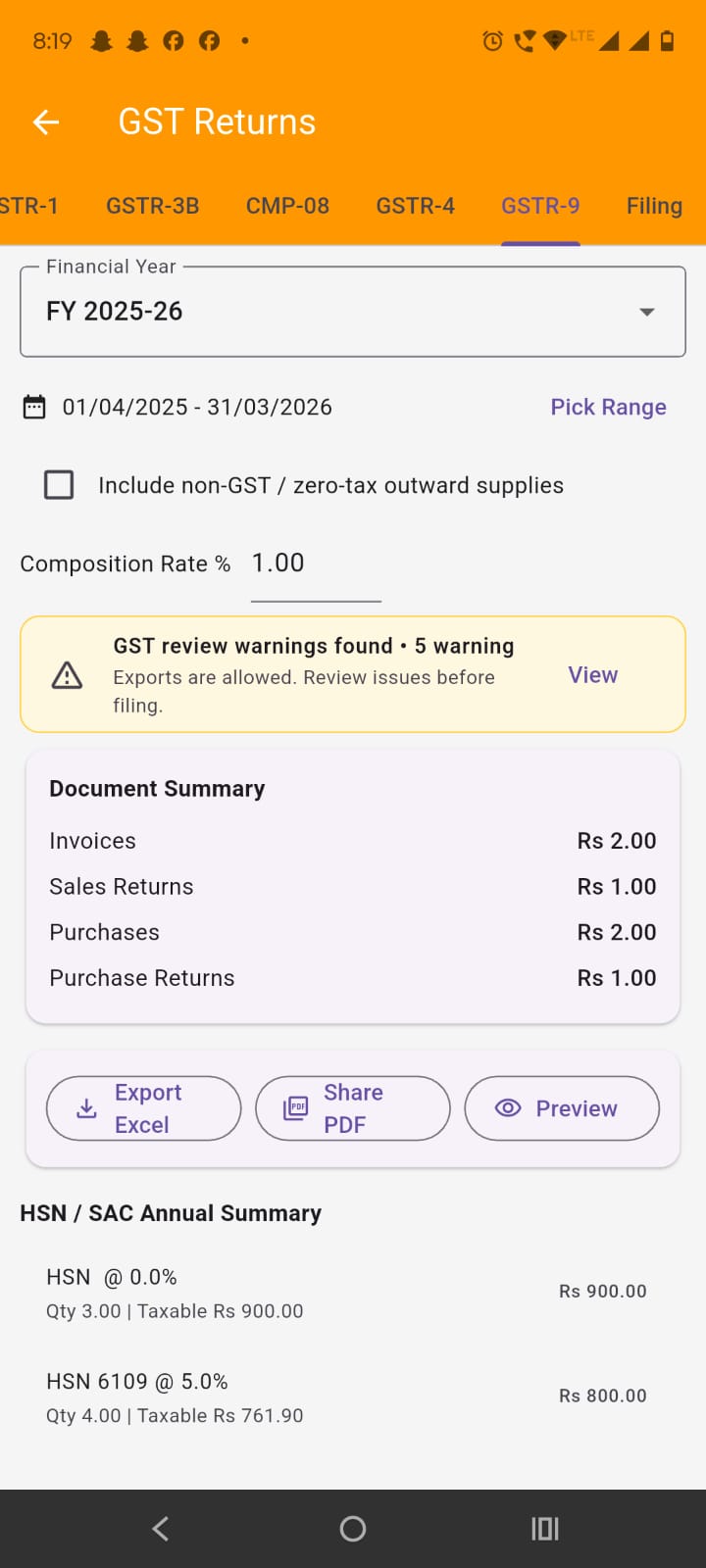
Export GSTR-9: Use Export Excel, Share PDF, or Preview.
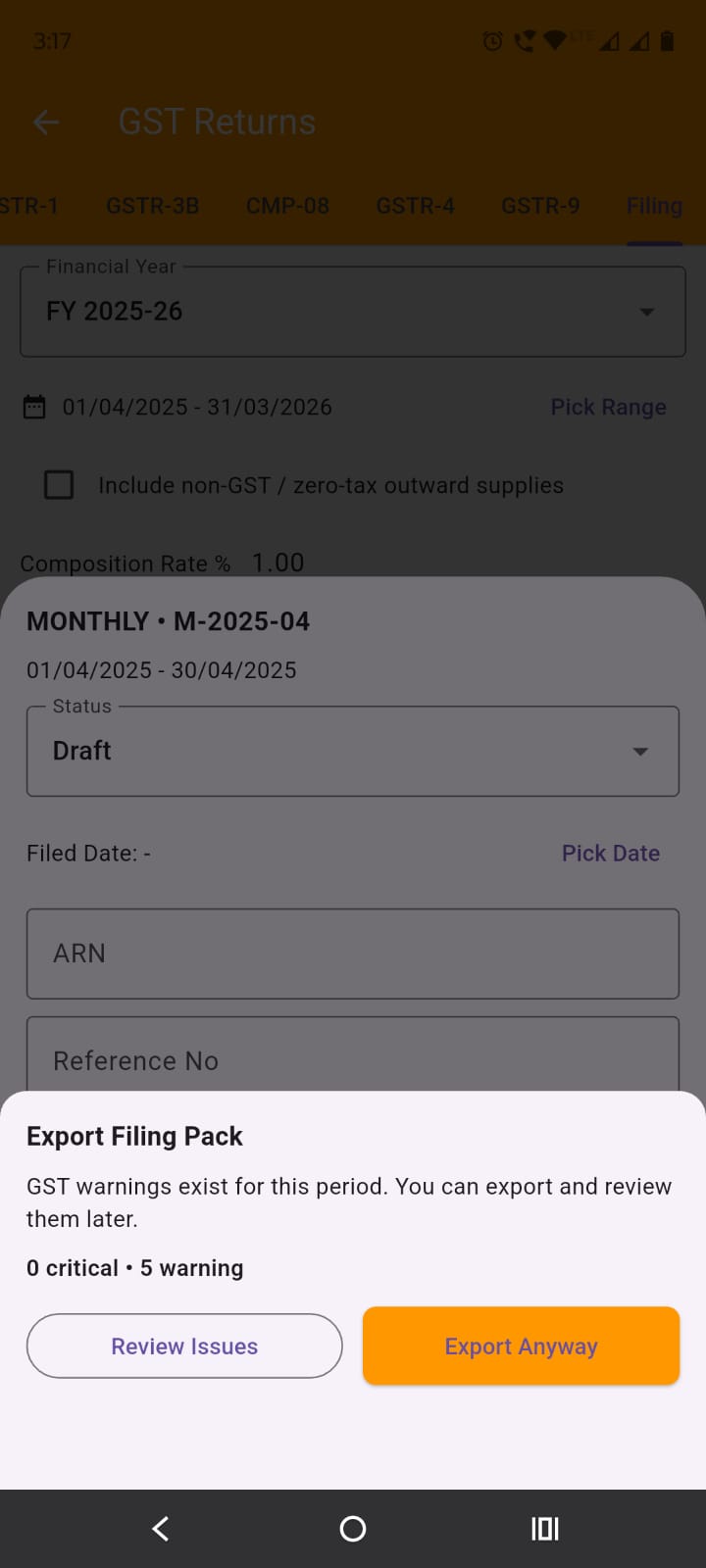
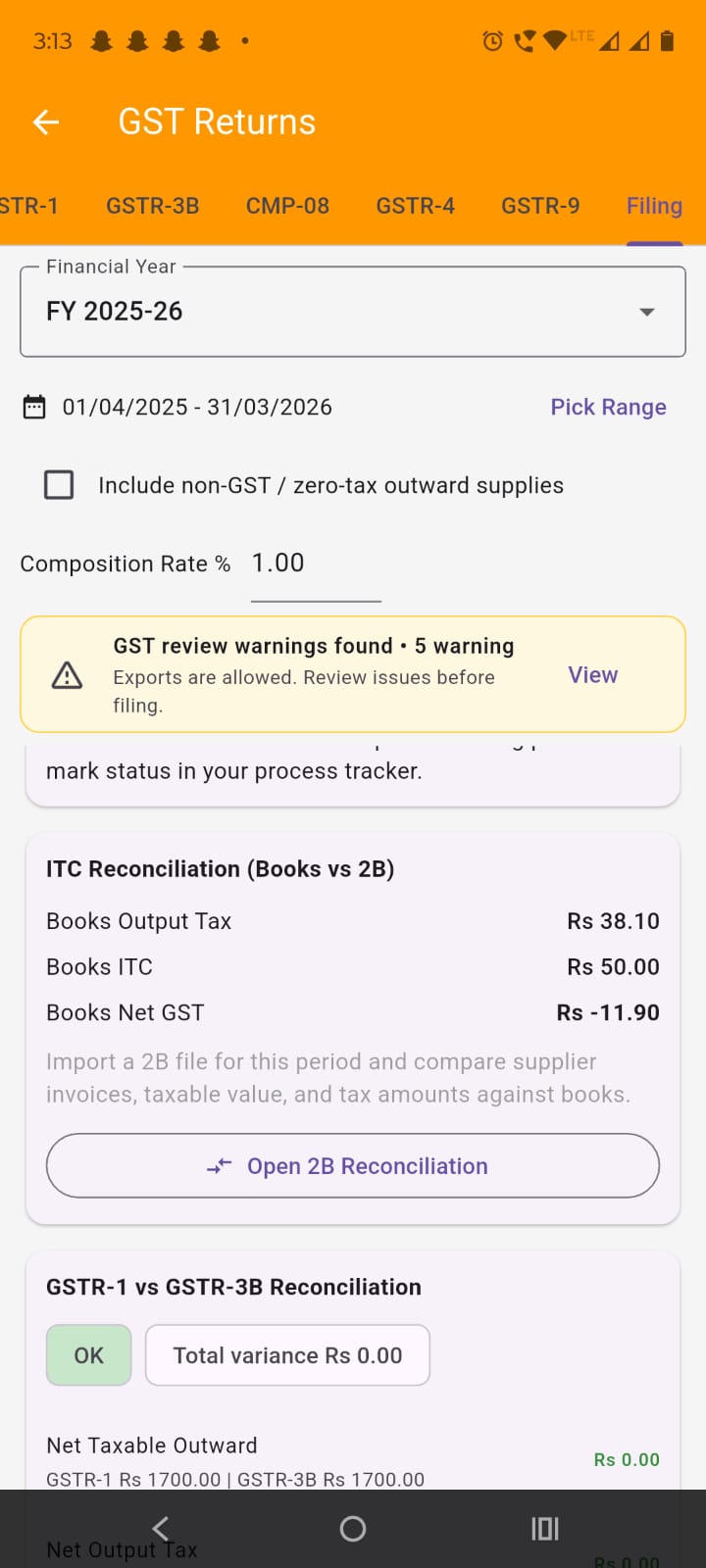
Tap Filing inside GST Returns. This tab is used for review, reconciliation, and filing support.
Review GSTR-1 vs GSTR-3B reconciliation: The first reconciliation card compares books-based GSTR-1 and GSTR-3B values. It highlights mismatch status and variance.
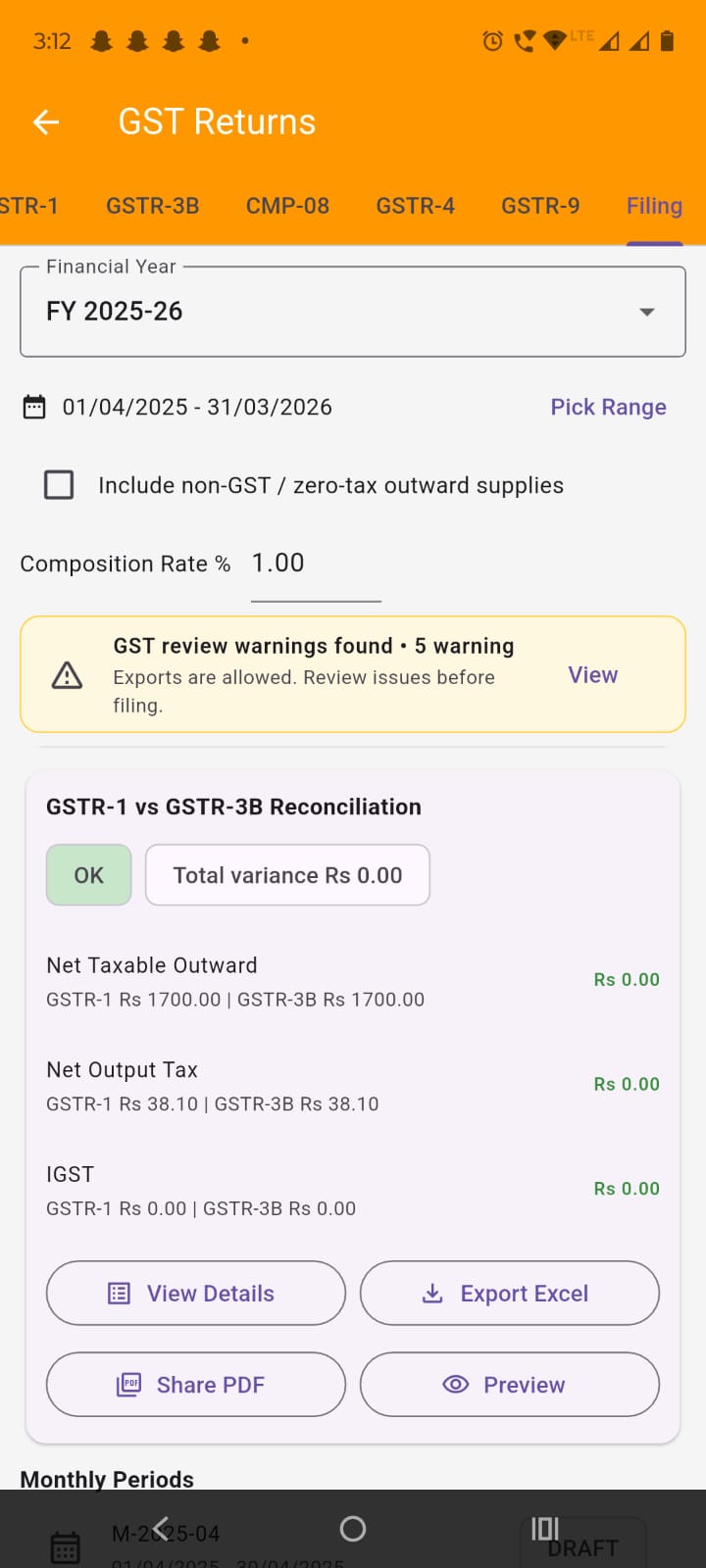
Open reconciliation details: Use View Details, Export Excel, Share PDF, or Preview to review or share the reconciliation.
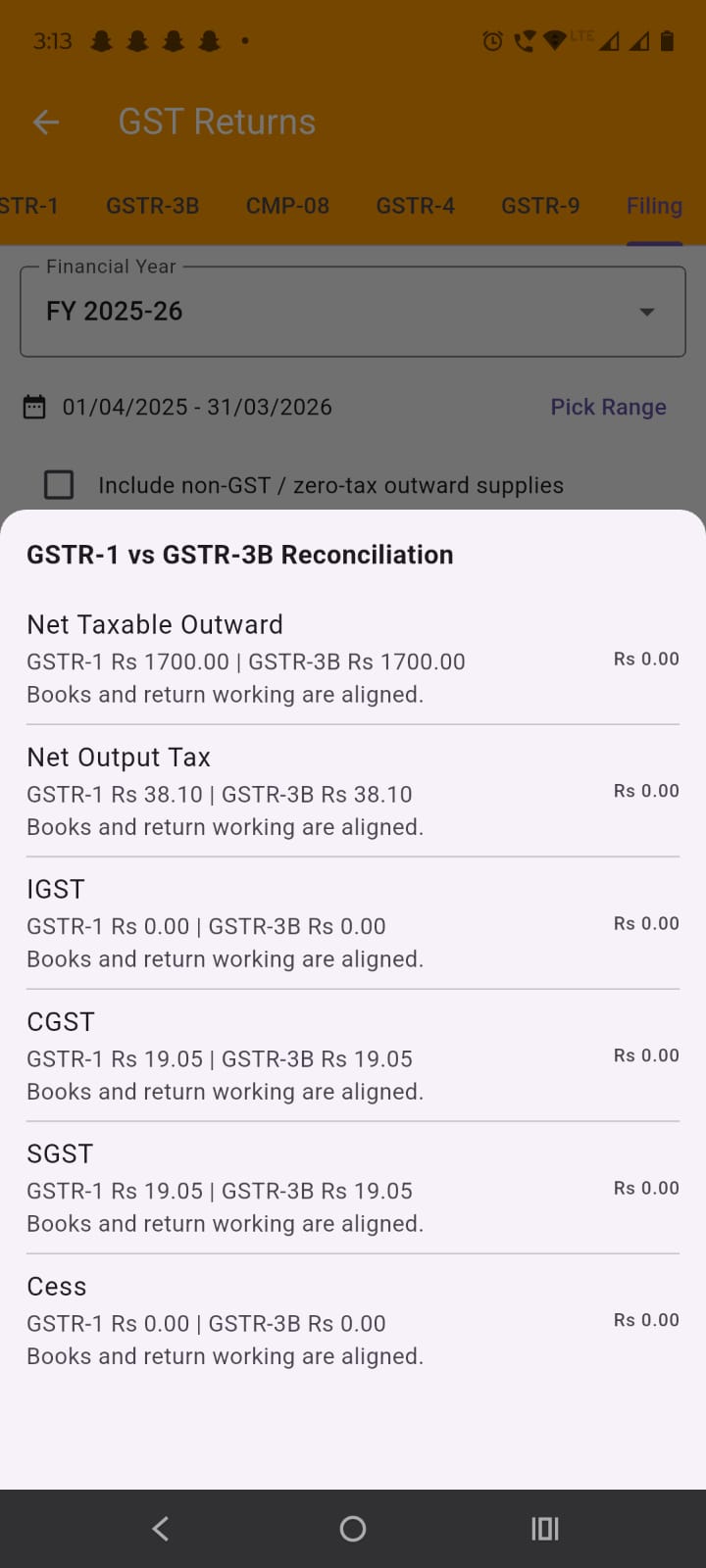
Review Books vs 2B: Use the ITC Reconciliation (Books vs 2B) card to compare inward GST from books with imported GSTR-2B data.
Open 2B reconciliation: Tap Open 2B Reconciliation to open the dedicated reconciliation screen.
At the top of the screen, review the import range and the count of imported 2B rows.
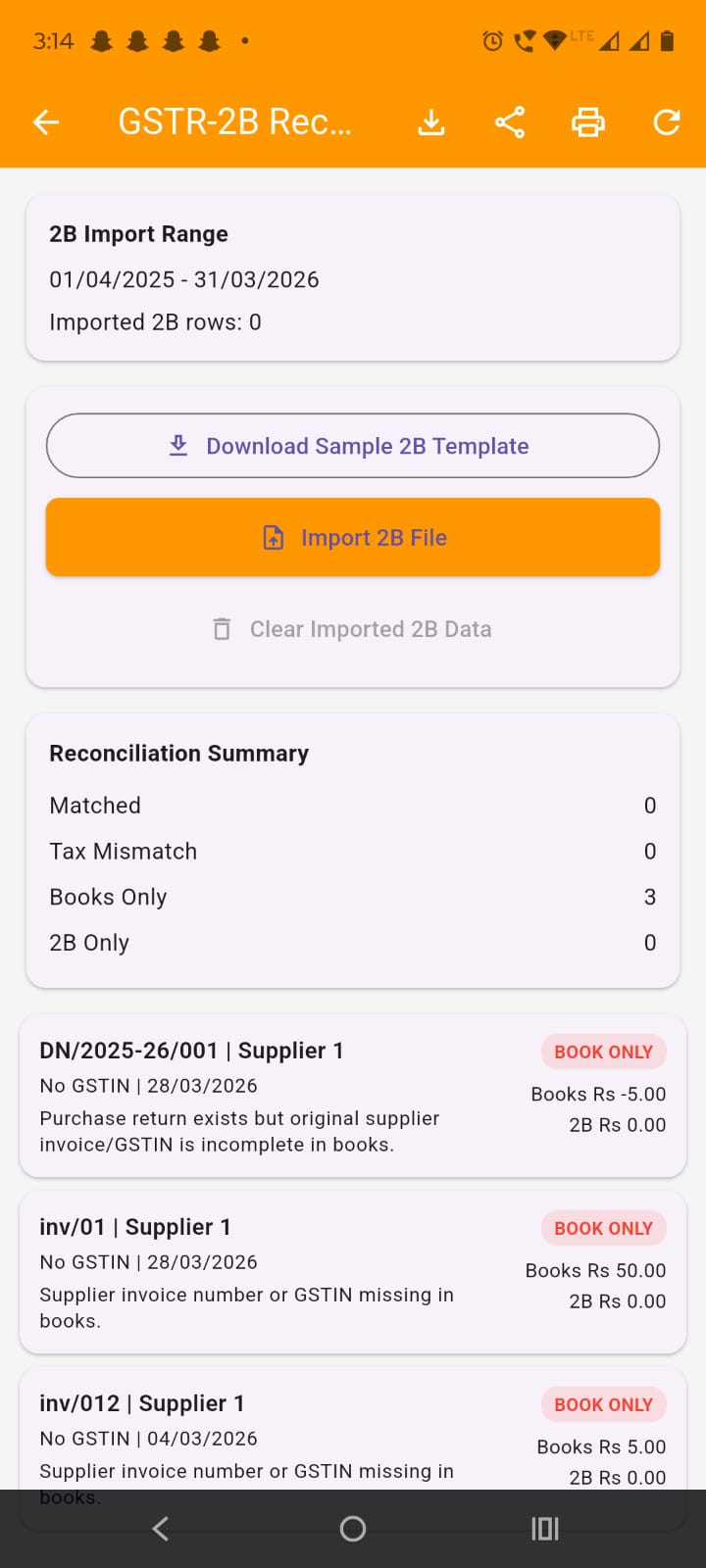
Download the sample template: Tap Download Sample 2B Template if you want a sample file format for testing or preparing import data.
Import the 2B file: Tap Import 2B File and select an xlsx, xls, or csv file. After import, the app shows how many rows were imported and whether any warnings were found. If warnings exist, a bottom sheet opens automatically.
Review file diagnostics: In the warning sheet, check:
Review row-wise warnings: The warning list also shows exact row-level reasons, such as:
Review reconciliation summary: After import, the summary section shows:
Review invoice-wise reconciliation cards: Each card shows supplier, invoice, books tax, 2B tax, and mismatch note. Use these cards to identify missing or mismatched ITC entries.
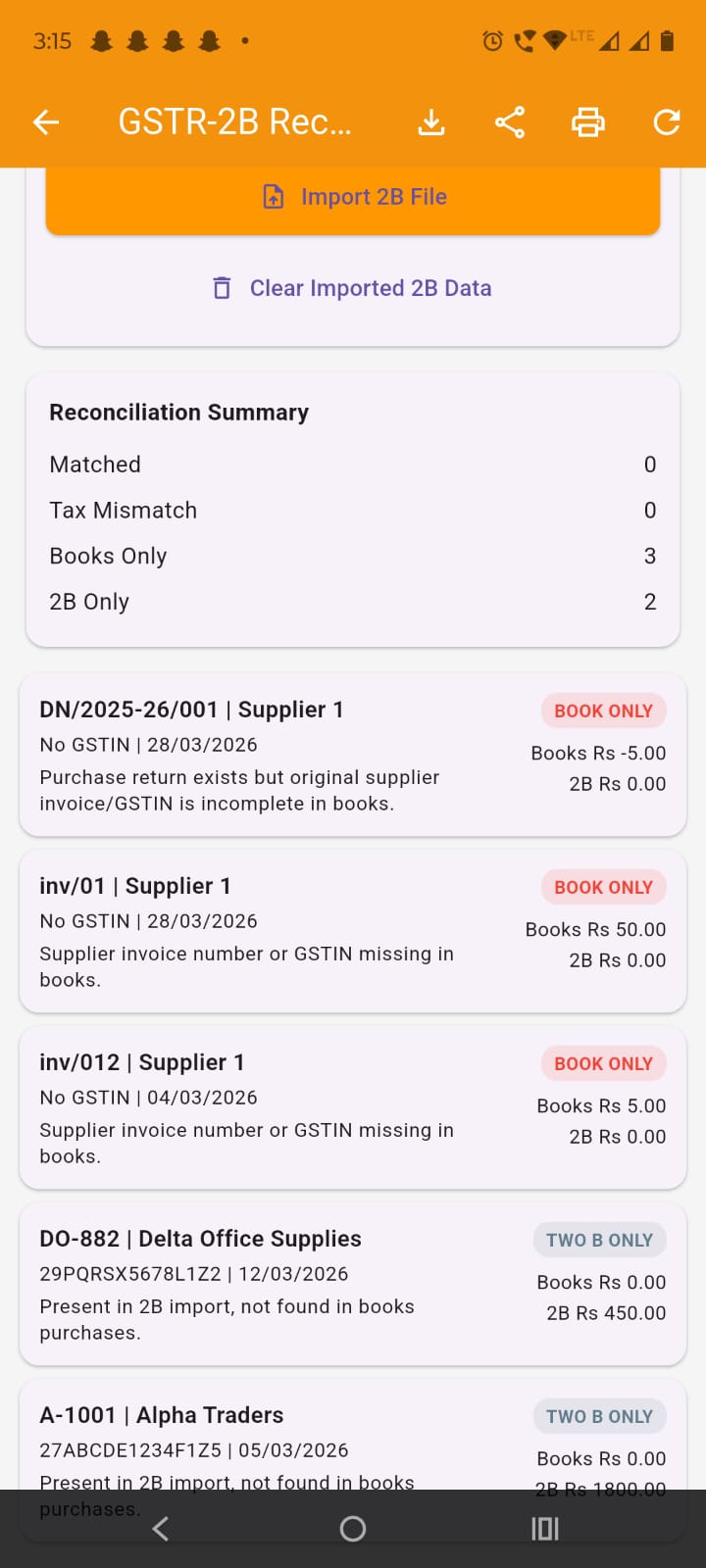
Export reconciliation: Use Export Excel, Share PDF, or Preview to save or share the reconciliation report.
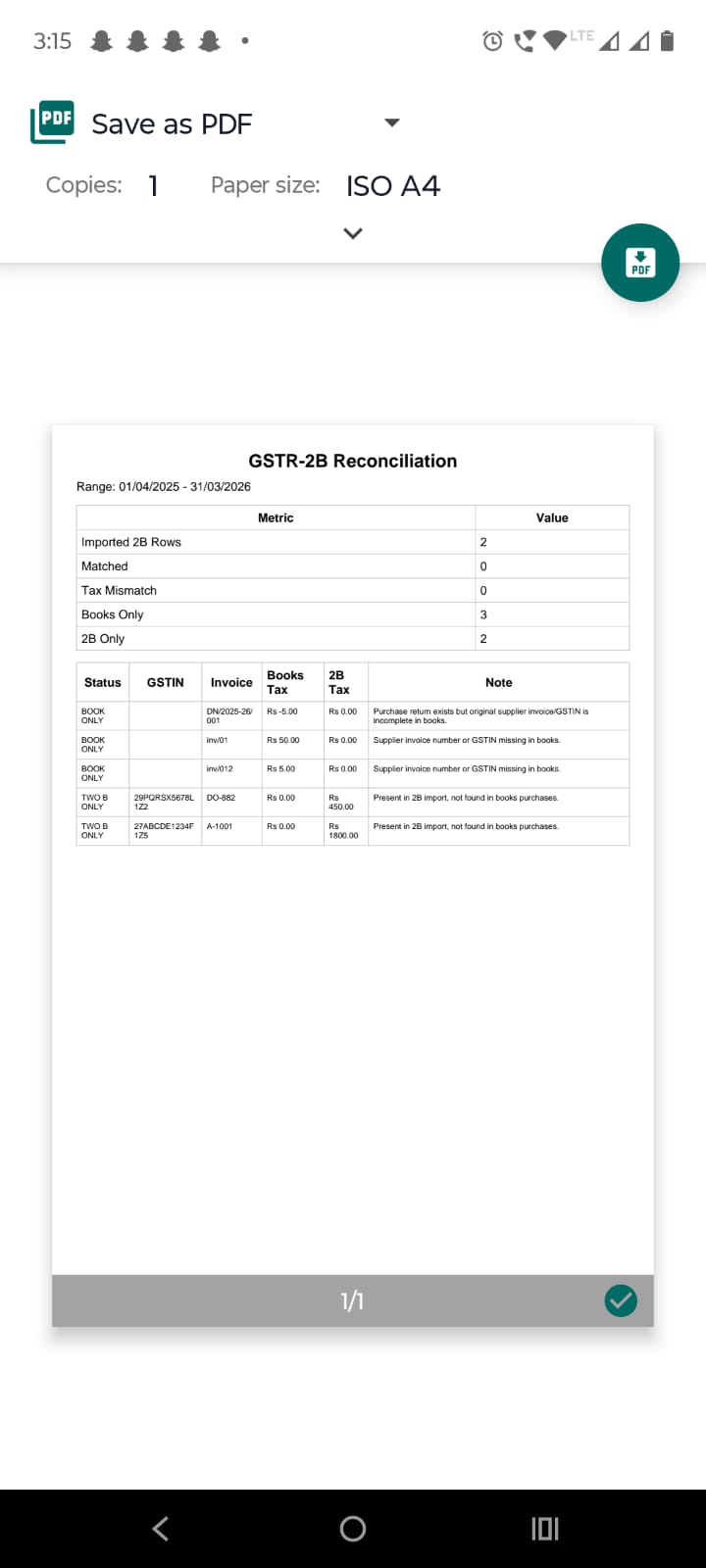
Clear imported 2B data if needed: Tap Clear Imported 2B Data if you want to remove imported 2B rows for the selected date range and import a corrected file again.
Inside the Filing tab, scroll to Monthly Periods or Quarterly Periods.
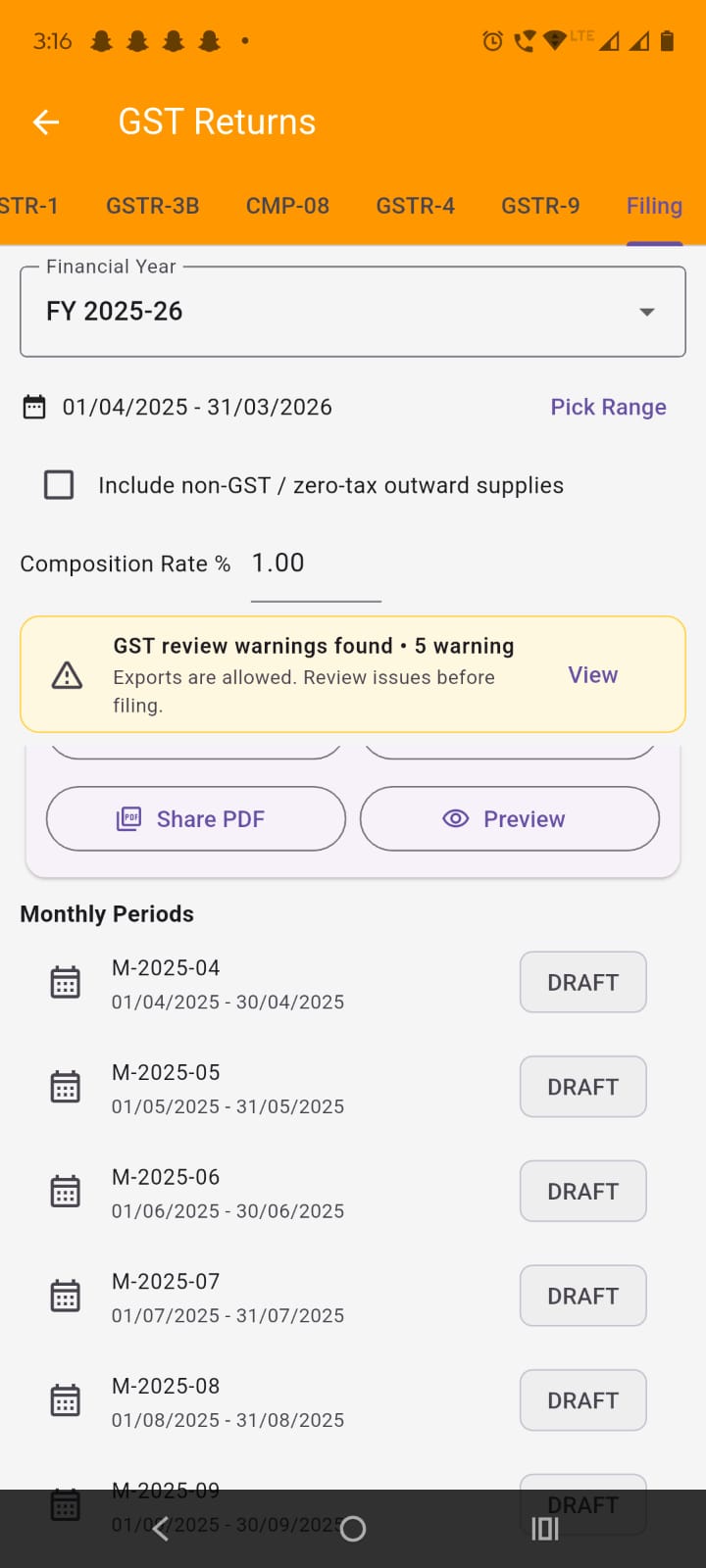
Open a filing period: Tap a period row to open the filing bottom sheet.
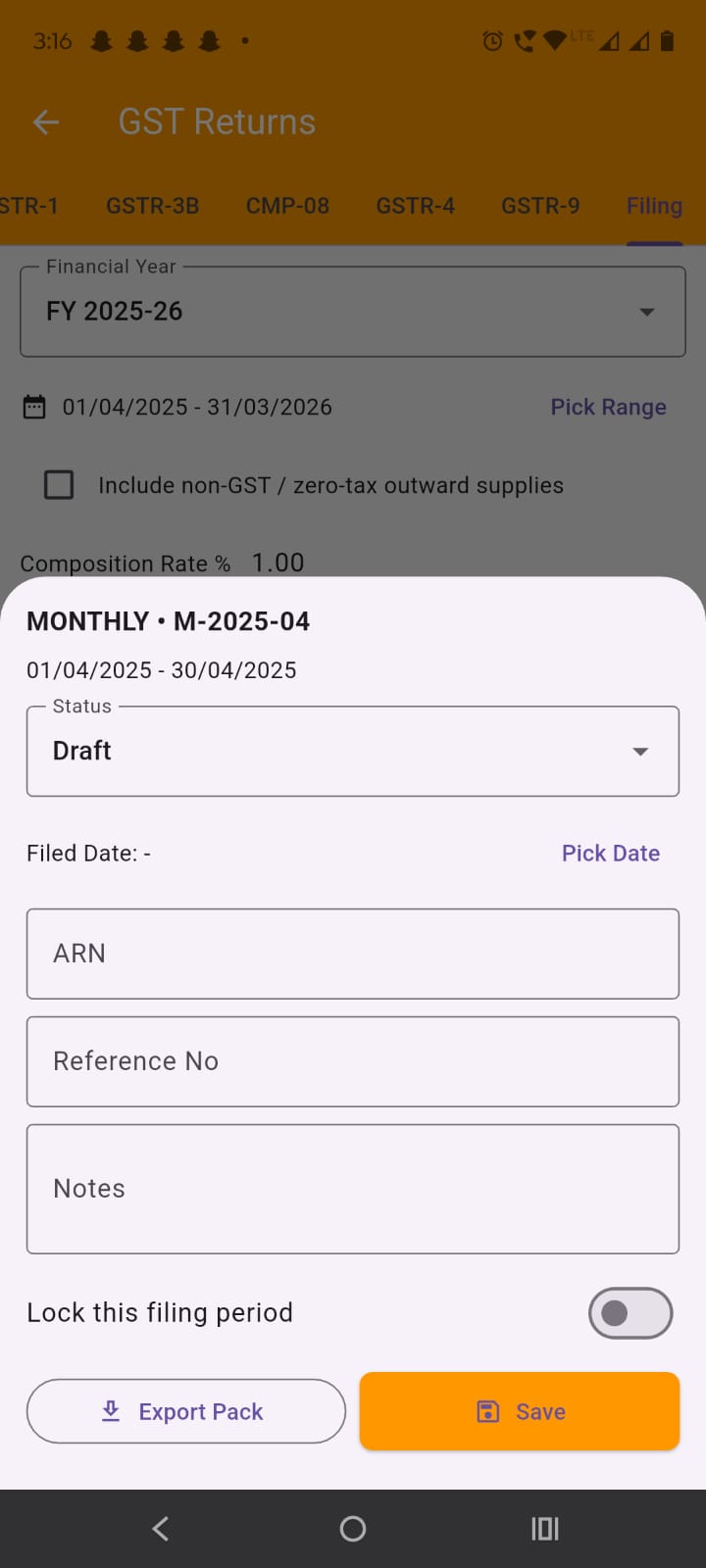
Update filing details: In the bottom sheet, you can:
Export period workbook: Use the export action in the filing flow to create a filing workbook for that selected month or quarter.