
VariPOS Documentation
Read module-by-module like an operations story. Every scene tells what to do, what to check, and what outcome to expect.
Read module-by-module like an operations story. Every scene tells what to do, what to check, and what outcome to expect.
Daily cash and bank discipline happens in this part of your business story.
Expenses are generally those expenditures for which you go not get any tax invoice and you can not claim ITC. By tapping on the Expense (s) on the dashboard or Expenses menu item, opens up the Expenses screen.
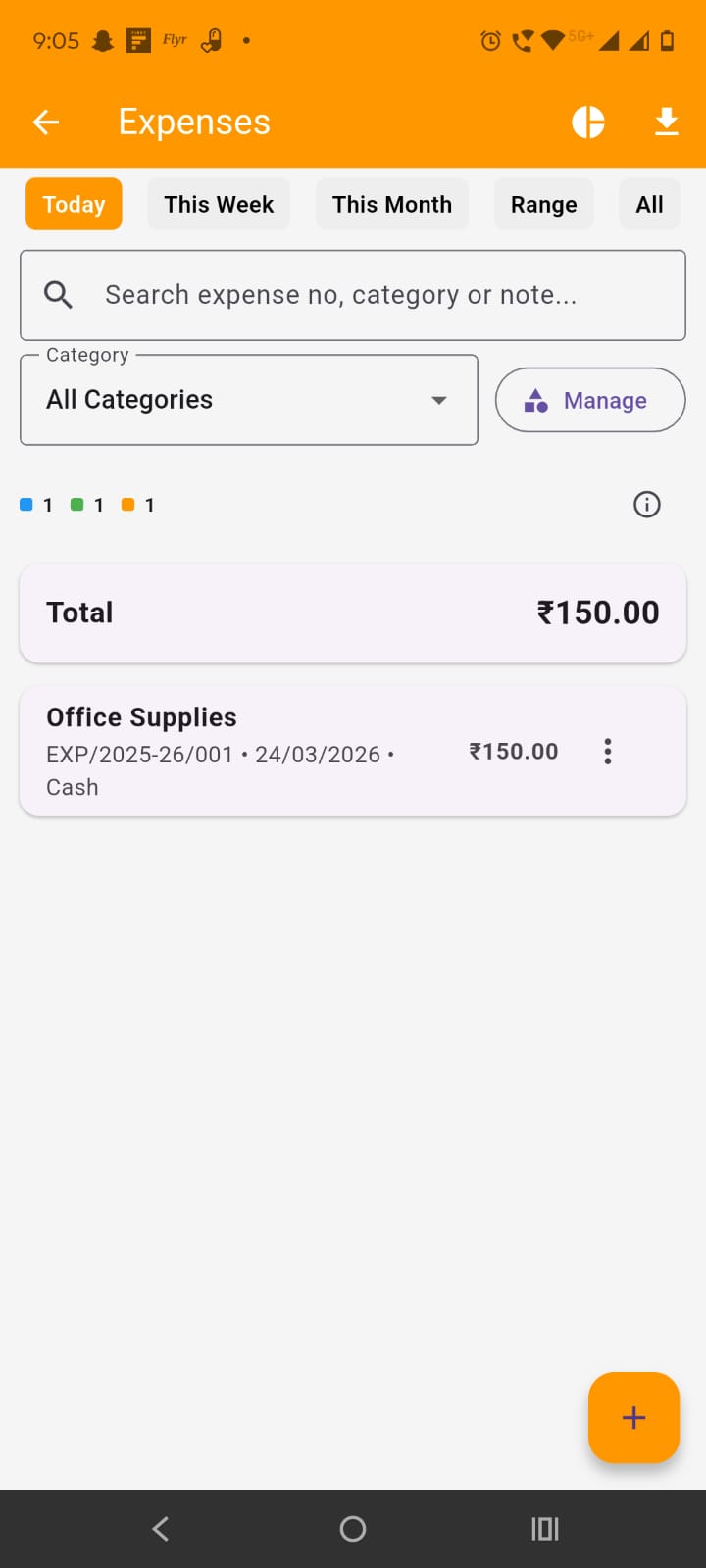
On the expenses screen, all the expenses are listed. In the App bar, you have the icon button for expenses reports, option to download Excel, print pdf and share pdf of the listed expenses. Below this are the date filters. by default only today's expenses are listed. Below that you have search field, category filter and manage button for managing the categories.
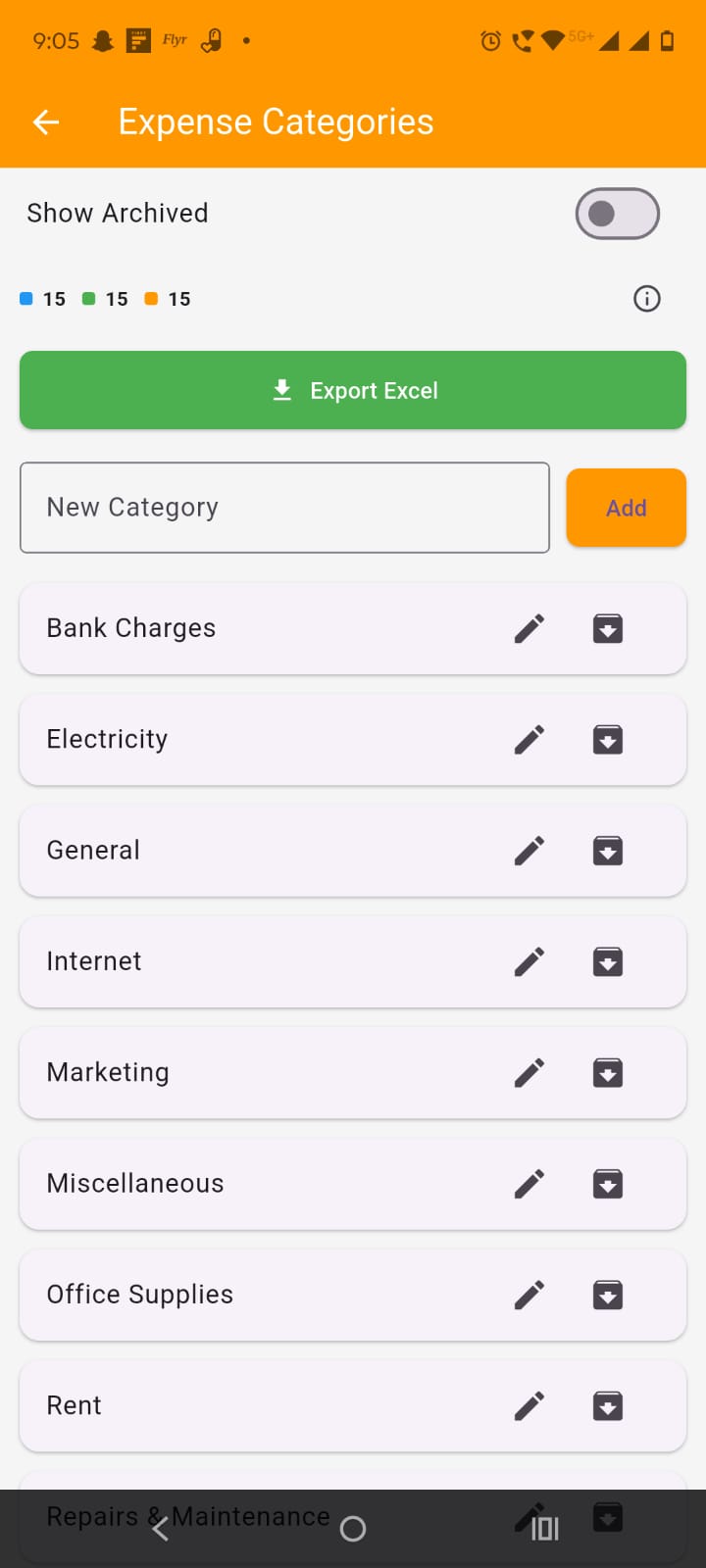
On tapping the manage button, opens up the categories screen where you can add, edit, archive categories and download categories data as excel file.
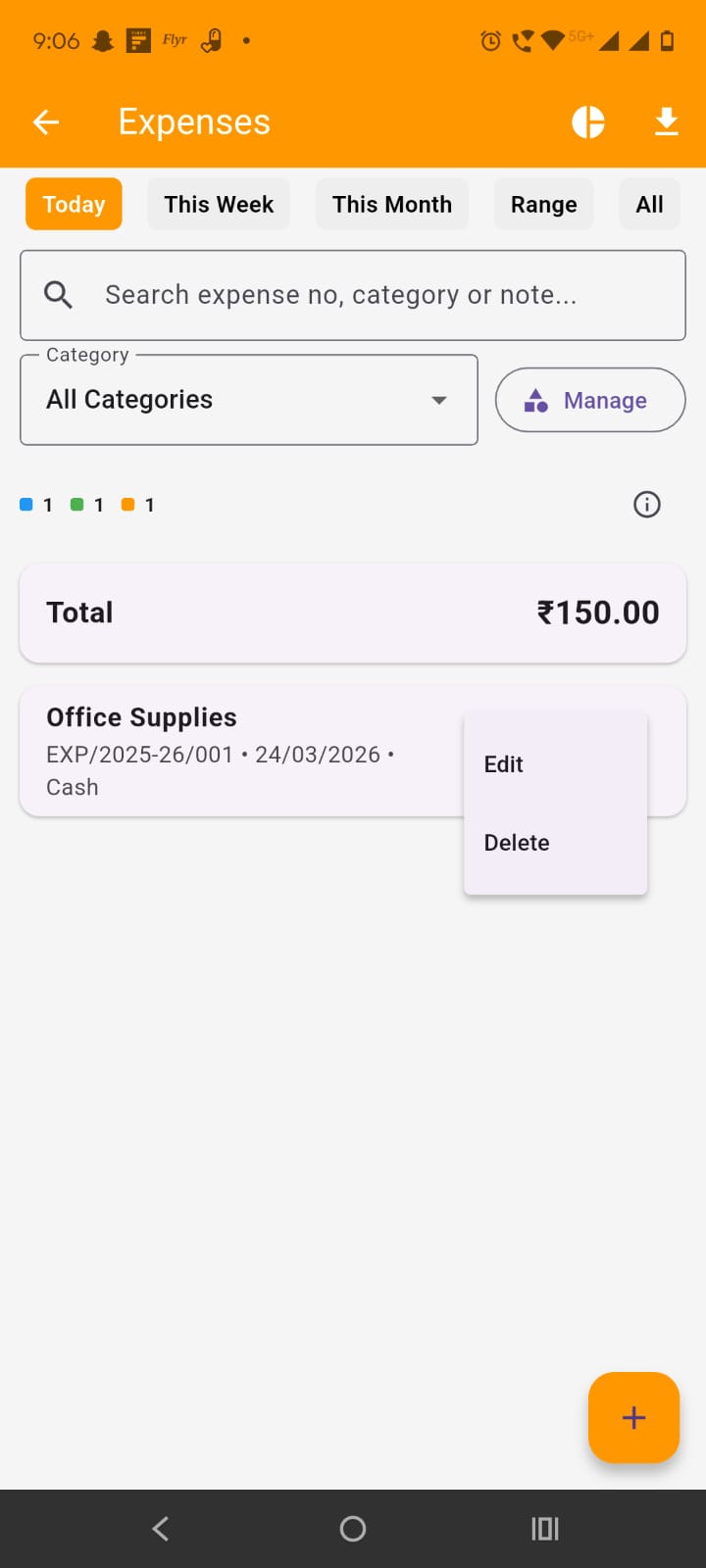
On expenses screen, below filter, you have toatal card which shows the total of the filtered expenses. Below that you have the list of cards of enxpense. on the right side of each expense card, you have the option to edit and delete the expense. At the bottom of the screen you have the Add Expense FAB button (+).
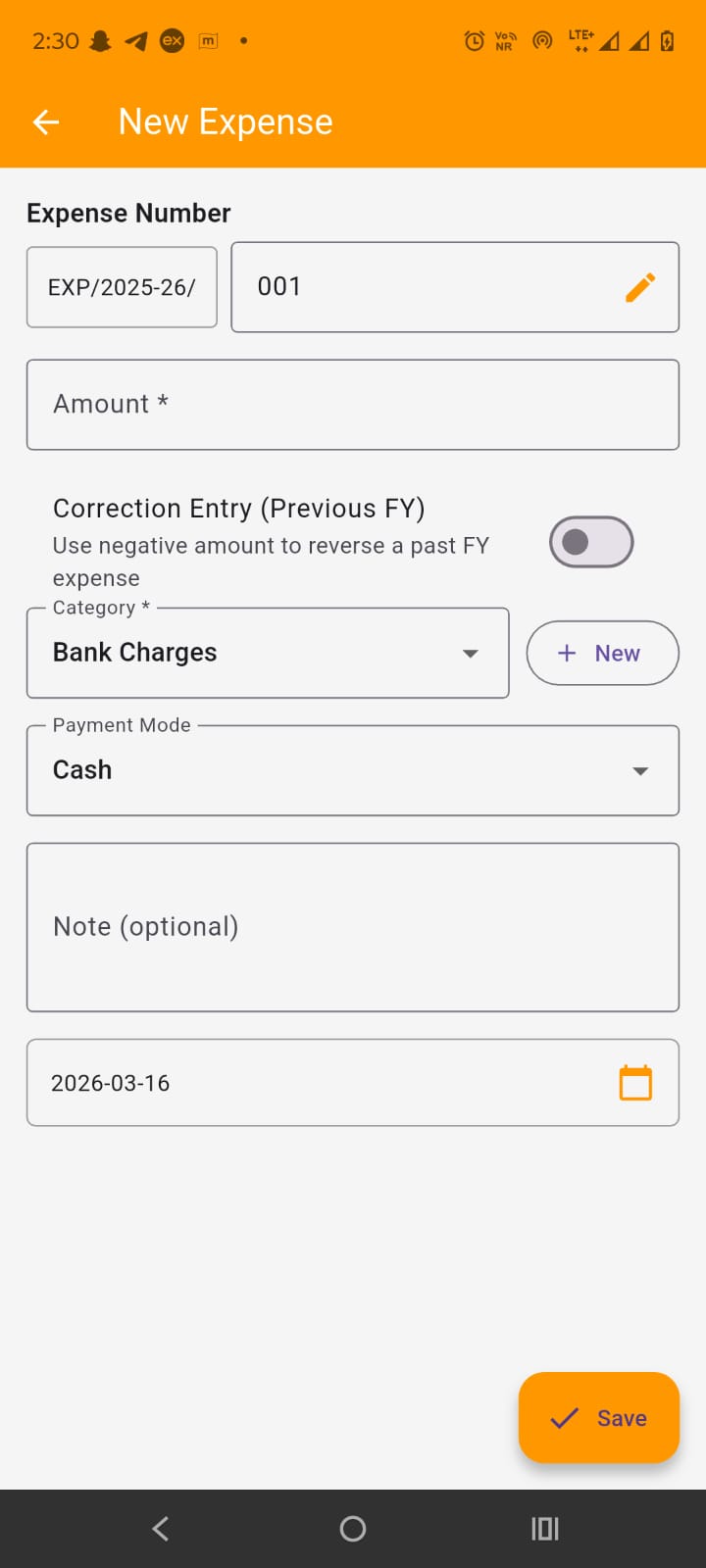
On tapping the add expense or edit, opens up the New Expense/edit screen. Here you should:
By tapping on the reports icon in the app bar, opens up the expense reports screen.
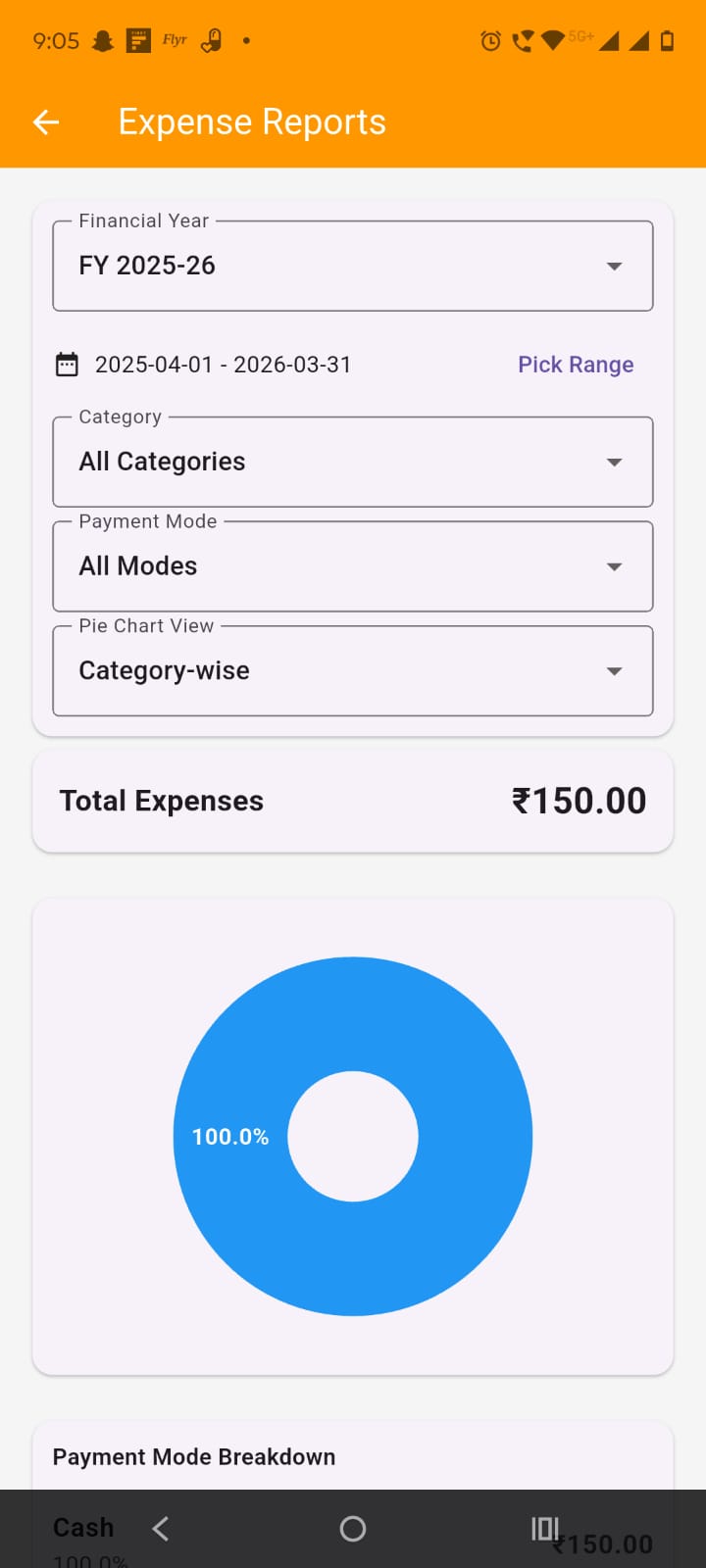
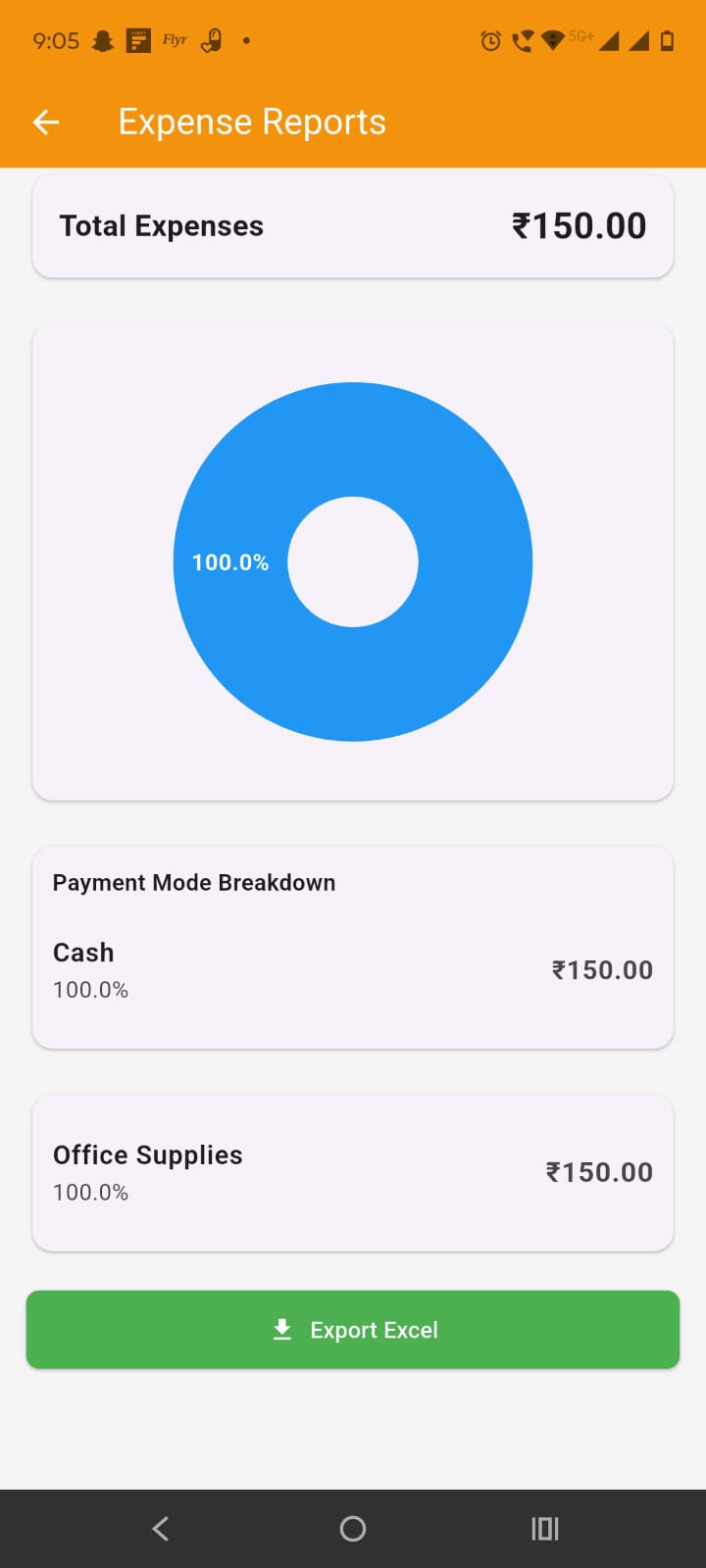
Here you can view and filter reports by FY, category, payment mode wise. you can view expenses pie chart either by payment mode or category wise. you can also export the expenses report as excel.
By tapping the Payments on the dashboard or in menu, opens payments screen.
The Payments module is used to track how business transactions were actually settled. Sales, purchases, expenses, and returns create balances, but the payments module shows whether those balances were cleared by cash, bank, or adjustment. It helps the owner verify money movement, check outstanding amounts, and keep customer and supplier accounts clean.
Cashbook shows all cash-in and cash-out entries. It is used for daily counter checking and cash balance verification.
Bankbook shows all bank-related entries such as transfer, card, cheque, or UPI routed through bank settlement. It helps match app records with bank statement or passbook.
Adjustments shows balance changes without direct cash or bank movement, such as advance adjustment, return adjustment, or ledger settlement entries.
Ledger shows party-wise account history. It helps the user see opening, transactions, payments, adjustments, and closing balance for each customer or supplier.
Customer Ledger is used to check what each customer purchased, what amount was received, and what is still outstanding.
Supplier Ledger is used to check purchases from each supplier, what was paid, and what amount is still payable.
In short, the payments module is the money-settlement and account-reconciliation section of the app. It gives control over cash flow, bank flow, adjustments, and party balances in one place.
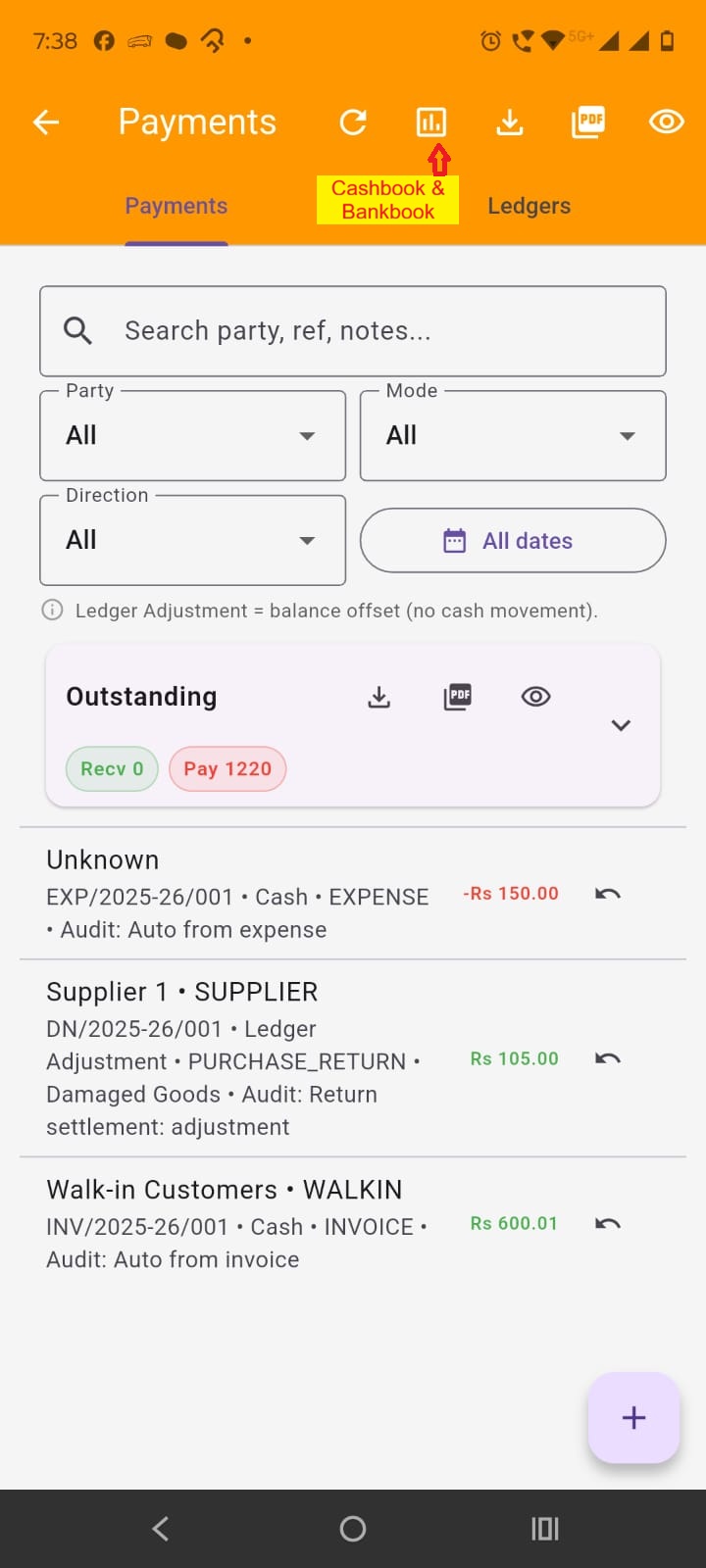
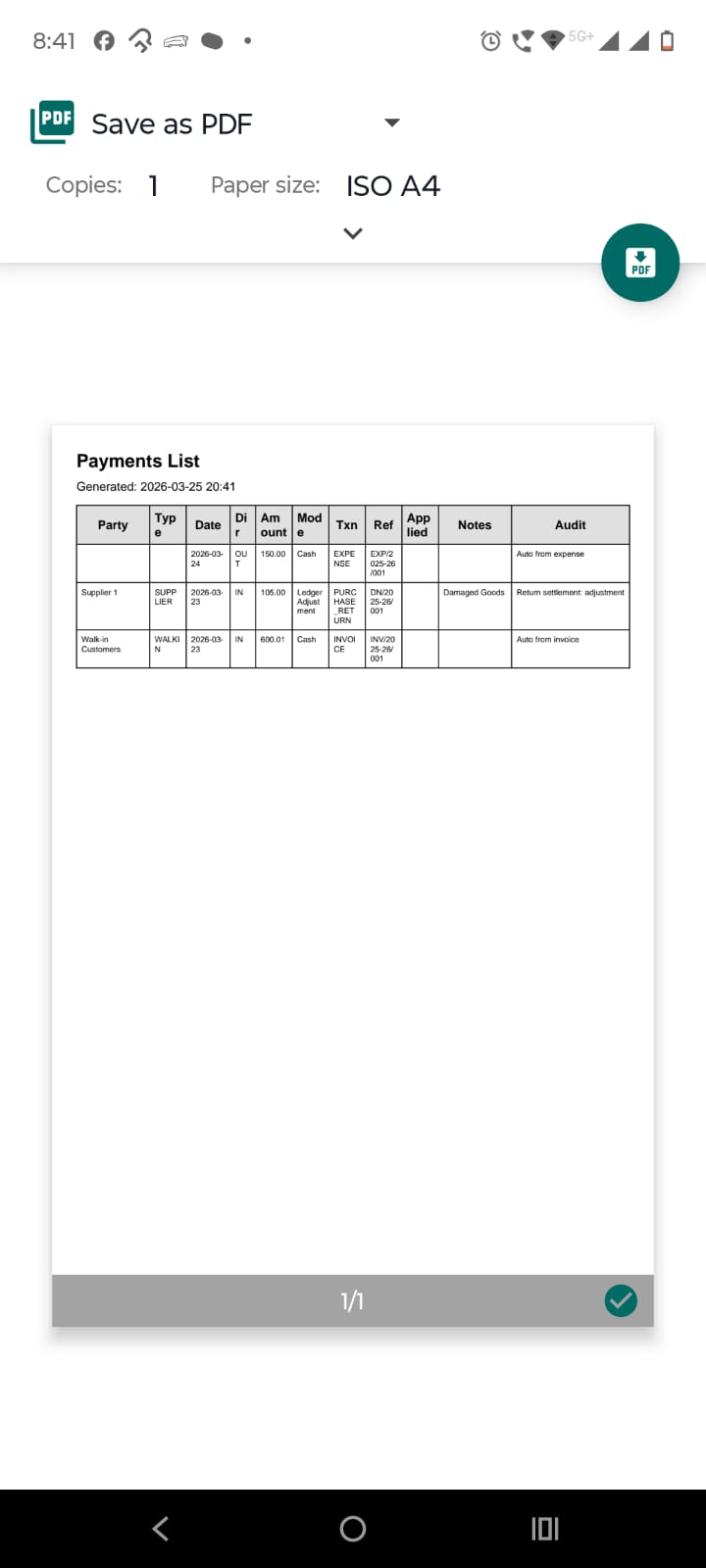
In the payments screen, you have two tabs i.e. payments and ledgers. In the payments tab, we have all the entries of transactions which resulted in the payments (payment in/out) including settlement adjustments. While on theis tab, the appbar have two icons, first is for refreshing the data, second icon opens the cashbook and bankbook screen, then there are icons to export excel, pdf and print pdf (as shown in image). Below this we have the filters for the list of payments.
Below filters in payments tab, we have outstanding card which shows top outstanding transactions' payments if there is any outstanding payment. you can export excel, pdf and print the outstanding payment transactions. Tapping the card expands it and in the card.
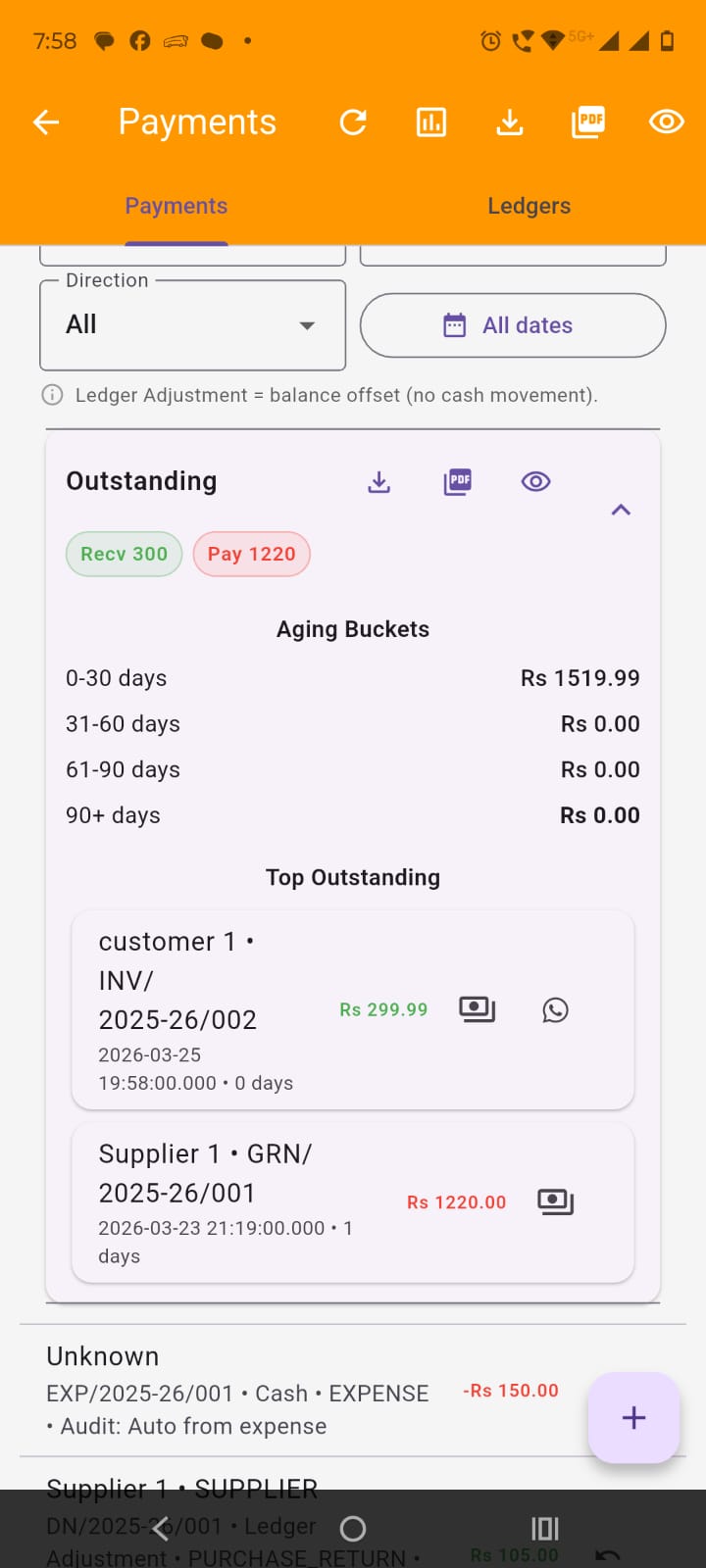
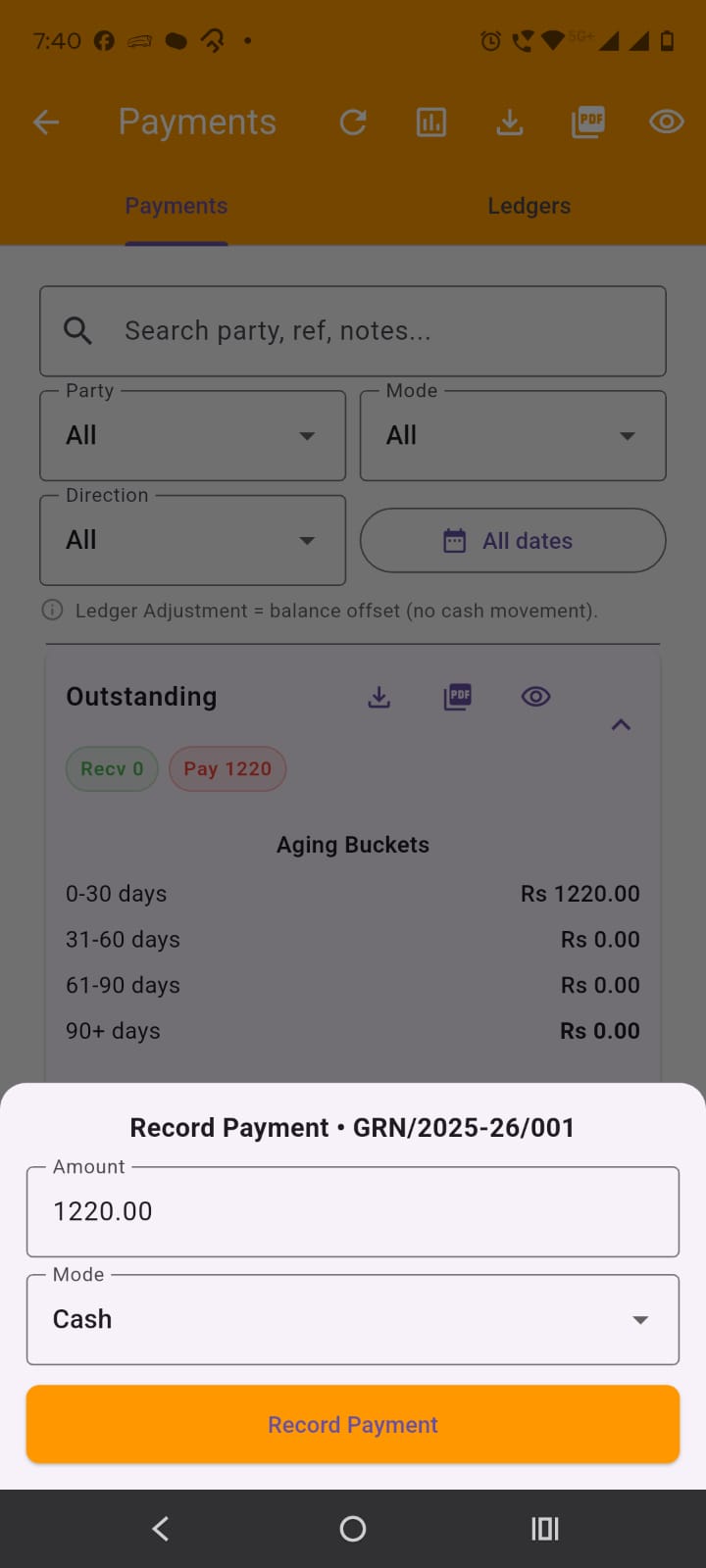
In the outstanding card, against each transaction we have the icon button to add payment against the transaction. Tapping this opens up the Add payment modal and payment can be added against the transaction.
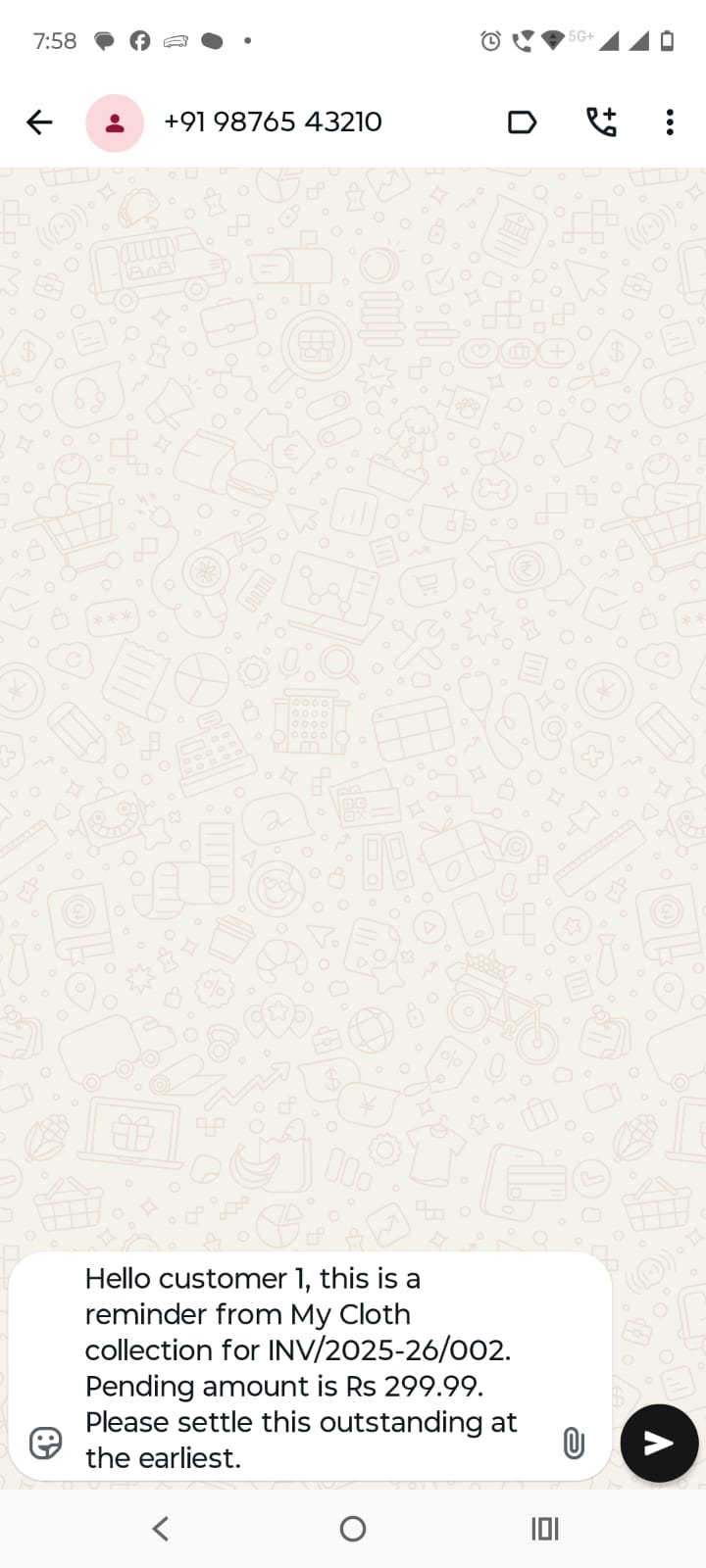
In the outstanding card, against eligible outstanding (particularly from customer) , you have whatsapp reminder icon button. Tapping on this, sends a whatsapp reminder to the customer if mobile number is added for the customer.
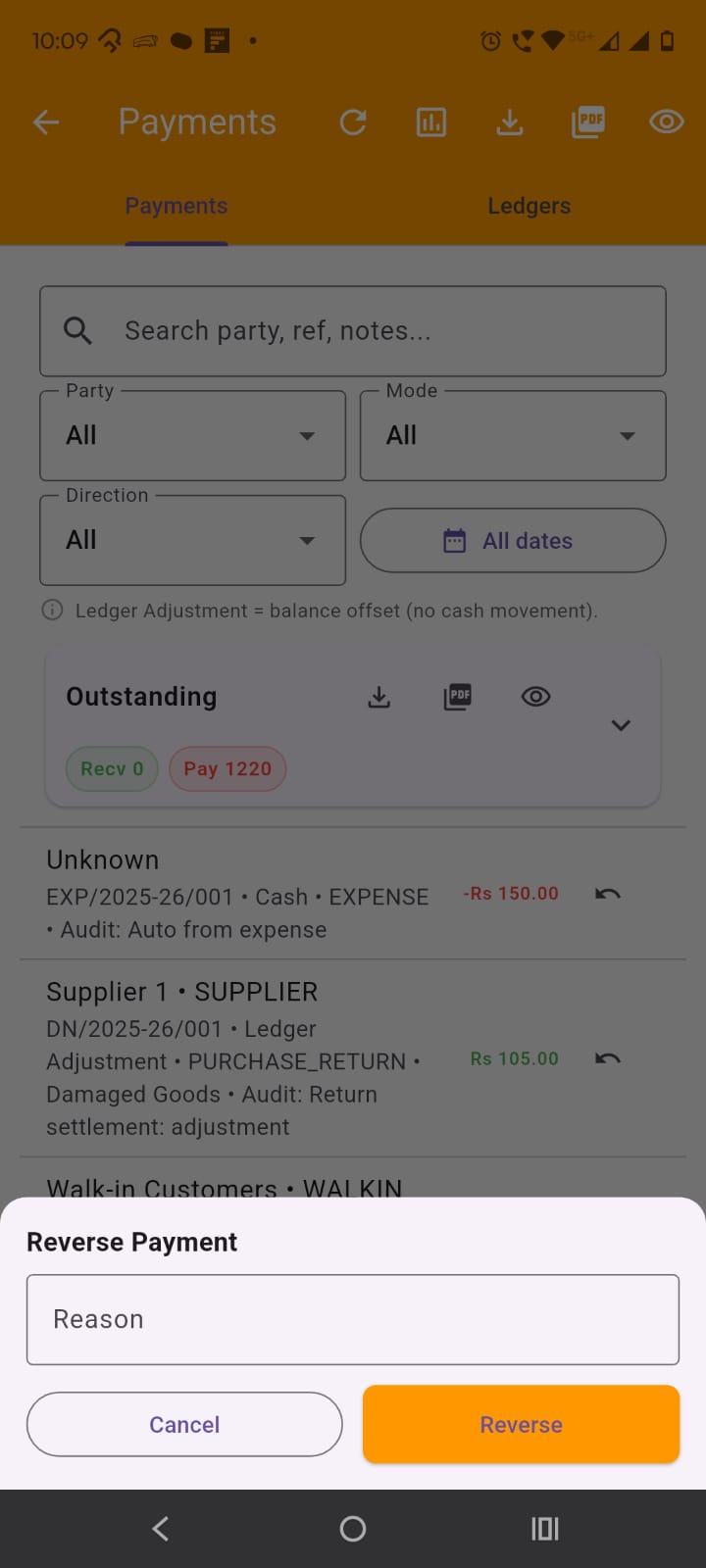
In payments tab, below outstanding card, we have the list of payment transactions. Against each transaction, we have a reverse payment icon button, tapping on which shown you the payment reversal modal and you can reverse the payment by providing the reason for it.
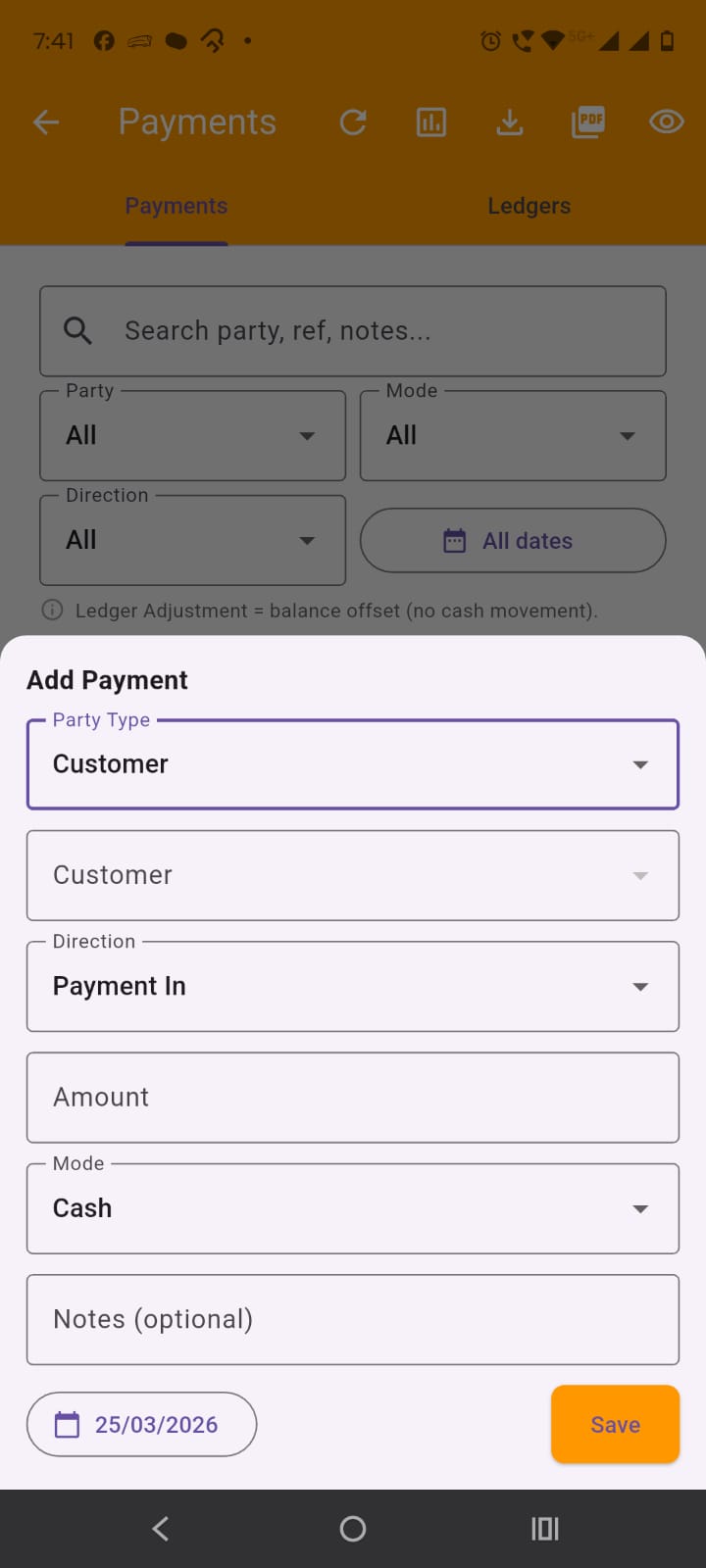
At the bottom of the payments screen, in case of both tabs (i.e. payments and ledgers), we have + (plus) FAB button, tapping on which opens add payment modal, here fill in all the details and enter save to add payment for the customer/supplier or wall-in customer.
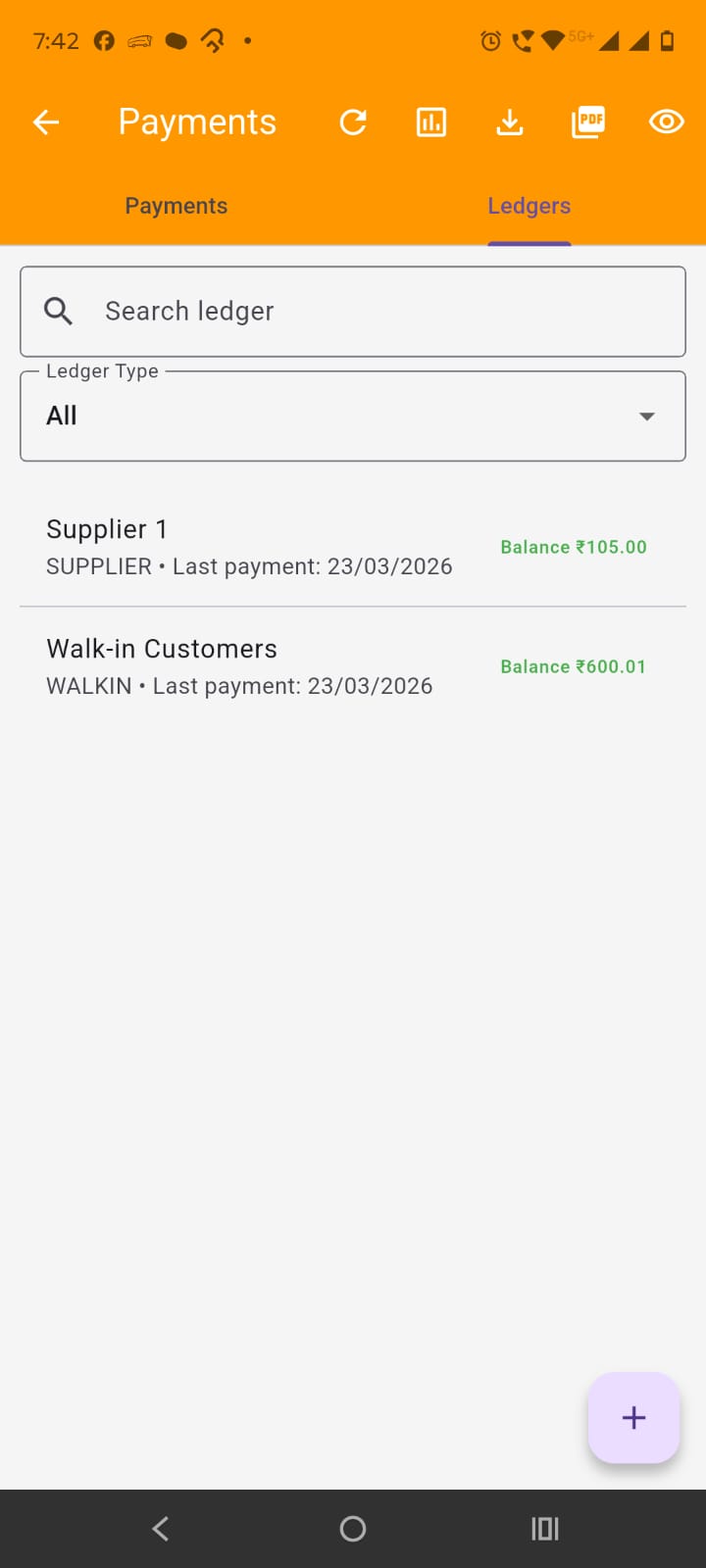
The ledger tabs, lists the payment ledgers of suppliers, customer or walk in customers. In the app bar, we have refresh button, cashbook and bankbook button which opens that screen. We also have export excel, pdf and print buttons.
In ledgers tab of the payments screen, tapping on any ledger opens up that ledger's screen like customer ledger is shown in the image.
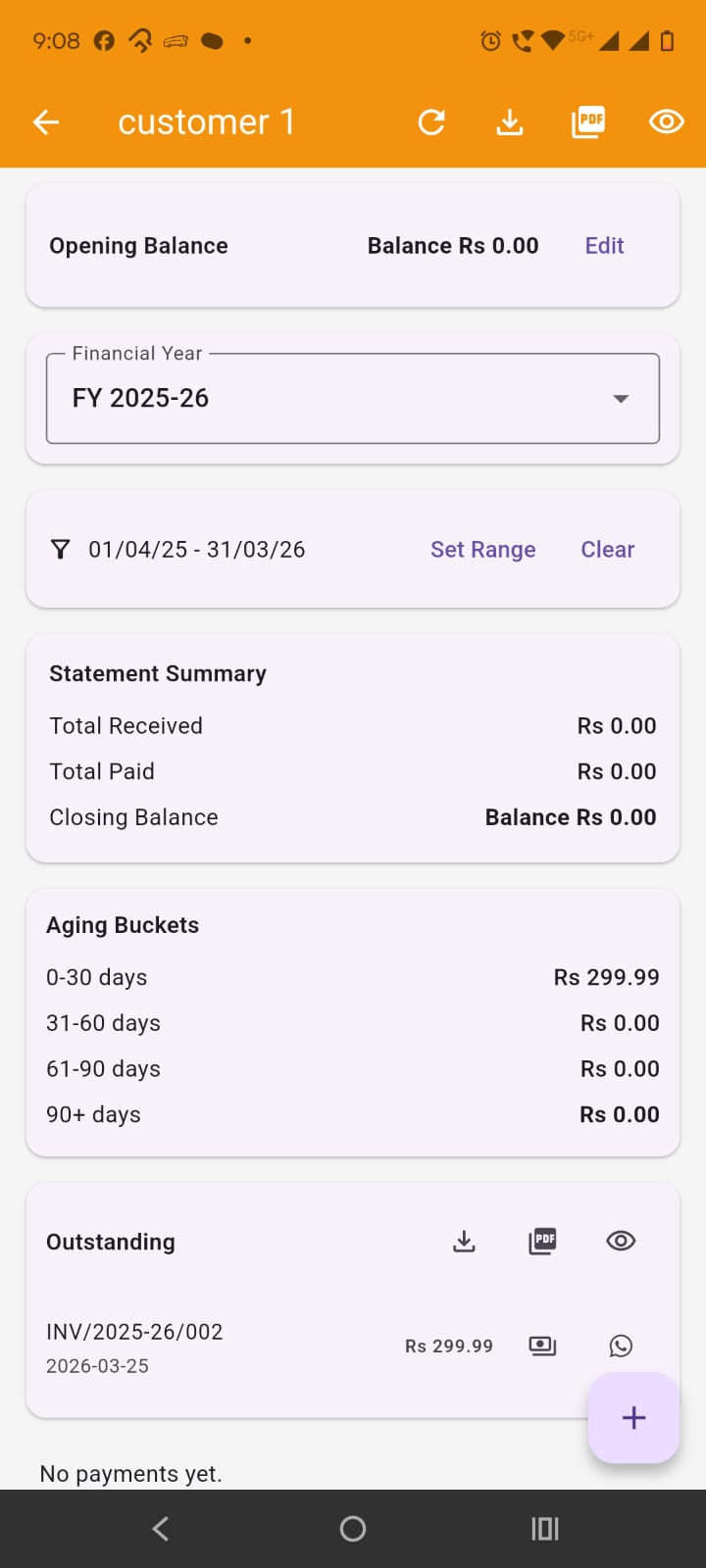
In a customer or supplier ledger, at the top we have the balance. Then we have opening balance which can be edited also. Below that we filters for the list and after that again buckets which shown payments summary over period of time. If customer has any outstanding, we see outstanding tab like in payments tab and works the same way. Below that we have list of payment transactions and add the bottom we have add payment FAB button just like it was in payments tab. In the app bar of the screen, we have some export controls like refresh, export excel, pdf and print pdf.
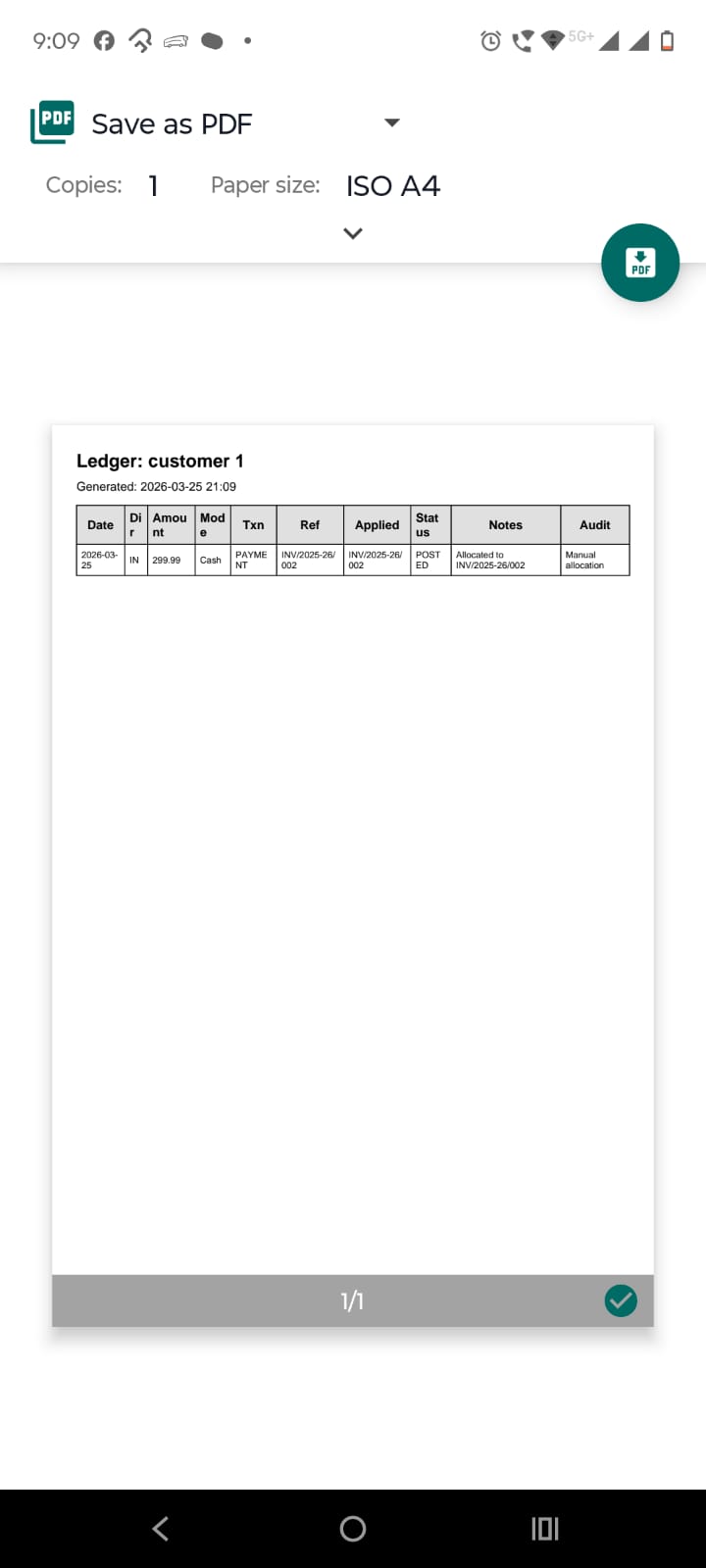
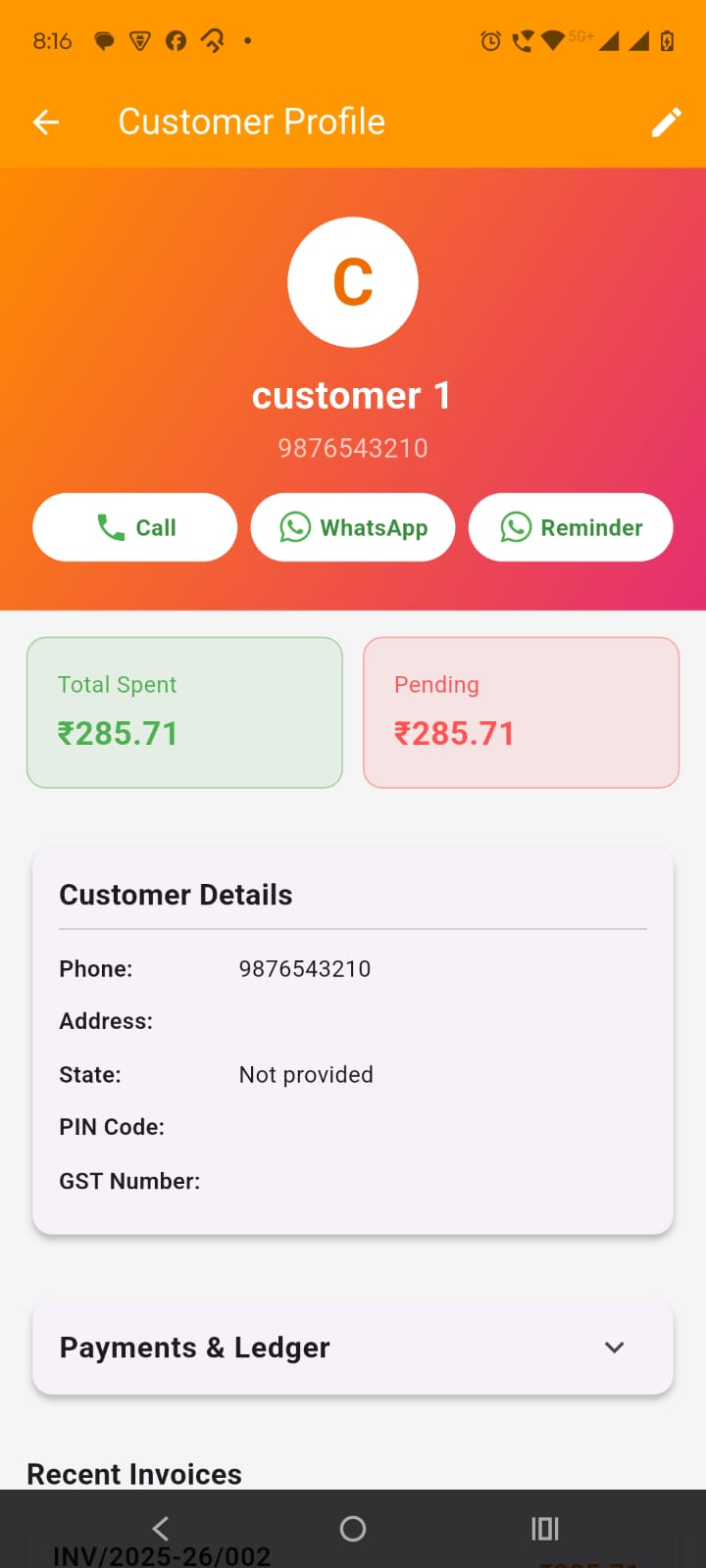
If a customer has one or more outstanding payments, then a consolidated payment reminder can be sent from customer profile screen as shown in the image.
By tapping on the Cashbook and Bankbook icon button in the app bar on the payments screen, open up Cashbook and bankbook screen. It has three tabs namely cashbook, bankbook and Adjustments.
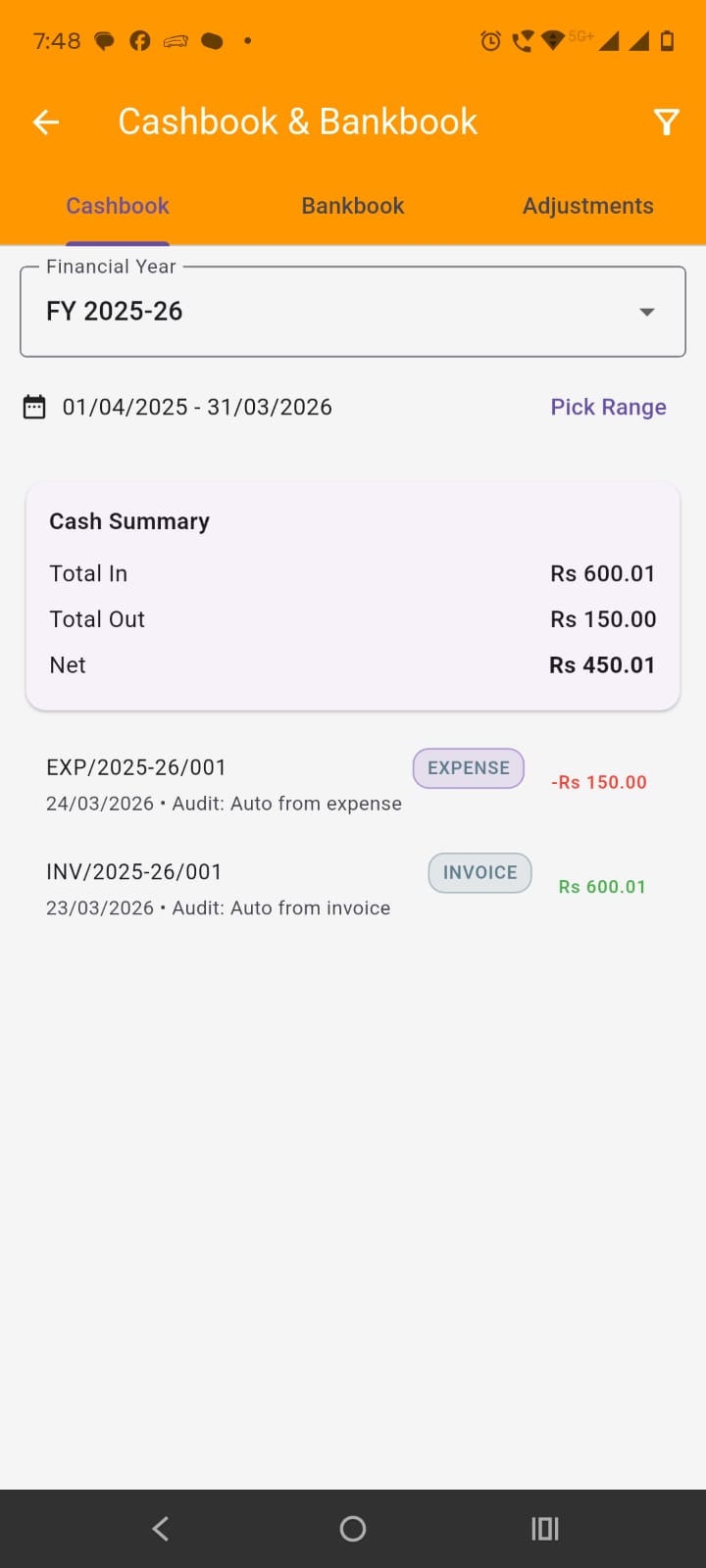
The cashbook lists the payments settled in cash. This tab has cash summary of the listed payments and FY filter and date range filters also
The bankbook lists the payments settled in bank account. This tab has bank summary of the listed payments and FY filter and date range filters also
The adjustment tab lists the payments settled adjusted against some supplier or customer ledger and no payments received in cash or bank account. This tab has adjustment summary of the listed payments and FY filter and date range filters also