VariPOS Documentation
Read module-by-module like an operations story. Every scene tells what to do, what to check, and what outcome to expect.
Read module-by-module like an operations story. Every scene tells what to do, what to check, and what outcome to expect.
Now the owner sets identity, tax mode, and financial year so all entries are consistent.
Set fiscal controls and compliance defaults that affect all future data.
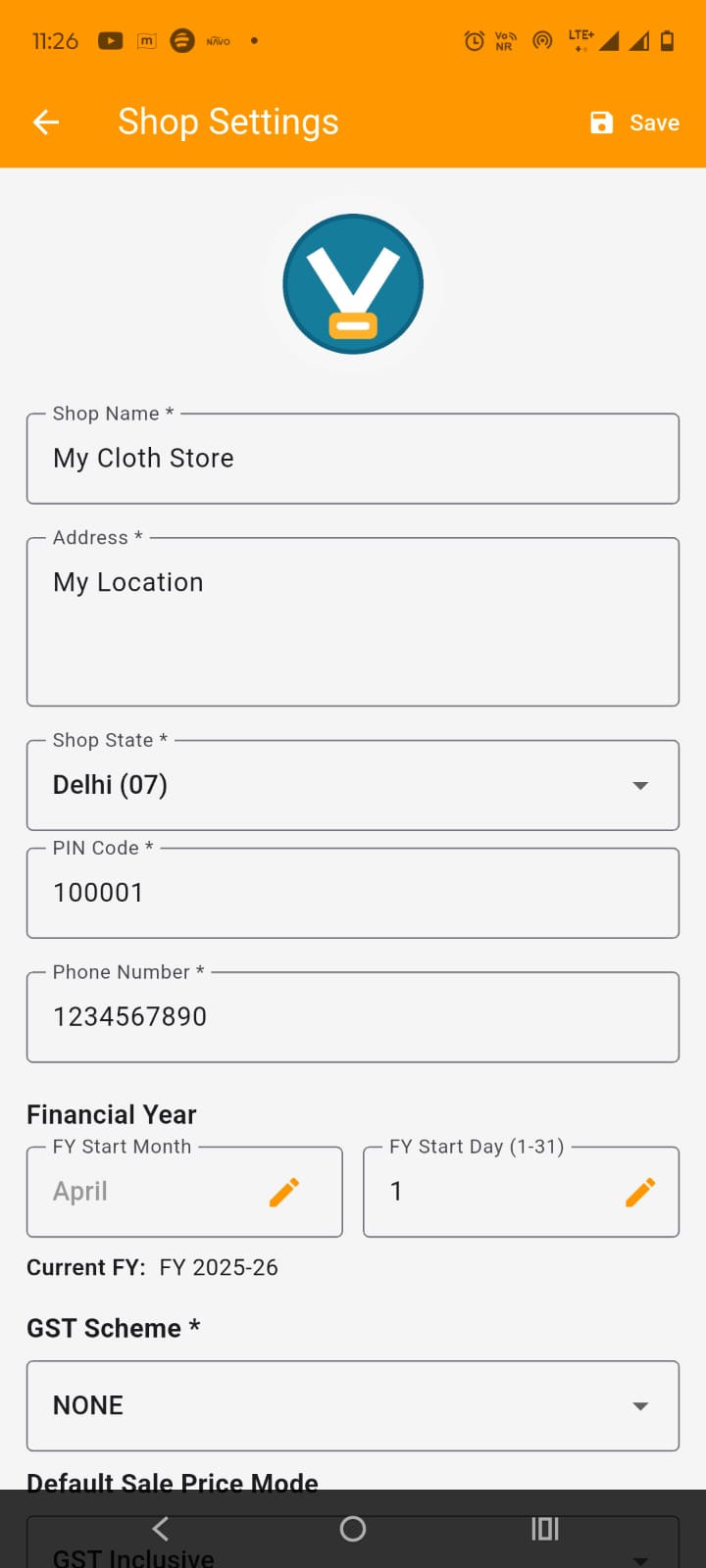
Fill legal shop name, address, contact, Shop State, PIN Code, Phone Number (Fill carefully as these will be shown on all the documents to be issued).
Set Financial Year Start Month and FY Start Day. You will almost not required to change it. However, if required, it will ask for admin password (which is blank for first time setup).
Select GST Scheme. If you have a GST Number then you must enter it in the respective field (If GST Scheme is REGULAR/COMPOSITE).
Set fiscal controls and compliance defaults that affect all future data.
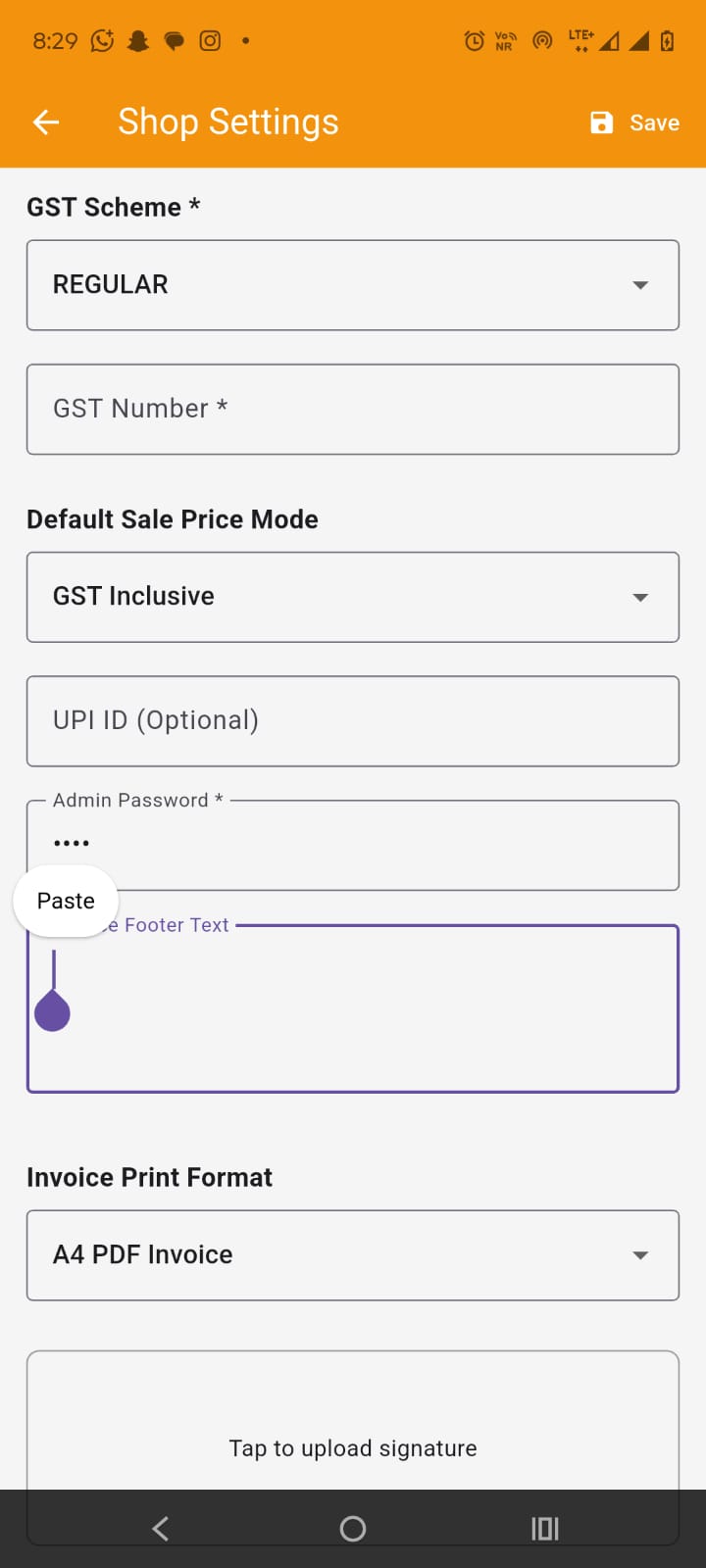
Set scheme correctly (regular/composition/none) as per tax registration state and enter GST number if applicable.
Set Default sale price mode, it may be GST inclusive or exclusive. Set your UPI ID if available which will shown on invoices and app dashboard. Set the admin password which is used to protect the sensitive parts of the application from unwanted changes.
Set the Invoice Footer Text which will be shown/printed on the invoices e.g. "Happy shopping" etc.
Set the invoice print format like A4 or thermal and if thermal , then its size also. Upload logo/signature assets and verify legibility on sample PDF/print and adjust the size if not suitable later on.
Verify financial year data, start and end dates.
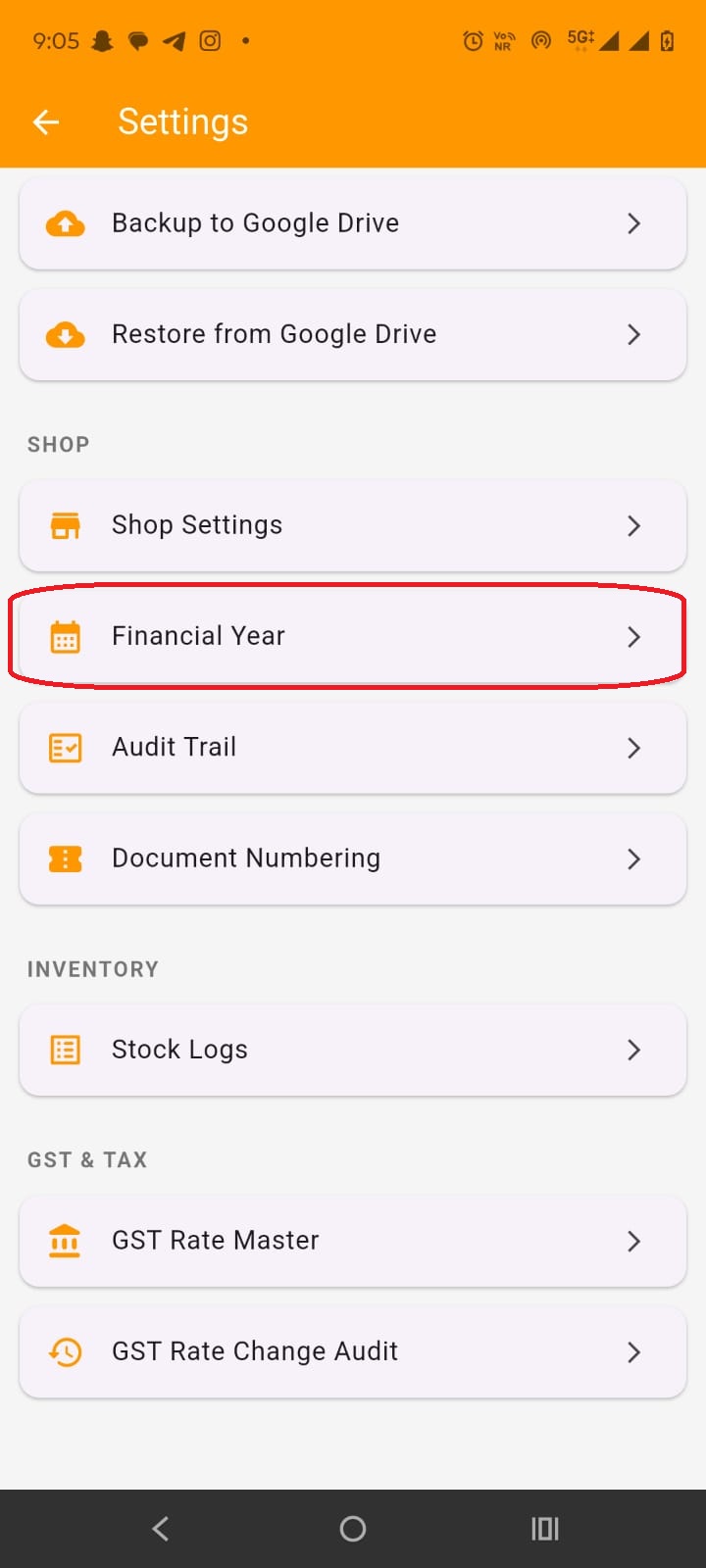
To check if the correct Financial year is set, you need to go to Settings-->Financial Year. It will ask for admin password for allowing entry.
Here you need to check if the correct FY is set and its start and end date is correct. It is advisable to not to change the FY start date frequently as it may corrupt your data. Set it correctly during initial setup, which you generally do not need to set.
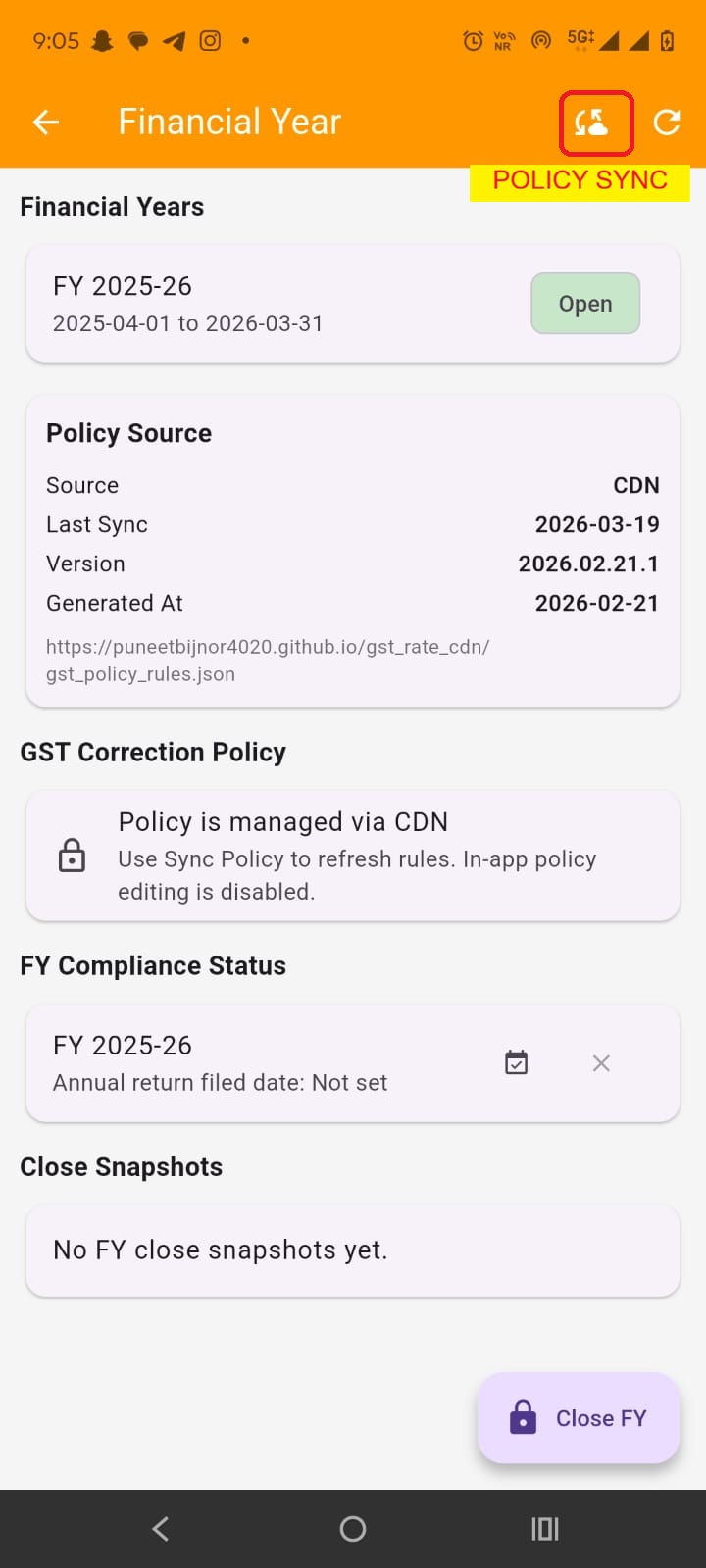
Here you also need to check if the FY policy is synced, generally it it synced after initial setup. If it is not synced, you can manually sync as shown in the image. Or you can simply close and restart the application. Here you can also close the current FY which will open the next FY but at the already set FY start date only (close FY only after next FY is actually started otherwise it will create problems and for initial setup it is not required).